

6 Hidden Mac Settings That Instantly Boost Productivity
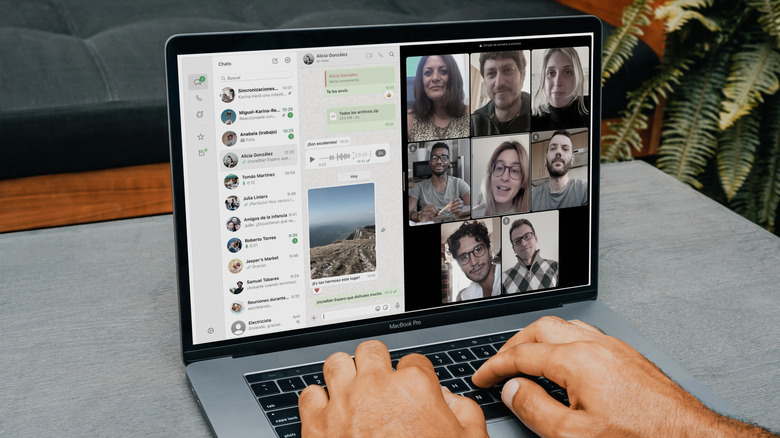
Apple's Mac offerings have been setting the standard for productivity and efficiency for generations, as these computers strike the best balance between software and hardware capabilities. Specifically on the software side, macOS offers a well-crafted, user-friendly experience that fosters productivity through its feature-rich yet straightforward interface. The first-party apps provide robust functionality through the Apple ecosystem that creates a synergy between your Mac and the rest of your devices, including the iPhone and the iPad, thus making it convenient to universally manage tasks and notifications. Still, this is just the top layer of the whole Mac experience, and even seasoned users may be unfamiliar with its true capabilities beyond the surface.
Whether you're a long-term user or someone getting into Macs for the first time, there are several lesser-known macOS native settings. You can automate mundane workflows via a library of pre-built actions, or enable multitasking like a pro via grouping multiple apps to avoid clutter. As such, this list dives into six lesser-known Mac settings you should consider to boost productivity instantly.
Hot Corners
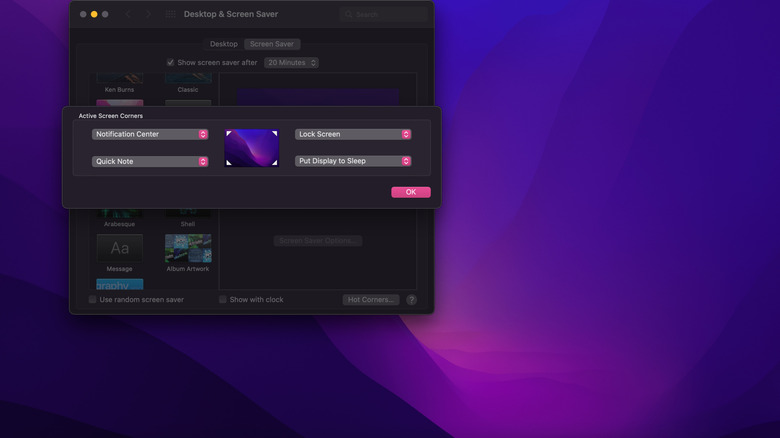
Beyond shortcuts, there is another way to perform a task on your Mac instantly. You can use the Hot Corners feature to assign a specific action to each corner of your screen, with such actions ranging from locking your screen, putting the display to sleep, or opening Notepad. To trigger the action, you just need to hover your mouse over the assigned area.
To enable Hot Corners, you need to:
- Open System Settings.
- Search Desktop & Dock
- Click Hot Corners
- Configure
For systems on macOS Monterey and earlier, go to Desktop & Screen Saver → Screen Saver, and the Hot Corners setting is at the bottom right of the tab.
You can also choose to set up a Hot Corner with a modifier key, so that moving the mouse cursor into that corner alone would not activate the designated function. This prevents the accidental triggering of these actions. Modifier keys include Command, Shift, Option, or Control. To disable Hot Corners, select the hyphen (-) option for the corresponding corner.
Stage Manager lets you multitask like a pro
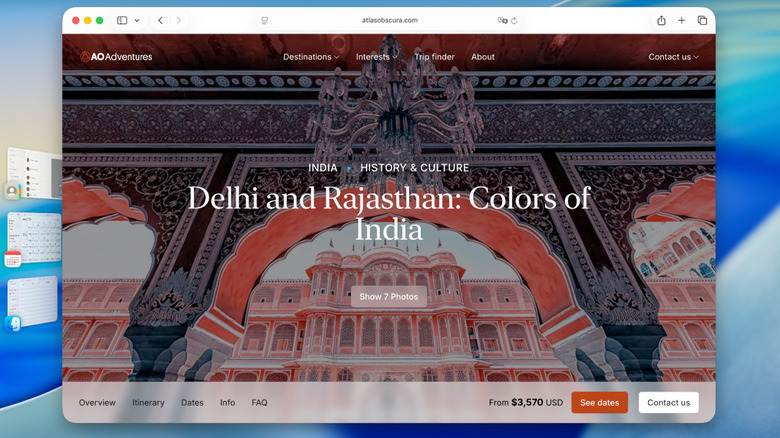
While the Command+Tab combo is the staple for multitasking on a Mac, there are more efficient alternatives. In cases where you may have opened a cluster of apps, switching between them can be annoying, leading to wasted time and reduced productivity. This is where Stage Manager comes into play. The function allows opening multiple apps. With one main app in the center, the rest are organized on the left side of your screen as previews. From there, you can navigate through all apps, group/ungroup, pair them, and arrange windows to fit your needs best, while still staying updated across each tab.
Stage Manager works with external monitors as well, and you can drag and drop apps between both displays. You can enable the feature from the Desktop & Dock tab in System Settings, and toggle it on or off in the Control Center at the top. Notably, your system must be on macOS Ventura or later to use Stage Manager.
Create Custom Focus Modes
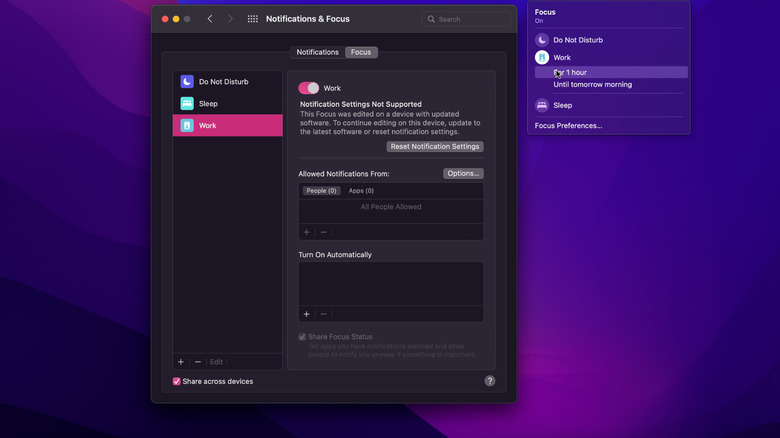
Ever working to a deadline and been distracted by a barrage of notifications? While Do Not Disturb would work on most occasions, it blocks out notifications entirely — including the ones important for you. Thankfully, macOS Monterey introduced Focus Mode, which lets you create and customize existing profiles, i.e, Work, Gaming, and Personal modes, to allow or block notifications from apps or contacts based on your needs.
Focus Mode is also a great continuity feature that syncs across your other Apple devices and can be triggered automatically when entering a location, at a specific time, or when opening or closing a particular app. For instance, you can set Work Focus Mode to activate whenever you open Slack, muting unwanted notifications, and hence staying fully engaged without interruptions. Furthermore, you can also choose to customize app behavior, meaning you can change the content shown in apps like Calendar, Mail, and Messages, showing only work or personal content by filtering out the other.
MacOS Sequoia was a game-changer, introducing Reduce Interruptions, an Apple Intelligence–powered feature within Focus Mode in version 15.1, which automatically prioritizes or filters notifications based on their urgency or whether they're deemed nonessential. While Focus Mode already has a tab in the Control Center, it can also be created as a widget shortcut that everyone should be using.
Quick Look lets you view and edit files instantly
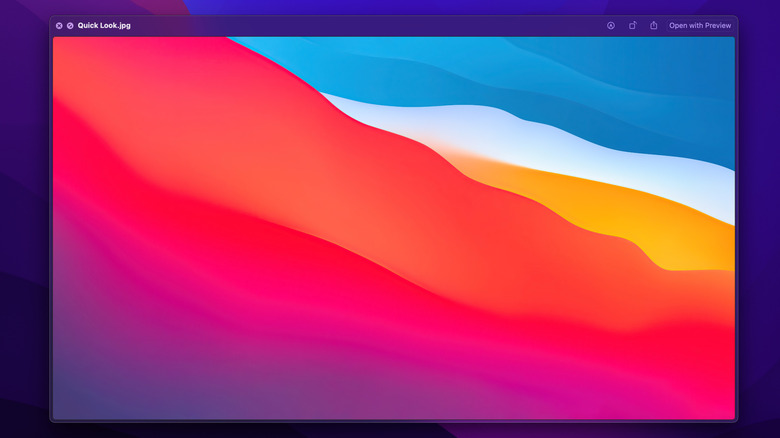
Quick Look is an indispensable Mac feature that lets you get a quick sneak peek at files, while also offering minor editing options. To preview a file, simply select an item and press the Space bar to get a glimpse. From there, users can rotate images, zoom in or out, or use the markup tool for basic edits, like cropping, adding scribbles, and more. Quick Look works with a wide range of file types, including most common multimedia and document formats, such as PDFs, text files, and presentations.
When selecting multiple files, you can scroll through each of them via the arrow keys. You can also click on the thumbnail option in the top-right corner to view an overview of all selected files. To close the Quick Look preview, press the Space bar again. This feature saves a lot of time by letting you navigate multiple files and make quick edits without repeatedly opening and closing them.
You're probably not using Spotlight to its full potential
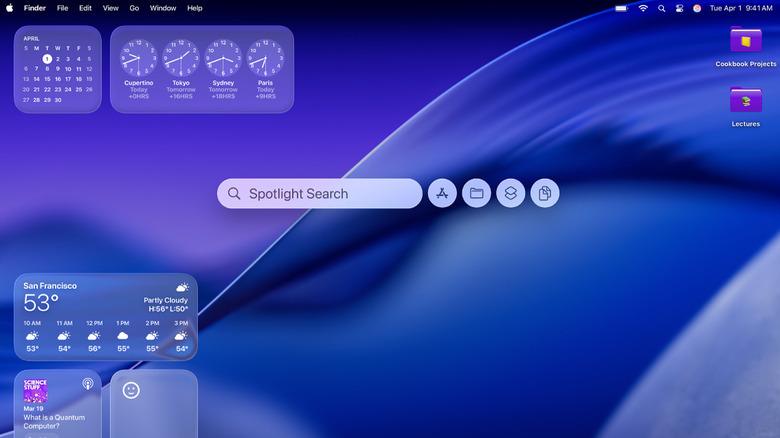
Most Mac users disregard the Spotlight feature, treating it as a mere search button, but in reality, it is capable of doing so much more. Aside from file and app searches, you can perform a variety of activities by simply typing into the search bar, including converting currency, calculating values, or toggling settings without having to open System Settings itself. Other than that, internet searches can also be executed from Spotlight by entering your search terms, and pressing Command + B to go right into your default browser, or pressing Command + L to search a word in the dictionary.
With macOS Tahoe the Spotlight upgrade smartened productivity by introducing the new Actions filter, which lets you trigger functions such as sending emails, getting directions, and more, saving time and effort. The new Quick Keys feature in Actions also lets you set up a specific task with a combo of letters for greater efficiency, e.g., creating a Calendar event. To configure, you can scroll through actions you might want to create a shortcut for, and beside them you'll find an option to assign the specific key combo you want.
Automator makes your life easier by simplifying workflows
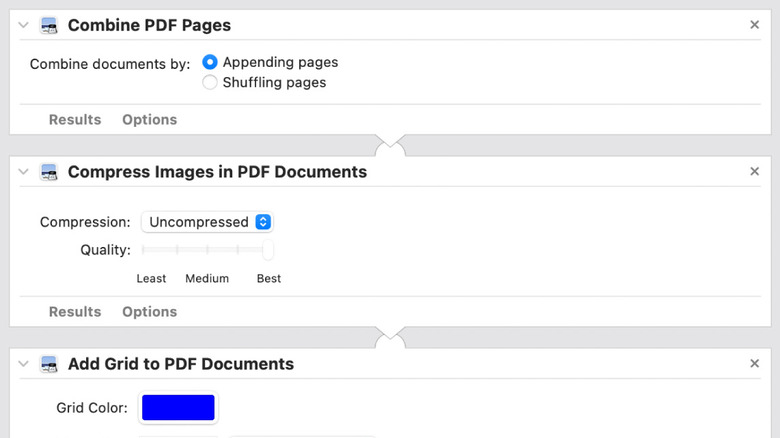
Since its introduction, Automator has been somewhat overlooked, but it is an essential MacBook app you should be using in 2025. As the most important Mac tool for boosting productivity, it streamlines your workflows by handling repetitive tasks for you.
Within Automator, you can choose your workflow type, such as Quick Action, building with the specific steps you require. Even though the app may seem complex, you don't need any coding knowledge to use it, and it comes with a massive library of pre-built actions that you'll just need to drag and drop into a new document to execute.
Then, you can choose to batch rename files, convert file types in bulk, watermark multiple images, set multiple dates, and much more. There are tons of functionalities that users will find interesting, made to measure for them, trimming the time taken on everyday mundane tasks at just the click of a button.