

7 TV Settings The Stranger Things Co-Creator Insists You Need To Turn Off
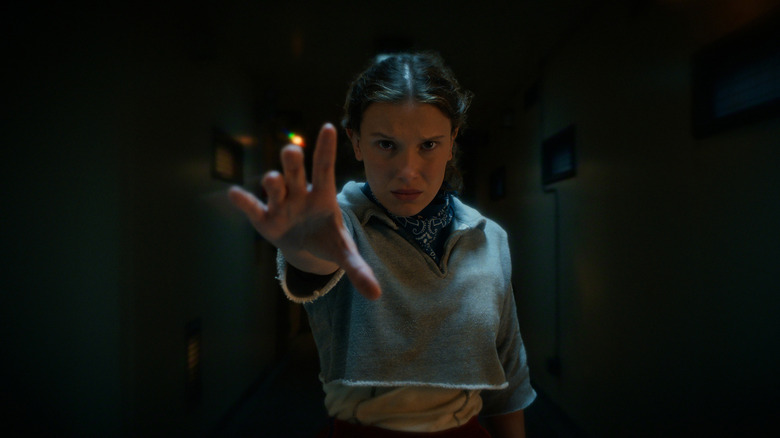
If you haven't yet had the chance to watch the first part of the three-part final season of Netflix's "Stranger Things," or maybe you're planning to re-watch it ahead of the season 5, volume 2 release on December 25, 2025. In that case, you'll want to note some TV settings adjustments courtesy of Ross Duffer of the Duffer Brothers, and the creator of the series. Even if you've already watched part one, adjusting these settings will help you get the best possible image in time for parts two and three.
Duffer posted what he calls a PSA on his Instagram account advising on common TV settings that he recommends turning off. These settings, he says, will negatively impact the viewing experience and display scenes in a way that is not as the filmmakers (because yes, the episodes are like mini-movies!) intended. Among them is TruMotion or motion smoothing, which causes the dreaded soap-opera effect, along with various picture settings for resolution, contrast, and color filtering. There are also other picture options he urges fans to avoid, like noise reduction. In getting rid of these "garbage" TV settings, as Duffer calls them, you'll get a more true-to-life cinematic experience throughout the episodes.
Turn off motion smoothing
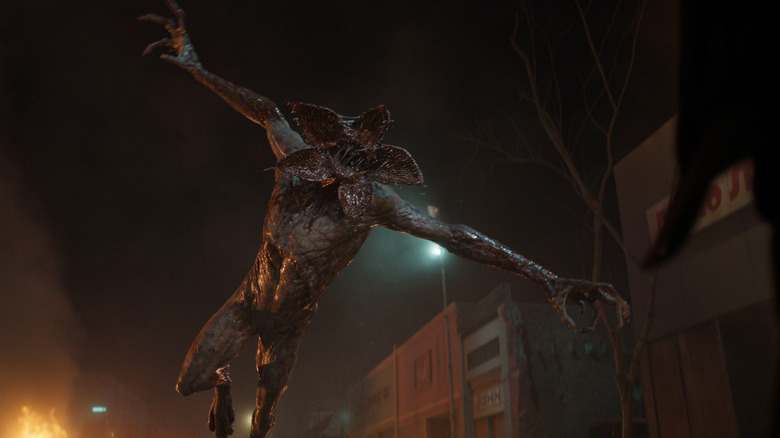
What Duffer refers to as one of the "worst offenders" is TruMotion, also known as motion smoothing. This feature causes what has become known as the soap opera effect, where motion appears unnaturally smooth and real. It's called as such because the images on screen end up looking more like a corny soap opera and less like a gritty cinematic series.
The motion smoothing feature does have its benefits, such as for content like soap operas and reality TV. Since the mode artificially increases the frame rate to give you ultra-smooth motion and hyperrealism, it can also help reduce blur in sports and even games. While some viewers love the feature for certain content, others despise it altogether. Either way, for a show like "Stranger Things," it will make scenes, especially when the camera pans quickly, look downright weird. If the TV has a separate setting for blur reduction, it might be worth keeping on. But if the display boasts at least a 120Hz refresh rate, it should be able to handle motion blur without these added frills.
Vivid mode is a big no
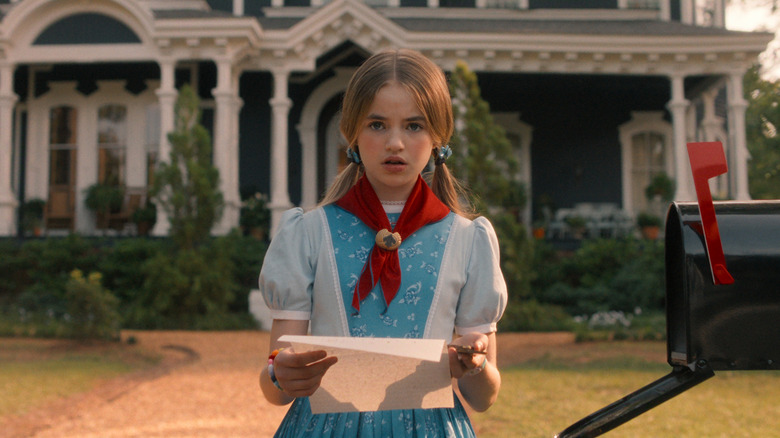
Duffer points to a setting called Vivid Mode that's available on his LG TV, but advises against selecting this mode, or anything similar to it, if available on another TV. "It's going to turn on all the worst offenders," he says in the Instagram video, "it's going to destroy the color, and is not the filmmaker's intent."
This mode, which might also be called dynamic mode, is designed to boost brightness, contrast, and color saturation. This could be great for animated movies or things like baking shows or nature documentaries. But for "Stranger Things", it will detract from the dark, ominous feel of the Upside Down, as well as many other scenes that are meant to be the opposite of punchy and vibrant. The result could be unnatural, harsh-looking, oversaturated images. While Duffer doesn't directly recommend it, if the TV has a Cinema, Movie, or Filmmaker Mode and you want a one-touch preset, these are the better option.
Noise reduction isn't needed
Another feature Duffer urges fans to turn off is noise reduction. Noise refers to the black and white dots you might see in a picture, but it's not really a major issue with the higher-quality content we get today. The only time you might see noticeable noise is when a TV is upconverting signals from a low-quality source, like an old DVD or over-the-air signal. But this is not the case with Netflix and this show, unless you're watching on a really old TV that might not even have this picture setting anyway.
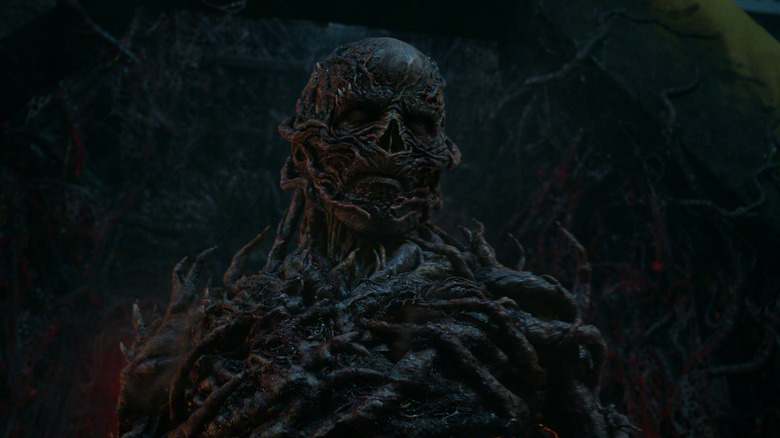
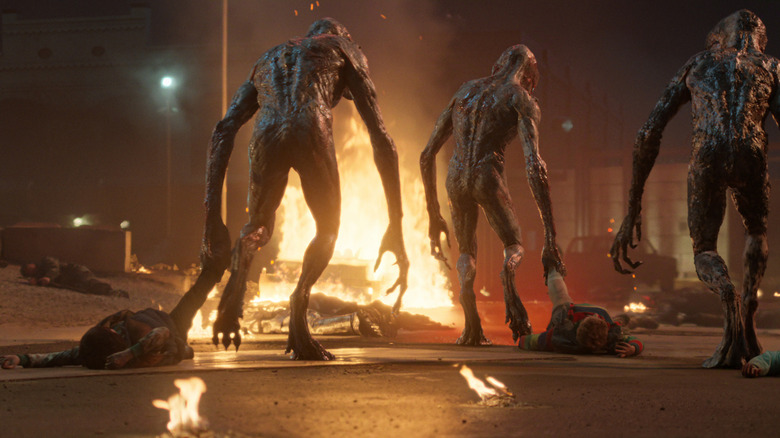
Since the digital source is already clean, make sure this mode is off. It will eliminate details and finer textures, a hallmark of many scenes in "Stranger Things." Whether it's Vecna's terrifying costume or the detail in the demogorgons as they flail their heads open to reveal the scary details of their mouth-like orifices, you want to capture every detail. The last thing you need with a show like this is a softer picture, so steer clear of this mode when watching on one of the best smart TVs.
Other picture mode settings to avoid
Duffer points to a few other settings to turn off, like dynamic contrast, super resolution, edge enhancement, and color filter. Dynamic contrast is intended to adjust the brightness in scenes, which adds vibrancy. But it can also lead to artifacts and lost details in bright or dark scenes, the latter of which is especially crucial for "Stranger Things." Super resolution uses AI to help upscale lower-resolution content so it fits a higher-res screen. But as with noise reduction, this can create a softer picture.
Edge enhancer artificially adjusts contrast at the edges of an image to make them appear sharper, but it can create an unnatural halo effect when light from a bright object spills over into a darker part of the scene. This isn't worth the potential benefit. A color filter is beneficial to reduce eye strain and filter color to accommodate those who are color blind, but it's only useful for a small subset of people who need it. "There's a bunch of crap in here you're gonna want to make sure is off," explains Duffer. Following his advice, you'll be able to truly enjoy the episodes as they were intended.