

7 CISA Security Rules Every Android User Should Know

One wrong click or harmful file download can lead to serious privacy repercussions. Attackers always come up with more sophisticated techniques and tools to trick users into phishing scams. They are always on the lookout for vulnerabilities that can allow them to access sensitive information such as banking credentials, passwords, personal details, and photos. In the first quarter of 2025, the Anti-Phishing Working Group (APWG) reported about 1,003,924 phishing attacks. The U.S. Cybersecurity and Infrastructure Security Agency (CISA), the primary institution responsible for protection against cyber threats, updated its Mobile Communications Best Practice Guidance in November 2025 due to increased espionage activity, especially from the People's Republic of China (PRC), and growing cyber attacks.
CISA provides general recommendations for users, such as using end-to-end encrypted (E2EE) messaging. It also suggests enabling passwordless FIDO authentication for sign-in, a stronger, phishing-proof login method, and avoiding SMS-based multi-factor authentication, which is easier for attackers to intercept. Regularly updating your device and using a password manager is also advised to stay protected. Beyond general guidance, CISA has provided Android-specific advice that it suggests be applied immediately. Due to increasing malware threats on Android – which jumped by 151% in the first half of 2025 (per Malwarebytes) — CISA is now pushing for stricter protections. Let's explore seven CISA security settings you should update right now to secure your Android device from modern cyber threats.
Choose a device with strong security updates
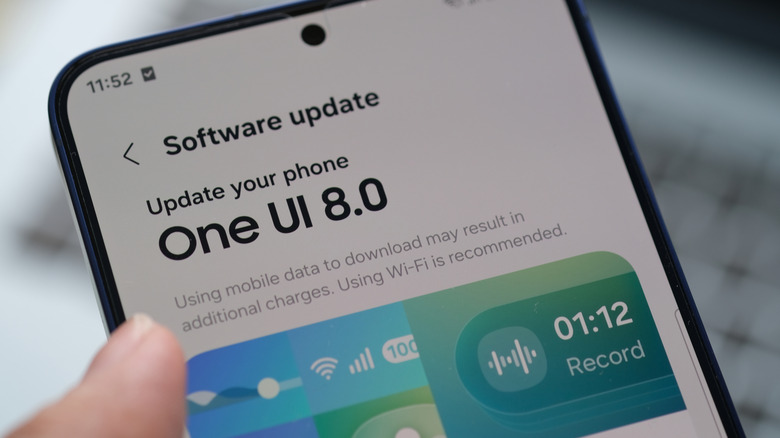
Android's open-source design lets manufacturers build devices on top of it. While Google always strives to make Android operating systems secure by making its software stronger, it alone can't safeguard the device's security and privacy unless the hardware is equally compatible. For instance, older Snapdragon 800-series chipsets had a flaw in their hardware-backed secure module, known as Qualcomm Secure Execution Environment (QSEE), which stores encryption keys. This vulnerability allowed attackers to extract those keys from the chip. Therefore, CISA says to prefer devices offering a chipset with hardware-level security features like secure enclaves or a hardware security module (HSM) to securely store encryption keys inside the chip.
It is important to select a manufacturer with a track record of offering mobile devices with the latest OEM components, such as Samsung and Xiaomi, so that not only the operating system but also the manufacturing quality is excellent.
CISA also recommends looking for Android Enterprise Recommended devices, such as the Samsung Galaxy S25 Ultra, Motorola Edge 50, and Google Pixel 10, because they meet Google's security and update standards. Additionally, manufacturers who guarantee a minimum of five years of security patch updates with at least one monthly update is another important consideration when buying a device.
Set a trusted Private DNS provider
Every time you open a website or an app, your web request is sent to your Internet Service Provider (ISP) to retrieve the data from the Domain Name System (DNS). DNS works like a directory that matches website names with their IP addresses, and by default, your ISP's DNS is used. However, your ISPs can see every site you visit through DNS lookups, and if a data leak happens, your sensitive browsing activity can be exposed.
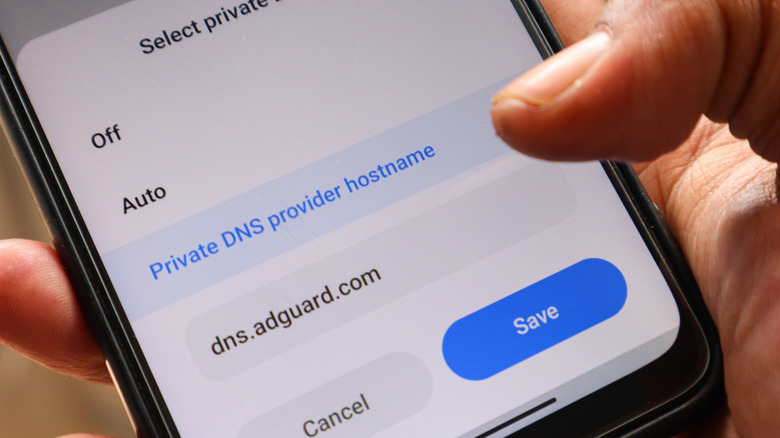
Instead, you can use a private DNS. It encrypts your DNS lookups using DNS-over-TLS, which prevents your ISP or other third parties from seeing the domains you're trying to access. CISA recommends using trusted DNS resolvers like Cloudflare, Google, or Quad9 because they offer stronger security features and protect against DNS hijacking. Also, if your ISP has blocked a website at the DNS level, a private DNS can bypass that restriction. A VPN is another good option to encrypt web traffic, but it often slows down the speeds since the data is routed through a different server.
To set up Private DNS on your Android, go to Settings and search for Private DNS. Here, you can either set it to Automatic or choose the Private DNS provider hostname option. Once set, all your DNS requests will be encrypted and routed through your chosen DNS provider. If you are entering it manually, use hostnames such as:
- Cloudflare: 1dot1dot1dot1.cloudflare-dns.com
- Google DNS: dns.google
- Quad9: dns.quad9.net
Enable Chrome's always-secure connections

More websites are moving towards encrypted security. Still, there are many sites that don't use end-to-end encryption. A webpage can have a large number of insecure HTTP requests, including images, fonts, and JavaScript. And it's important that all these requests are also served via secure HTTPS protocol, as insecure connections can allow attackers to intercept your data, inject ads, pop-ups, and steal your passwords. Therefore, CISA recommends forcing HTTPS connections wherever possible on your Android browser, a feature that Chrome offers in its settings.
According to Google Security Blog, Chrome plans to make the feature a default by late 2026. But as of now, you can enable this inside Chrome settings by going to the Privacy and Security option. Under the Security option, turn on Always use secure connections. Now, all your insecure requests, when possible, are encrypted with the HTTPS protocol. If you are a Firefox browser user, the secure mode can also be enabled from browser settings, or you can install the Smart HTTPS add-on to secure all sites.
The cat-and-mouse chase between browsers and attackers always continues, with attackers trying to exploit new vulnerabilities and developers regularly releasing security patches. Therefore, it's important to regularly update your browser to get the latest security features to block any potential threats.
Review and restrict app permissions
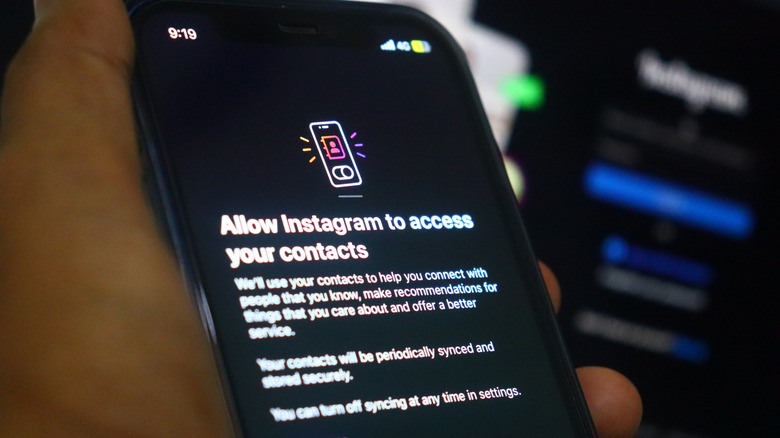
A simple-looking utility app may be sneaking your details by asking for permissions beyond what's needed for its functioning. For instance, CCleaner on Android demands access to financial details and device information for advertisements, and not for its core task. It's true that most third-party Android apps need specific permissions to operate, which are inherent in their operation. For instance, video editor apps need access to your media gallery. Similarly, a video calling app, like Google Meet, needs access to your contacts, microphone, and camera. These are permissions that are directly tied to what the app is supposed to do.
You should be concerned when apps request permissions that have nothing to do with their core purpose (for example, a simple flashlight app asking for your location, which obviously is not needed for its function). These extra permissions, disguised as the app's functionality, tend to collect data for targeted advertising and developing a user profile.
You should regularly review your app permissions and disable anything that feels irrelevant. If a flashlight app is asking for location access, you can safely turn that off. You can head over to your Android settings, check each app's settings by tapping All apps or the Manage apps option, and disable any permissions that don't match the app's core functionality. Doing this will significantly reduce unwanted data collection, as apps will only have access to information they actually need and nothing extra.
Keep Google Play Protect active
One of the easiest pathways for malware to enter an Android mobile is through sideloading apps from unknown sources. Apps downloaded from untrusted third-party sources are often accompanied by scripts that can steal your personal data. Research by Zimperium found that sideloaded apps on Android account for 38.5% of all malware cases. This is even supported by the Android Developer Blog, which states that the risk of installing malware increases by 50 times when apps are sideloaded outside the Google Play Store. So, each time you sideload any app, the danger of installing adware or spyware spikes. Therefore, turning on Google Play Protect in the Play Store is a strict security rule, as noted by CISA.
Google's Play Protect is a security feature that scans apps for any potential vulnerability. Play Protect is the go-to antivirus app for Android. Beyond app protection, if it detects something risky, it will warn you or block the installation entirely. It even scans your apps daily, flags or removes harmful ones, and helps keep your device safe from malicious software. To enable it, open the Play Store > profile icon > Play Protect. On the top-right, click on the gear icon and enable both Scan apps with Play Protect and Improve harmful app detection toggle. Even so, it's best to avoid downloading apps from unknown sources to keep your mobile malware-free.
Use encrypted Rich Communication Services
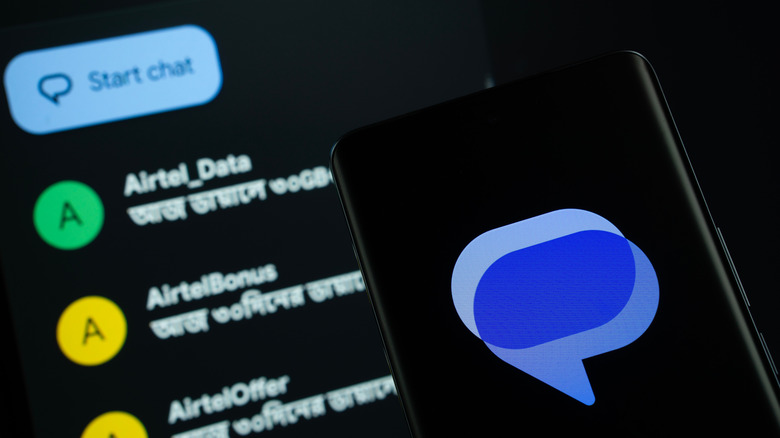
The Android Messages app is no longer that age-old basic SMS service. You can turn it into an instant messaging app similar to WhatsApp or iMessage that can work over mobile data or Wi-Fi with Rich Communication Services (RCS). With RCS enabled on your Messages app, you get a modern chat experience offering features like typing indicators, read receipts, and end-to-end encryption (E2EE) for one-on-one conversations. If your messages aren't encrypted, they're essentially public. CISA notes this feature as one of the specifics to enable on your Android. The E2EE only works when both people in a one-to-one chat have RCS enabled. Plus, recent Google Messages updates protect your Android phone from scams by adding tools like key verification for secure chats. Additionally, unlike third-party messaging apps, RCS works directly with your phone number, so there's no need to create an account or add contacts manually.
Beyond security benefits, RCS also improves how your messages handle media and attachments. You send high-quality photos and videos without heavy compression. RCS supports larger attachments and faster message delivery. You also get smart features like message reactions, edit send messages, emoji replies, and link previews. These features make switching to RSC worthwhile for most users who regularly use Messages for daily communication. You can directly head over to the Messaging app > your profile > Messages settings > General > RSC chats > Turn on chats.
Enable Safe Browsing on Google Chrome

Phishing is still one of the most prominent techniques attackers use to steal user data by deceiving them into clicking a malicious link. AI phishing is another looming cyber threat that has recently gained traction, where attackers create personalized phishing messages. The threat is constantly growing. In 2025 alone, Kaspersky reported around 500,000 malicious files daily, including a 59% rise in password-stealers and a 51% jump in spyware attacks. Many of these threats originate from deceptive websites, as attackers often use highly sophisticated web designs and techniques. Therefore, it's important to block harmful websites before you risk exposing your sensitive data. Therefore, Google is using AI to protect your information on the Chrome browser.
Google Chrome offers a built-in Safe Browsing feature for web protection. When a web request is made, the URL details are sent to the Google Safe Browsing database, and if a domain or link matches, the browser blocks the page with a warning. You can set this feature by going to the Privacy and Security option under Chrome settings. Here, tap the Safe Browsing option. Now, you can select Standard protection, but CISA recommends using Enhanced protection to block malicious websites, prevent any phishing attempts, and stop downloading harmful files.