

The Best Way To Keep Your Laptop's Keyboard Clean
We tend to focus on cleaning the germ-filled screens of our tech devices, from our phones to our tablets, and yes, even our laptops. When it comes to laptops, the keyboard can be a dust magnet. What's more, if you eat lunch at your desk, you'll likely find crumbs between the keys. Have pets? Your cat's hair has probably made its way to the keyboard, too. This is not only unsightly and messy, but a dirty keyboard can also affect the typing experience, and can even cause damage to the laptop.
It's important to keep your computer's screen clean, but it's just as important to clean your laptop's keyboard. However, you usually can't use the same cleaning solution, and the process is a bit more intricate with a keyboard, as you need to get into the crevices between the keys. The method can vary depending on whether you're using a laptop's built-in keyboard or an external keyboard.
You'll need a few key items, including isopropyl alcohol, cotton swabs, a toothpick, a microfiber or other soft cloth, disinfectant wipes, cleaning slime or low-adhesive tape, and a can of compressed air. In a few steps, your keyboard will be like new again.
Cleaning a laptop keyboard

For a laptop's built-in keyboard, unplug the computer and turn it off. Lift and turn it over to shake out any large or loose debris. Shake the can of compressed air and give it a few sprays away from the laptop to get the air flowing, then hold it upright and blow between the keys. It can even be used to remove debris from side ports.
Use either cleaning slime — one of the best computer and keyboard cleaning tools – or low-adhesive tape, pressing it into the crevices between keys to remove any remaining dust and debris. Make sure you only apply light pressure while doing this. If there is still dirt or debris wedged in between the keys, use a cotton swab with a bit of alcohol on the tip to dislodge and remove it. A cotton swab is also great for sliding along the gap between the keyboard and the screen.
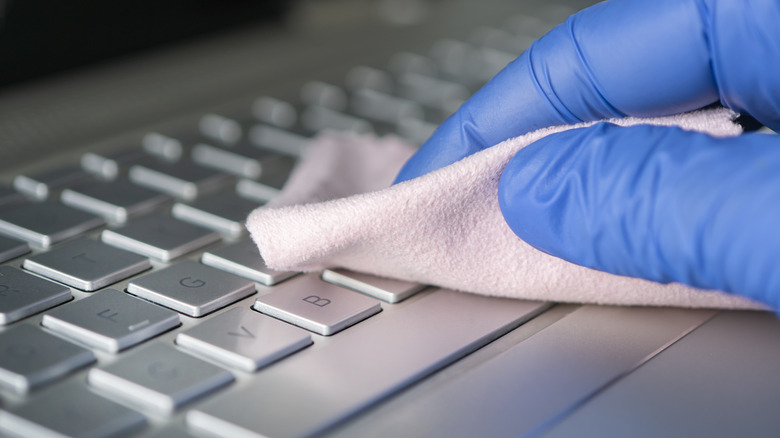
Run a disinfectant wipe over the top of the keys with light pressure. You might want to squeeze it out first to ensure there's no excess moisture. Finish it off by polishing the surface with a soft, dry cloth, then let the computer dry completely before you turn it on.
Cleaning an external keyboard

Whether you have one of the best wireless keyboards or a wired one, the cleaning process is much the same. Disconnect it, turn it off, flip it upside down, and shake it to remove any loose debris. Then use the compressed air to remove any remaining debris. Put alcohol on a cotton swab (never apply it directly to the keyboard), and then gently rub between the keys. Depending on how dirty the keyboard is, you may need to repeat the process to fully clean it.
If any of the dirt is hard to remove, use a toothpick to dislodge it, but do so gently. Some external keyboards have removable keys. For an even deeper clean, remove the keys one by one, and use a cotton swab or a toothpick under each key. Tip: If you prefer to remove all the keys at once, take a photo of the keyboard first to use as a guide so you don't forget where each one goes.
Add a little alcohol to a microfiber cloth, then wipe down the tops of the keys. You can even use this for the surrounding area or your mouse. Finish it off with a dry, lint-free cloth to remove any remaining dust. In doing this quick clean at least once a month, your laptop keyboard will remain in tip-top shape.