

5 Essential Windows Apps That Can Speed Up Your Aging Computer
Nothing lasts forever, and that is never truer when it comes to personal computers and laptops. And with the current state of the world thanks in part to tariff instability and the growth of AI, things don't look to be getting any cheaper for those looking to upgrade or purchase a new computer. That's why it's more important than ever to keep that older machine you may have working at peak performance and not repropose it just quite yet for your next craft project.
We've talked before about essential Windows 11 settings you should change to help the OS run better, but there are a number of free third-party applications that can help turn that older PC that is beginning to chug back into one that has a little more pep in its step. We have scoured the internet to find various apps that users and experts have sworn by. We also have looked to tools that don't take a degree in computer science to wrap your head around in order to fully take advantage of.
The following applications may help in speeding up your computer, removing bloat, and addressing issues that you might not even know were slowing down your computer. Some of these tools can be downloaded online, while some actually come bundled with Windows 11, making using them fairly easy and straightforward.
Startup Apps
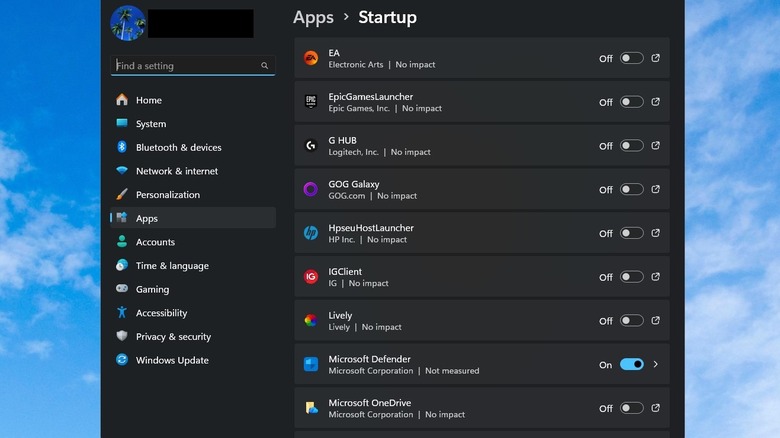
Chances are that you have installed a good deal of software onto your PC and laptop. From work-related tools to gaming-related offerings, you probably have a number of applications running all the time when your computer is in use. The more applications that you have running in the background will definitely impact the performance of your computer.
Windows 11 has a built-in application in Settings that allows you to disable any application from starting when you boot your computer. Simply right-click the Start menu and select Settings. From here navigate down to Apps and click Startup. From here you can toggle off any application that has been set to load upon startup.
Chances are you will find a number of applications running that you don't use on a regular basis or were even aware were loading on boot. You can turn off things like Microsoft Teams, Zoom, Microsoft Office, Xbox App Services, iTunesHelper, Chrome, and more. These apps might be essential for many, but chances are you don't need them running at all times and opening them through their shortcuts will load them as needed.
CrapFixer
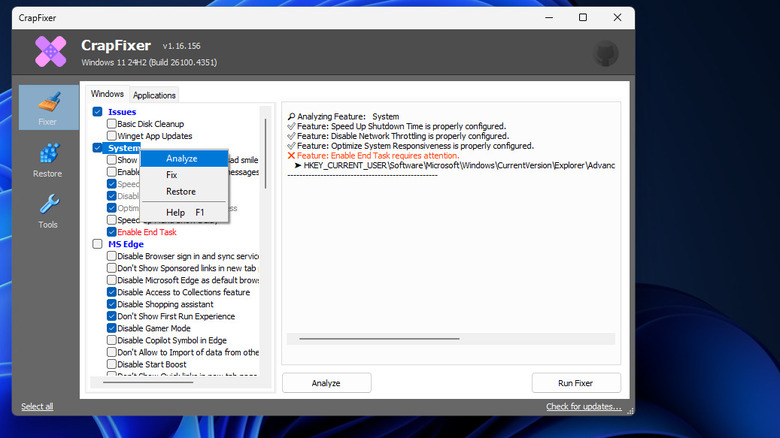
Silly name aside, CrapFixer does exactly what it says on the tin. This little tool works on Windows 11 machines, and it essentially cleans the crap that is making your computer run slower. You simply download the application, let it run, and it will provide you with a list of options that can potentially help speed up your aging system.
There are no fancy tweaks or settings to mess with while using CrapFixer. Simply run the program as an administrator and select Analyze, and it will do all the work for you. The program will then generate a list based on the default selections, or the ones you choose through the checkbox list on the left-hand side of the main window. Items that show up in red are recommended fixes, and those that are in gray have already been optimized. Finally, you will want to click Run Fixer and CrapFixer will handle everything for you.
CrapFixer can run disk cleanup, update Windows apps, optimize system responsiveness, speed up shutdown, disable Microsoft Edge and Windows search suggestions, disable Game DVR, and more. There are tons of options to choose, and you can right-click on each option to learn more about what it does. This is a simple tool to disable a lot of applications that can lead to Windows feeling sluggish over time.
SpaceSniffer
I have a PC with several large SSDs installed. Each serves a particular purpose such as one for installing games onto, another for work documents, one for editing video content, and another catch-all for random downloads. All of these drives are nearly at their limit, and if you have an older PC then chances are you might be in the same boat, even if you only have a single storage drive.
When an SSD is getting near capacity, it can begin to slow and cause your system to feel like its lagging. This is due to the fact that the controller inside the drive has to work overtime in order to find usable blocks where data can be written. But when you have a full storage drive, how do you find what is taking up space on that drive? That's where something like SpaceSniffer comes into the picture.
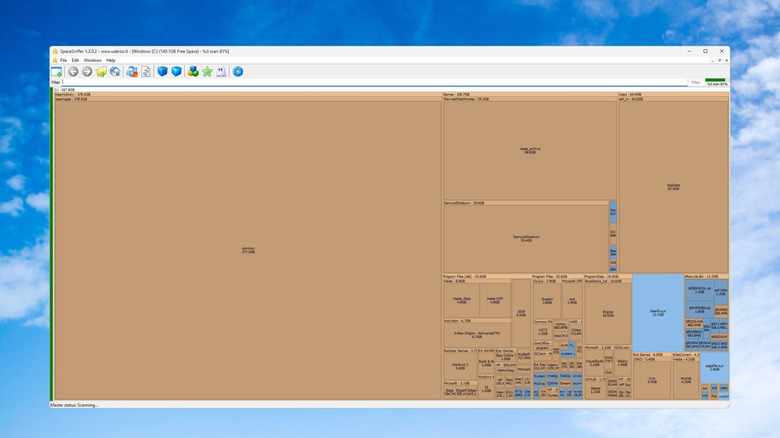
SpaceSniffer is a free application that scans and displays how all the content on a storage drive is structured. The program uses a very easy-to-understand visual layout that breaks a drive into blocks of various sizes. The larger the program or folder, the larger it will be displayed. This is a great way to see exactly what is taking up space on your storage drive. You can then easily navigate to said folder and delete data that is simply taking up space.
Everything
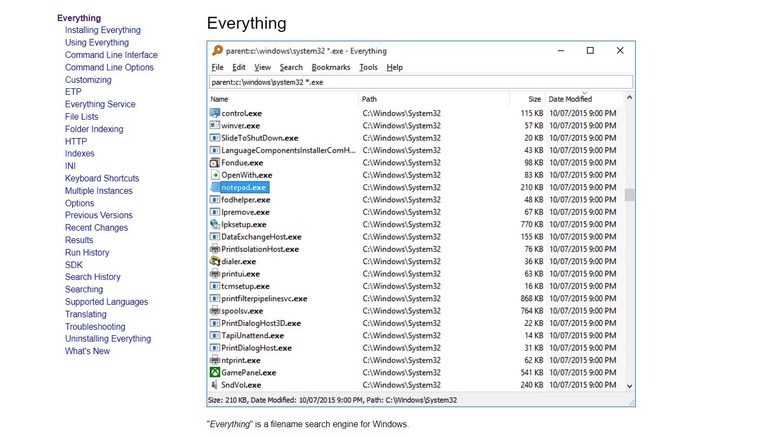
Windows search isn't great. If you try to find a file, especially on a system with a lot of files on a large hard drive, chances are good you won't find what you are looking for. Windows search indexes the most common directories and when you search for something it'll check this index. If it can't find a file Windows will then index more folders.
If you are looking for a common file like a Word document that's normally saved in your Documents folder, Windows does a good job. But if you are searching for a very specific file, or one that you only partially know the name of, Windows will often have a hard time finding it. And because Windows Search runs in the background, it can sometimes utilize a lot of resources slowing down a machine when indexing.
Everything is a free application that fixes all the issues with Windows Search. The application serves as a search engine for files and folders on your computer. But unlike the search that comes built into Windows, Everything displays every single file and folder. Instead of indexing only the most common locations, Everything indexes, well, everything giving you better and faster results. It also does this while using very little in the way or resources, making it a great way to search while not slowing down your computer.
Midori
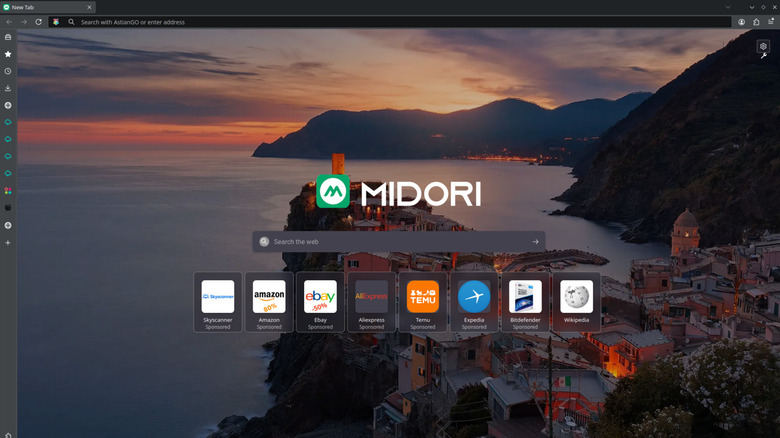
If you have an aging computer, you might find that your favorite browser has begun to feel sluggish. The BGR team has written guides about ways to speed up Chrome as even that popular browser can often slow on modern systems. And just because you have an aging computer in the home, that doesn't mean you shouldn't be able to experience the internet to its fullest and fastest.
One of the biggest challenges when it comes to working with older computers is the inherent memory limitations. Older computers, and many pre-built machines you might find in big box stores, don't usually come with large amounts of RAM installed. The open-source Midori Browser takes this into account by being a very small, fast, and secure browser that works great on aging machines as it has very low memory usage.
The web browser is privacy-focused giving you full control over your data. Midori does not spy on the user and does not sell user data like many other browsers. It also features strong encryption and several private browsing options for those who value their online security. It also uses around 60% less RAM than other major web browsers, making Midori incredibly fast, around three times faster than the average browser in testing.