

Steam Might Be Messing With Your Controller - Here's Why
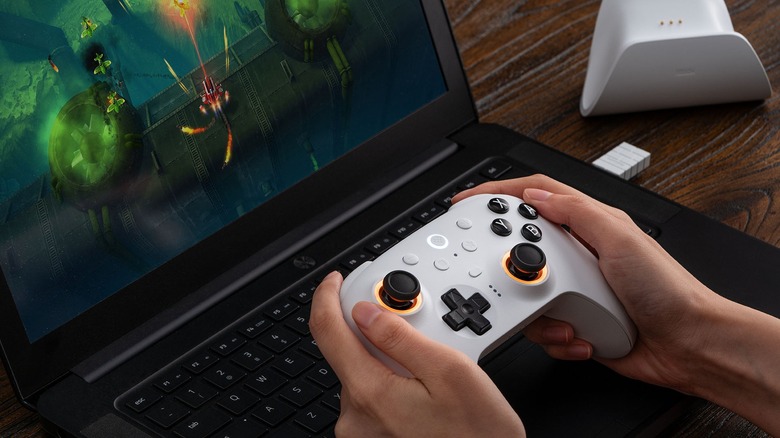
In order to play video games, you need a control input. Kind of obvious, but the input you use primarily depends on the platform. If you own a PlayStation 5, then you know all about the DualSense controller, but if you play on the PC, you have no shortage of options. Sure, you can use the mouse and keyboard you employ for standard non-gaming PC operations, but controllers are just as viable. In fact, certain games are better with controllers (e.g., hack-and-slash titles such as "Ninja Gaiden 4"). Steam will often provide a big helpful "The developers recommend playing this game with a controller" label in these situations, but sometimes controllers don't cooperate with Steam.
If you visit certain forums, you will inevitably find reports of people who claim that Steam doesn't recognize controllers linked to the PC, be they Xbox One or PS5 DualSense (yes, you can connect PS5 controllers to Windows PCs). The first fix many people recommend is disabling a built-in feature called Steam Input. This system is a "configuration utility" that translates signals from controllers into data that a game can recognize. When it works as intended, Steam Input makes sure that pressing the jump button on your controller makes your character jump. But as you can probably guess, sometimes signals get crossed – if not outright blocked.
How and why Steam Input messes up controllers
At its core, Steam Input is an emulated controller. When you play on a Switch, PlayStation 5, or Xbox, directional inputs and button press signals are natively sent to the consoles. But when Steam Input is at the wheel, the signals from your controller are instead transmitted to a virtual controller, which sends its own data to the game. This extra layer of signal transference can cause input lag in many titles, but software conflicts can mess up inputs (i.e., you press the jump button, but it opens the main menu instead) or even prevent controller signals from being sent at all. While the latter issues are relatively rare occurrences, they can still crop up at random because no two computers are the same.
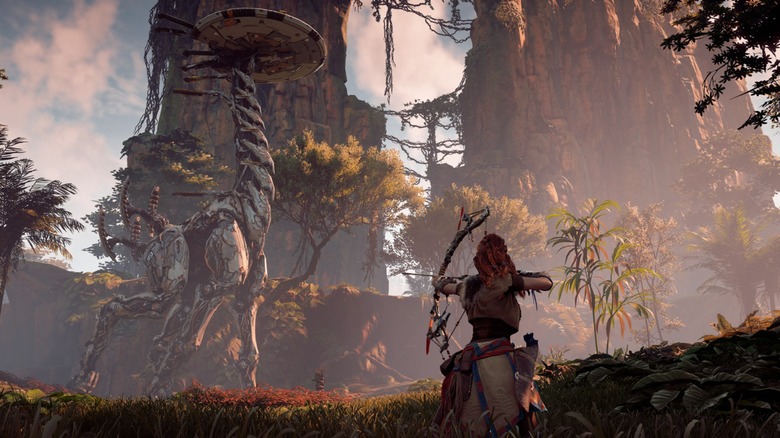
In the spirit of fairness, we must point out that if your Steam games don't recognize your controller, while Steam Input is the most likely explanation, it isn't the only explanation. Always rule out hardware problems first. Does your computer's built-in controller configuration wizard recognize the gaming peripheral when it's plugged in or when it uses Bluetooth? Can you use a controller to play non-Steam games (e.g., "Genshin Impact" on the Epic Games Store)? If so, then the problem is likely on Steam's end. However, this testing method isn't foolproof. According to many users on the Code Weavers forum and r/horizon subreddit, the game "Horizon Zero Dawn" doesn't recognize controllers even when Steam Input is deactivated. Apparently, an update for the game broke controller support.
How to deactivate Steam Input
Turning off Steam Input is a simple task. First, open your Steam application, then right-click on an installed game. Select "Properties," followed by "Controller." Next to the label "Override for [Game Name]," set the dropdown menu to "Disable Steam Input." If you want to disable Steam Input across all games, instead click on the "Steam" menu at the top left of the application page and select "Settings." Select "Controller" and make sure "Enable Steam Input for Xbox controllers," "Enable Steam for Switch Pro controllers," and "Enable Steam Input for generic controllers" are toggled off. Because of programming quirks, most games don't work natively with PlayStation controllers, so if you want to use a DualSense, Steam Input might be a necessary evil.
As previously mentioned, "Horizon Zero Dawn" is a finicky game and might not cooperate with your controller even when Steam Input is disabled. If you encounter this problem with that title (or any other games for that matter), you can fix the issue by following these steps:
- Launch Steam with your controller disconnected and off.
- Right-click on the game and select "Properties."
- Click on the "Controller" tab.
- Set the override to "Enable Steam Input."
- Click on "Controller Configurator," then connect the controller while on that page. If a blue icon that reads "Your Controller" appears underneath one of the supported controllers listed in the window, the operation was a success.
- Launch the game.
Repeat the above process for all games that don't recognize your controller, even with Steam Input active. With any luck, you will be able to play your games without any missed inputs or lag.