

Google Chrome Finally Has Vertical Tabs - Here's How To Use Them

Everyone who routinely juggles dozens of open tabs on their computers will be happy to hear that Google is rolling out vertical tabs for the world's most popular internet browser. The feature has been available in Microsoft's Edge browser for years, making tab management and multitasking a lot easier — plus it's a useful feature for encouraging users to ditch Chrome. The vertical tabs feature goes hand in hand with tab grouping, combining tabs related to a similar topic or task into a single group that can be minimized when those tabs aren't necessary.
 Google
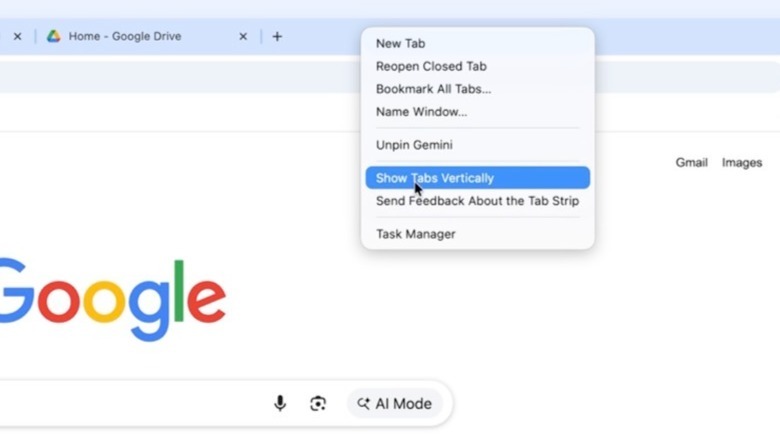
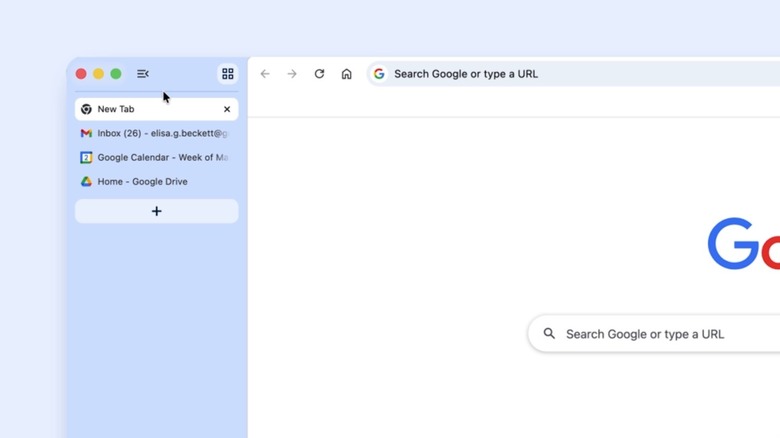
To enable vertical tabs in Google Chrome, you only need to right-click on the Chrome window or tab region and look for the "Show Tabs Vertically" option. If the feature is not available in your region, you'll have to wait for the Chrome 147 update to be released for your device, as the feature is rolling out gradually to macOS, Windows, and Linux. A button at the top of the new Chrome interface will also let you minimize the vertical tab panel that will populate the left side of the browser window when you need more screen area for the website you may be visiting.
The new update also brings a new full-screen Reading Mode experience to Chrome, letting users remove visual elements from a web page, like images and videos, and turn it into a text-only experience that can make it easier to consume content that may require more attention. Reading Mode was already a feature available in Google Chrome, but it worked in the side panel.
Why vertical tabs are better
For years, the internet browsing experience offered the same user interface, regardless of product. You type in a web address at the top of the screen, which loads a website. You can open multiple tabs next to it to load different sites. The ability to use multiple tabs at the same time makes it easier to access information and compare products, like deciding which hotel to book for your next vacation or what color to pick for a clothing item. But browser windows have a fixed size, matching your computer's display in the best-case scenario. The more tabs you open, the smaller they appear at the top of the browser, making it difficult to find a particular tab.
That's why vertical tabs are so useful. When enabled, the mode will organize all open tabs neatly on the left side of the screen, and they remain the same size. Each website's title and favicon remain visible, as the tabs aren't fighting for space, making it easier to revisit information you discovered earlier in the week. The feature is even more useful when grouping multiple tabs, as the tabs in a group will appear nested vertically, allowing the same ease of use. You'll quickly find a website in a group, as the title remains visible.
Vertical tabs are especially useful when working on a laptop with a smaller display where screen real estate is at a premium. You can use multiple apps side by side, including Google Chrome, and maximize the space you allocate to the website in view while keeping all tabs in view with vertical tabs.