

Why Your Router's Green Light Keeps Blinking (And What Each Pattern Means)
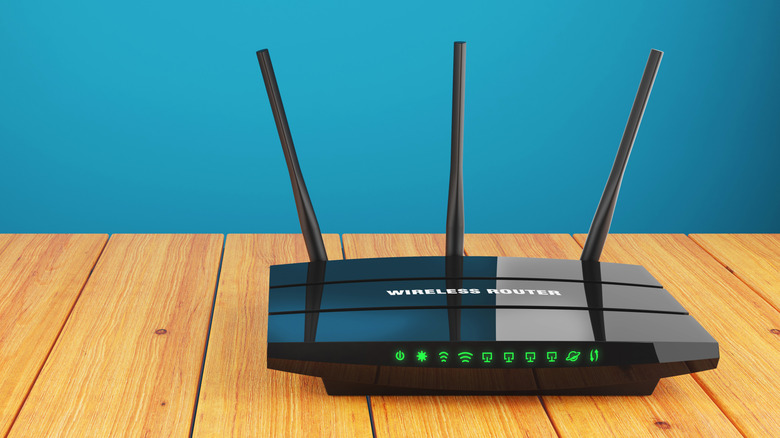
Wherever you have your home router positioned, a desk, a bookshelf or an entertainment stand, it's hard not to notice all those blinking lights. Sure, they serve the basic purpose of letting you know the router is on, there's an active connection, and things are working correctly. But they're not blinking or illuminating at random. Instead, most follow a series of patterns. If you know what to watch for, they're telling you everything you need to know about your network.
Each router is different, and every manufacturer designs their systems with unique specifications and programming. In short, not every router will necessarily follow the same exact patterns. It's always best to refer to your device's user manual or the manufacturer's official documentation to better understand what's causing those blinking lights.
For the most part, however, routers follow a common set of rules. For example, when a router first powers up, certain lights may blink in a slow, steady pattern to indicate that communications are starting and the device is trying to establish a network connection. That pattern will generally stop when the router has established internet access through a modem. The light patterns and their colors tell you how the router is functioning and whether you need to take action.
What are the common router light colors and patterns?
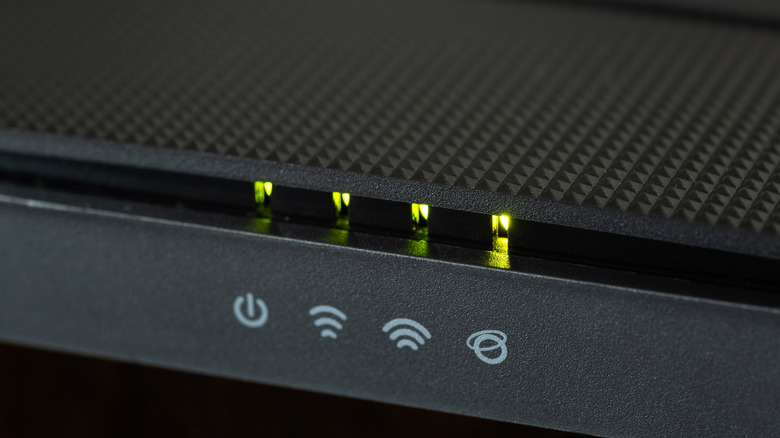
Green, like with most electronics, typically means that everything is working as it should. A green blinking light might signal that a router connection is in use and network traffic is flowing, like when you're streaming a movie or playing games online. Some routers only show green lights, while others will change colors: white usually means the same as green, red or orange indicates problems or failures, yellow indicates loading or processing, and blue serves as a stand-in for green or white, or denotes an active Bluetooth connection on routers that have the connectivity.
As mentioned, slow and steady blinking, or sometimes temporarily paused lighting that remains on, can indicate a process is in progress, such as the router trying to establish a connection. Rapid blinking, with much faster intervals, can also mean similar things, but usually denotes data transmission and traffic. You should expect to see blinking or steady lights anytime your network is in use.
The lights, their colors, and patterns are a solid indication of what's happening with your network, but they also go hand-in-hand with the symbols visible on the router — often, each function is labeled accordingly. There might be symbols for power, a 2.4GHz network band, a 5GHz band and Ethernet, with corresponding lights for each, for example.
What do the symbols mean on a router and what can they tell you?
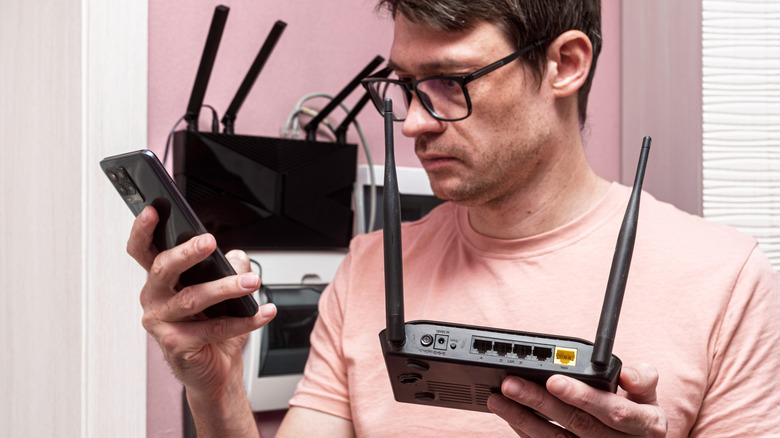
Your router can actually do a lot of cool things you probably didn't know about, and each blinking light corresponds to a function or feature. Understanding the difference between those symbols is the key to translating what's happening on your network. The obvious symbol is the power icon, which indicates the router is on and working. From there, the symbols may vary by router brand and available features.
Other common indicators include downstream, which tells you data is being downloaded to a device on the network, upstream, data is being uploaded outside the network, internet or WAN, which signals there's a wireless internet connection active and in use, and Ethernet or LAN, which tells you a wired connection is in use. A separate link indicator may be used to indicate that the router has a successful internet connection via a modem. Often, if the internet service is out and the modem isn't working, you still retain local network access, allowing you to use a network printer or interact with shared network devices. On your router, you might also see indicators for each network band and a WPS indicator. The WPS button on your router is actually for an easy access setup function for Wi-Fi devices.
Looking at the light patterns, or color, next to each of those indicators will keep you informed. A blinking light next to the LAN indicator tells you that the connection is in use. Same with the WAN or wireless indicator, or the individual wireless bands. Whereas, no light means the feature is off or not currently being used.