

Here's How Much Battery Your Apple Watch's Always–On Display Is Using

The Always-On Display (AOD) for the Apple Watch was introduced with the Apple Watch Series 5. Since then, Apple has improved this feature by making the dimmed screen brighter. And with the highly-rated Apple Watch Series 10, and newer models, the company offers a display that can constantly show the time without significantly disrupting the battery. But how much power does the Apple Watch's AOD use in comparison to this feature being turned off?
According to Macworld's testing of two identical Apple Watch Series 10 models, with Always-On Display enabled, the battery lasts more than 30 hours versus 10 to 12 hours longer with the feature turned off. So even though Apple tells users to take advantage of AOD, turning it off can be a great way to reduce the need to charge. And, considering Apple touts up to 18 hours of battery life for its Series 10 smartwatch, MacWorld's tests suggest that the Series 11, with a published life of 24 hours in regular usage, could run even longer on a full charge.
For comparison, a Redditor shared detailed testing results that show their Apple Watch Series 7's Always-On Display decreased battery life by 26 percent. Still, they believe this is not the main issue why some Apple Watch users experience poor battery life.
Suggestions for preserving Apple Watch battery life

There is more than one way to improve your Apple Watch's battery life, including turning off Always-On Display. According to Apple, users can preserve battery while working out by turning on Power Saving Mode, which disables the heart rate sensor. This is available on the iPhone's Apple Watch app under My Watch > Workout, and for longer workouts, users can pair their watch with a Bluetooth chest strap instead.
The company also suggests users who often turn on their displays inadvertently, while active, change a key Wake Screen option on their Apple Watch. To do so, go to Settings > General > Wake Screen, and toggle Turn Wake Screen on Wrist Raise to off. You can always just press the Digital Crown to see the display as needed. Apple also recommends keeping Bluetooth turned on to preserve the watch's battery life, as it offers more power-efficient communication with an iPhone.
Last but not least, consider activating the yellow circle on your Apple Watch as part of Low Power Mode to further reduce trips to the charger. This is available under Settings > Battery, and when enabled, the Apple Watch turns off AOD and background sensors for heart rate measurements, heart rate notifications, and irregular rhythm notifications.
Should you turn off Always-On Display?
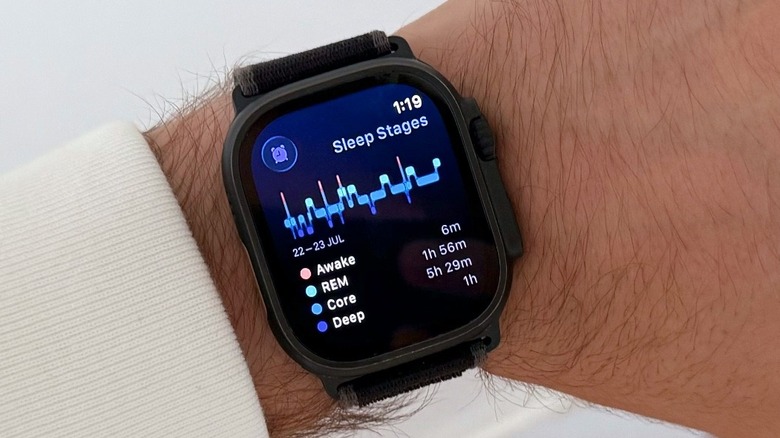
Despite what Macworld's findings suggest, you might not want to turn off the Apple Watch Always-On Display. After all, what's the point of having a watch where you can't see the time at a glance? For example, when reading a book, working on a computer, or commuting, you can easily see what time it is without raising your wrist.
After owning most of the Apple Watch models since the Series 3, I would only suggest turning off AOD if your battery has degraded beyond 90%, as a way to save as much life as possible. Other online reviewers agree, noting better battery life with AOD turned off, but finding it's not enough of a difference to avoid having their Apple Watch always on.
Another method for conserving the battery is skipping notifications that pop up even if you don't move your wrist. To do so, open the Apple Watch app on your iPhone, go to Notifications, and turn off the Show Notifications on Wrist Down option. Considering Apple updated the Apple Watch in 2024 to be 40% brighter than its predecessor when viewed from an angle, and more power efficient for a faster refresh rate in Always-On mode, it seems worthwhile to enjoy this feature instead of having a blank display on your wrist.