

What Does The Leaf In The Battery Icon Mean On A Samsung Phone?
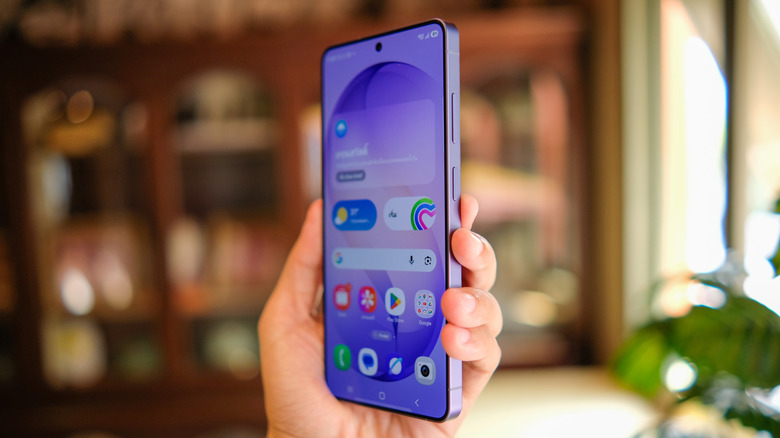
If you've recently spotted a leaf symbol inside the battery icon on your Samsung phone and can't tell what the symbol means or how to remove it, you shouldn't panic. The indicator doesn't suggest a problem with the battery health or with charging. Instead, the leaf symbol has a much simpler explanation. It's a visual indicator telling the user that the phone's Power Saving Mode is enabled on the handset.
The battery-saving feature isn't unique to Galaxy phones, as iPhone models and other Android devices support it. Enabling Power Saving Mode can help extend battery life in situations where there's no time to recharge the phone, or when a charger or power bank isn't available. When Power Saving Mode is enabled, several features are limited to make the phone last longer, including the processor speed. The leaf indicator next to the battery serves as a constant reminder that Power Saving Mode is enabled, and it helps explain why certain phone functions are disabled or the phone may seem slower than usual.
The leaf symbol may be confusing even to longtime Galaxy phone owners, as Samsung hasn't always used that icon to indicate Power Saving Mode has been turned on. A support document dating back to late 2022 explains the various indicator icons that may appear on a Galaxy phone. For Power Saving Mode, Samsung used a recycle symbol on the battery icon. About two years later, Samsung started rolling out the One UI 7.0 beta to the Galaxy S24 series, which received some of the first Android 15 features Samsung was testing. Among these features was the new leaf indicator, which users would see at the top of the screen but also in the Quick Settings panel, where the Power Saving Mode switch uses a battery icon with a leaf.
What Power Saving Mode does to the phone
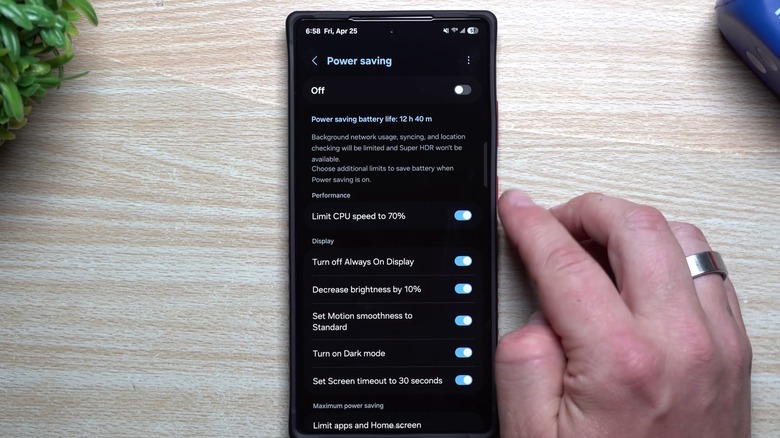
Galaxy phone users can customize the Power Saving Mode feature. For example, the Galaxy Z Flip 6's Standard setting in Android 16 (One UI 8.5), which is enabled by default, will limit the processor speed to 70%, turn off the Always On Display feature, decrease screen brightness by 10%, set Motion smoothness to Standard, enable Dark Mode, and set the screen timeout to 30 seconds. Each of these settings has toggles that allow users to personalize their Power Saving Mode experience. Users may want to reduce the display's energy consumption by disabling some of its features, while still allowing the CPU to run at full power. Additionally, the Settings page informs users that Power Saving Mode will also limit background network usage, syncing, and location access.
There's also a Maximum setting for Power Saving Mode, which will limit all background activity and notifications except for a core set of apps, like Messages, Phone, and Wallet. Users can personalize the list of apps that are allowed to receive notifications and perform background tasks by turning a toggle on or off in the Settings page for this mode.
Galaxy phones will also offer battery life estimates. For example, in our testing, a rarely used Galaxy Z Flip 6 with the battery charge at 80% reported it would last three days and nine hours with Power Saving Mode disabled. After turning on Power Saving Mode (Standard), the battery life estimate jumped to four days. With Power Saving Mode set to Maximum, the estimate was significantly higher, reaching eight days and 15 hours. Your mileage may vary depending on how heavily you use your phone, but these figures indicate that Samsung's Power Saving Mode can indeed extend battery life.
How to turn off Power Saving Mode
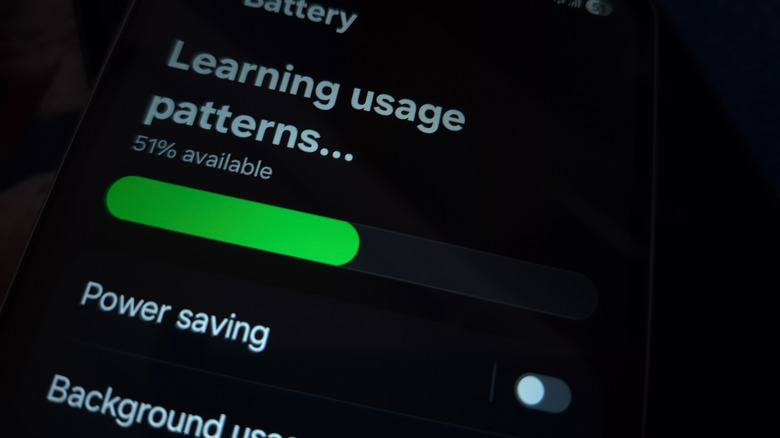
The leaf symbol will remain visible in the battery icon for as long as Power Saving Mode is enabled on a handset. Charging the Galaxy phone to 100% will not automatically disable the feature. By comparison, an iPhone with Low Power Mode enabled (which turns the battery indicator yellow) will automatically disable the mode when the battery reaches 80%. In other words, to remove the leaf icon, you have to turn off Power Saving Mode on the handset. That can be done in two ways.
The simplest method involves opening the phone's Quick Settings panel by swiping down from the top of the screen and tapping the Power Saving Mode toggle, which has a battery with a leaf on it. If you have accidentally enabled Power Saving Mode and then wondered why the leaf symbol appears next to the battery, you may have pressed this toggle by mistake. Alternatively, you can go to the Settings app, look for the Battery menu, and then find the Power Saving menu (image above). Use the toggle next to it to turn the feature on or off. Tap the "Power Saving" text to customize the feature's settings mentioned above, including the Standard and Maximum modes.
Some Galaxy phones may have an Adaptive Power Saving Mode feature that lets the phone adjust the power consumption based on the user's habits. That's another way to potentially extend battery life, without necessarily turning Power Saving Mode on or off. Finally, the Modes and Routines menu in the Settings app can help users create automations that enable battery-saving settings at specific times, such as nighttime.