

6 Settings You Should Change On Your iPhone 18 Pro ASAP
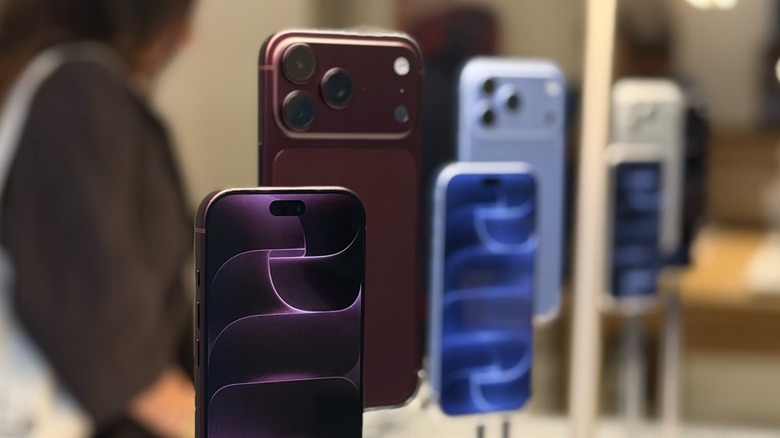
The iPhone 18 Pro is now available for customers across the world. While many buyers may just restore a backup from their last phone and carry on with some pre-selected settings, there are a few notable changes with this device that require users' attention. For example, the iPhone 18 Pro is the first Apple device to feature a way to ensure a photo taken hasn't been manipulated by AI, while the new variable-aperture lens unlocks manual controls for the Camera app. In addition, if you're not coming from an Apple Intelligence-capable device or you just updated to iOS 27, then you'll also want to turn on Siri AI.
Compared to the iPhone 17 Pro models, the iPhone 18 Pro and Pro Max offer a pretty modest update. Still, there are several small tweaks that come together to make this one of the biggest updates for the iPhone, whether you just got a 17 Pro last year or have been holding onto your old phone for a few years now. For example, the iPhone 18 Pro features a smaller Dynamic Island that can take three Live Activities at once, the battery life has been greatly improved (with the Max model offering up to 45 hours of video streaming), and an updated vapor chamber sitting on top of the A20 Pro processor ensures the iPhone can sustain performance for longer. Combining all that with the all-new camera, the iPhone 18 Pro is definitely a big update for everyday customers, creators, and more.
Apple Reference Image
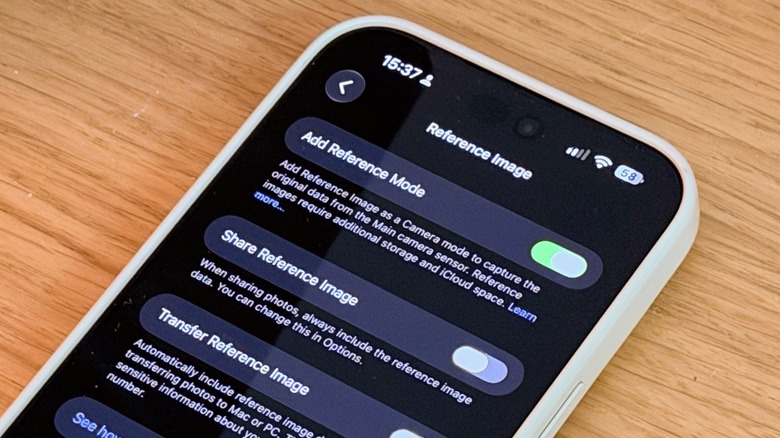
Apple Reference Image is a new protocol created by the company to ensure people can verify whether a photo is legit. In the era of AI where anyone can create a realistic picture or quickly edit an existing one to add an element or omit something, it's important to be able to prove that an "impossible" shot was indeed very possible. Basically, what Apple does is offer an opt-in experience that creates a digital negative of every photo taken with the iPhone 18 Pro. While anyone can verify the authenticity of the photo, the image can't be linked back to the person who took it.
To enable Apple Reference Image, users need to go to the Settings app, open the Camera section, and scroll all the way down to Reference Image. Here, Apple explains that Apple Reference Image can capture a reference image from the main camera sensor so that it can be verified for authenticity. After you tap Add Reference Mode, you'll need to actively go to the option in the Camera app to capture the image.
From the Camera app, slide from right to the left to select the Reference shooting mode you'll now see. Here, you'll notice that the feature is only available for the main camera, as you can optically zoom up to 2x and digitally up to 10x. After you take the photo, you'll get a Reference button on the image in the camera roll, which analyzes the photo. You can then tap the screen to see if what is shown and what's been captured represent the same thing.
Manual camera controls
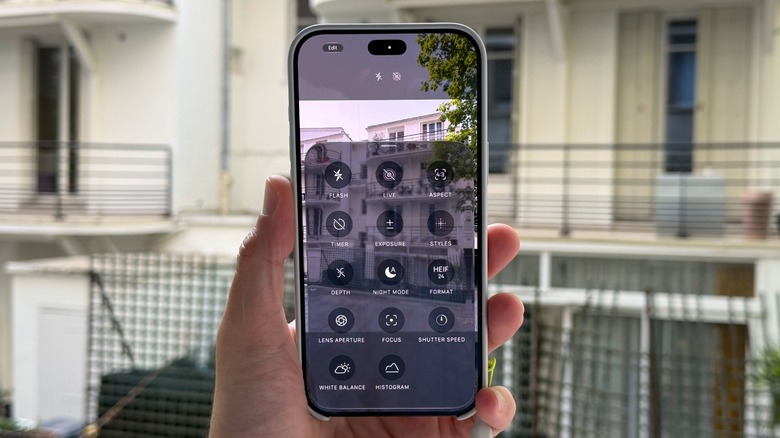
For the first time, the iPhone 18 Pro Camera app looks a lot more like Halide and other third-party camera apps that bring more freedom for users to explore their photos. Comparing an iPhone 17 Pro Max to an iPhone 18 Pro Max, when you select the shooting menu from the Photo mode in the Camera app, you'll see five more features that weren't there before: Lens Aperture, Focus, Shutter Speed, White Balance, and Histogram. Each of these features gives you more freedom to create and shoot different photos.
For example, for Lens Aperture, you can leave it on Auto or you can choose between settings that range from f/1.48 to f/4.0. For example, if you select the biggest option (remember, it's "f divided by," so the smaller the denominator, the larger the aperture), the variable-aperture lens maximizes the amount of light it can capture, which can create a shallow depth of field with a lot of background blur. Conversely, a smaller aperture setting can deepen the field of view and make a photo with several subjects a lot more sharp. Combining these options with the new manual Focus settings means you can isolate a subject or capture a bit of everything with complex layered compositions.
The new Shutter Speed option lets you control how long the camera sensor will be exposed to light, which is adjustable from 1/1600 of a second up to 1 second. Fast shutter speeds freeze fast-moving action, while slow shutter speeds gather more light, which can be used to create intentional motion blur. The new White Balance settings can help neutralize colors based on the lighting environment, while the Histogram tool shows a real-time exposure graph to help you adjust exposure before capturing a shot.
Siri AI
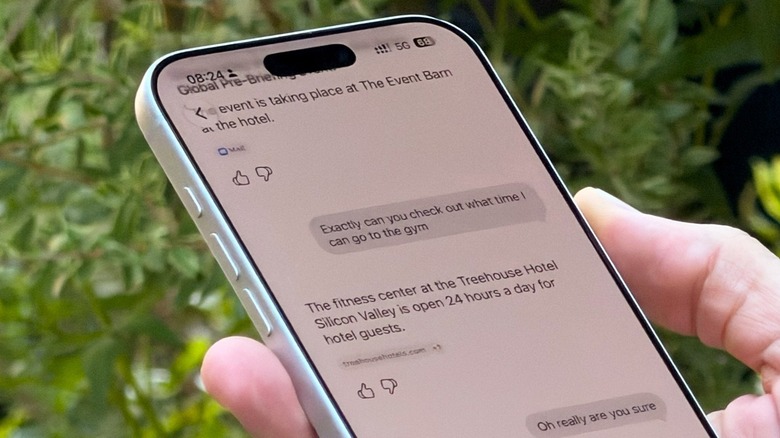
The star of the iOS 27 update, the new Siri AI is available to all iPhone models starting with the 15 Pro. However, if you want a Siri with more natural voices, you're required to use an iPhone 17 Pro or an iPhone 18 Pro model. In addition to that, thanks to the improvements of the new chip, which doubles AI processing compared to the previous generation, users can have multiple demanding AI tasks happening at once or in the background. The new A20 Pro also offers 50% more bandwidth than the A19 Pro, which feeds data significantly faster to both the GPU and the Neural Engine to ensure requests can be answered faster, photos can be edited quicker, and Genmojis can be created in the blink of an eye.
To take advantage of Siri AI, you need to have your iPhone set to English, and you can't have a European Apple Account (as of September 2026, the new Siri isn't available in Europe). With these requirements checked and your new iPhone 18 Pro in hand, you need to go to Settings > Siri and join the waitlist for the new Siri AI. Once you've been approved, you'll have a new Siri animation that lives on the Dynamic Island and an assistant that can tap into information on your iPhone, such as your messages, notes, calendar, emails, and more. The new Siri can also help you with what's on your display and search for information online, and the whole experience works similarly to current AI chatbots like ChatGPT, Claude, and Gemini.
Default Photographic Style
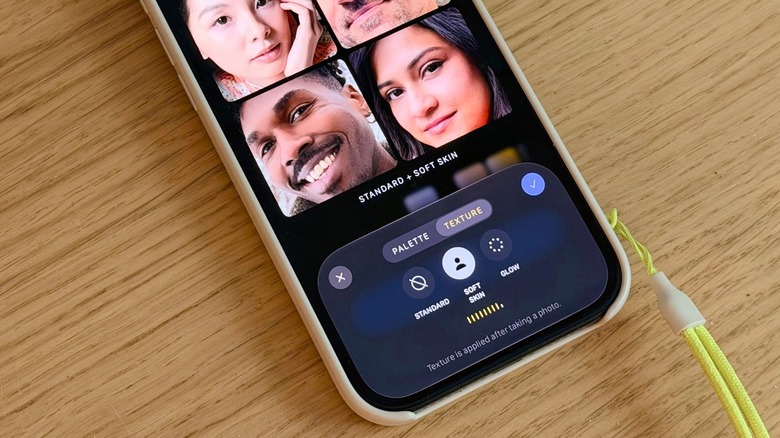
Apple's Photographic Styles were first introduced with the iPhone 13. At the time, the company called these "not-filters" that could tailor the look and feel of your photos as if you were selecting from different film types. At the time, the selection was very limited, and once you'd capture a photo with a Photographic Style, you couldn't change it back. A few years later, with the iPhone 16, Apple released a second generation of this feature which offered more granular control over these colors.
With the iPhone 18 Pro — and also to iPhone 16 and newer phones as long as the photos have been captured on iPhone 18 Pro or the new iPhone Duo, with the possibility of editing them on some older iPhone, Mac, and iPad models running the latest software — Apple is now offering a third generation of Photographic Styles which brings new texture and grain controls so that photos can look a lot more personalized, and also more vintage. If you missed the initial setup prompt for Photographic Styles, you can go to the Settings > Camera > Photographic Styles to adjust these settings. I personally enjoy the "Standard" option when it comes to the Texture controls, but I customize the Palette settings to be in the lower-right quadrant, which I think makes colors pop and removes some of the exaggerated HDR.
Once you set the style, open the Camera app and select Photo mode. From there, access the camera controls, then select Styles from the menu and tap Customize. There, go to Texture, where you can choose between Soft Skin, Glow, and Film. These functions will do as they say, but the effect is a bit subtle. You can also add a bit of grain to the photo, making it feel more like a picture captured on film. Most importantly, you can take a photo, edit it later, and also find these options there, so it's not something you need to think about before taking photos.
New lock screen clock style and better privacy with your carrier
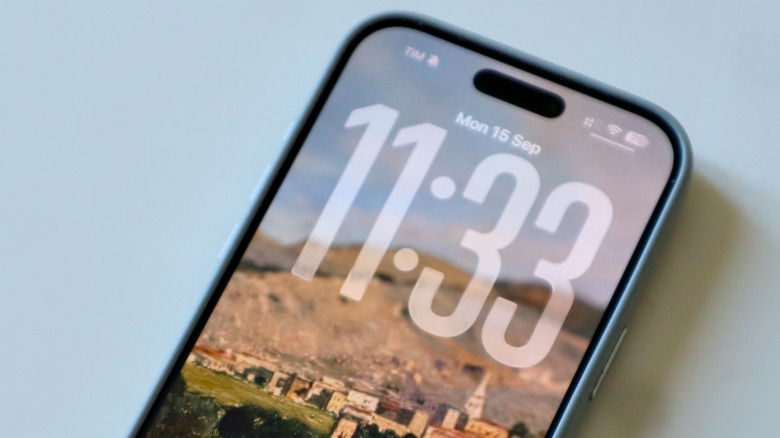
iOS 18 revamped the lock screen of the iPhone and iOS 26 made it nicer with Liquid Glass. Now, iOS 27 brings a hidden new style of the clock. Instead of having a big clock, you can choose to have it like a small widget on your display, giving more room for your wallpaper to shine. You can do that by long-pressing the Lock Screen wallpaper, tapping Customize, then selecting the Clock and tapping on the little menu on the upper right corner of "Font & Color." From there, you can see your clock going from big to small on your display.
The sixth setting you should change ASAP has been available for over a year, but if you didn't choose an iPhone "e" or an iPhone Air for your last model, you didn't have the ability to hide your exact location from your carrier. Introduced with iOS 26.3, this feature requires Apple's custom 5G modem, which is finally available on the iPhone 18 Pro with the C2 chip. By going to Settings > Cellular > Cellular Data Options and enabling Limit Precise Location (with a supported carrier), you'll prevent your provider from knowing exactly where you are.
Apple says this extra privacy layer won't affect the signal quality, the data shared with emergency services, or even Find My. Still, it will make it harder for carriers to know precisely where you are, so they can't use that data to track you or sell the information to third-party services.