

5 Signs Your Tablet Is Hacked

Rapid battery drain, unknown apps, and random pop-up banners. These are some of the signs that your tablet has been hacked. These attacks can be as sophisticated as that famous Pegasus malware, which infects your device without users doing anything, but these issues typically happen because you probably tapped the wrong link in your browser, messages app, or e-mail. Sometimes, a hacker attack can also happen because platforms like Apple's App Store or Google's Play Store allowed a malicious app that they shouldn't have allowed.
Usually, these attacks target personal information like your social media passwords and bank data, so they can use that to scam other people or drain your bank account. While some users might prefer to install antivirus software, Apple and Google are good enough with their systems to solve any possible issue with built-in security features, like the Google Pixel telling you whether your phone has been hacked.
Apple proudly says that it has a secure operating system for iPhones and iPads, on top of several other features like end-to-end encryption, Stolen Device Protection, Lockdown Mode, and more to ensure that user data always stays on their devices. It's also important to note that some signs that a tablet has been hacked can be solved with something as simple as updating the operating system, replacing the battery, ensuring its storage isn't completely full, or even upgrading to a newer model, as the tablet is usually just outdated, not compromised.
Battery draining fast
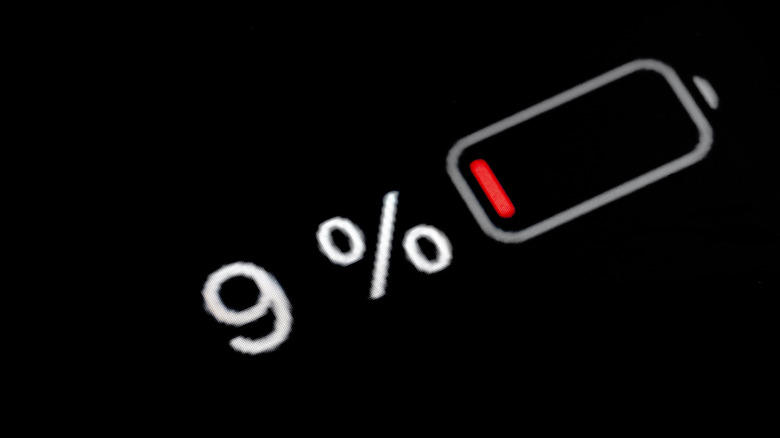
If a tablet gets burning hot even when you're not using it, suffers rapid battery drain without using it, and shows significant background data uploads, these are all big signs that your device might have been compromised. Unlike traditional malware that requires users to click a bad link or install an infected file/app, these signs suggest that you might have fallen for a zero-click exploit, which means your device has been remotely compromised without any user interaction required.
Once inside, the spyware can record ambient audio through the microphone, capture camera frames, log GPS coordinates, and stream data back to attacker servers, keeping the tablet's processor running constantly in the background. One big example is the Pegasus attack, which exploited flaws in Apple's image rendering and message processing frameworks to infect iPads and iPhones silently.
To defend yourself from these attacks, or if you think you could be a possible target, you should enable Lockdown Mode, which significantly improves the tablet's security by blocking most message attachment types and incoming connection requests from unknown contacts. Besides that, rebooting the tablet daily is also a good tip, as most zero-click attacks live only in volatile memory and are cleared when the device restarts. Besides that, ensuring your device has the latest software update can ensure that recently discovered zero-click vulnerabilities might have already been patched before they could be exploited.
Unfamiliar downloaded apps

If you notice unfamiliar apps or system utilities appearing on your tablet's display, your device might have fallen victim to silent payload installation. This happens when a malicious app is able to gain root-level permissions — on the core of the device. Once a hacker gets this access, they don't need your permission to do anything, as they can download other malware, use remote access tools on your system files, and more. Due to that, you might realize your tablet is constantly freezing, lagging during simple tasks, or even taking too long to boot up.
A famous case of this issue was the DroidDream malware, where hackers took several popular, legitimate apps and games, modified them with malicious code, and re-uploaded them to the app store. Once a user downloaded one of these games, DroidDream silently rooted the device in the background. Without showing any warnings, it installed extra spyware, stole unique device identifiers, and gave the hackers a backdoor into the tablet.
To protect yourself against these and other attacks, avoid downloading apps or APK files from third-party sites or unknown forums, and, in your device's settings, ensure that unknown source installations are turned off. It's also important to periodically check the list of apps installed on your tablet to look for generic or suspicious app names, and make sure built-in scanning features like Google Play Protect are active, as they will help detect unauthorized system modifications and rogue background apps.
Random on-screen pop-ups

If random pop-ups, constant account verification requests, or fake login screens asking for your Apple Account or Google ID password start appearing, your tablet might be compromised. What makes this attack tricky is that you don't even need to download a suspicious app from a shady website. Instead, an official, highly rated app you have installed could've used a compromised software development kit that compromised your device. This infected code ran hidden inside the app and popped up fake login dialog boxes over your screen to trick you into typing credentials while quietly sending your passwords, tokens, and browser cookies to attacker servers.
This once happened with the XcodeGhost attack, which bypassed Apple's App Store review process, as hackers hosted a tampered version of Xcode on a popular file-sharing server where developers downloaded it. Every app built with this fake tool was had spyware automatically baked into it. So, when iPad and iPhone users updated popular apps like WeChat and CamScanner, their devices got infected. The malware was then able to capture device data and push fake login pop-ups designed to steal users' credentials.
To defend yourself, never type passwords or account details into unexpected pop-ups that appear while using an app. Instead, close the app and go directly into your main system settings to check your account status. Enabling multi-factor authentication in your account is essential, so even if a fake prompt steals your password, the hacker can't log in without your physical phone or authenticator code.
Unusual app permission requests

If an app repeatedly asks you to turn on Accessibility features, your screen flickers slightly, or your virtual keyboard lags, your tablet might be targeted by a screen overlay attack. Android's Accessibility Services are meant to help users with disabilities by allowing apps to read the screen and tap buttons automatically. However, when malware tricks you into turning these features on, it gains total control over your device. This attack can silently monitor everything you type, read what's on your screen, grant whatever permissions it wants, and draw invisible or fake login screens right over your banking and messaging apps.
A famous case using this technique was the Anatsa malware, also known as Teabot, which spread through fake PDF readers and document scanners on app stores. Once downloaded, the app asked users to turn on Accessibility Services under the pretext of installing a necessary plugin or app update. Once the user agreed, Anatsa logged every tap on the tablet, which led this malware to prompt fake login screens, stealing their banking credentials and two-factor authentication codes seamlessly.
To protect yourself from these attacks, you should never grant Accessibility permissions to standard games, utility apps, or file scanners, as they almost never actually need them. Setting up biometric login like fingerprint or face recognition for your banking app also helps, as it prevents keyloggers from capturing typed passwords. Last but not least, taking a quick look at the Accessibility section inside your tablet's settings menu lets you check if any untrusted apps currently have active control over your screen.
Unexplained background data spikes

Another sign that your tablet might have been hacked is a sudden jump in the tablet's background data usage or strange bandwidth spikes on home Wi-Fi. This issue isn't limited to cellular tablets, as even Wi-Fi-only tablets can be infected with malware designed to exploit your internet connection. Malicious apps often pretend to be innocent utilities like free wallpaper packs, PDF readers, camera filters, or simple games. Once installed, they run hidden background tasks to communicate with attacker servers, upload stolen files, click on invisible ads, or route internet traffic through your device. To hide their activity, they often intercept notification permissions and operate in the background so you never see open windows or obvious error messages on your screen.
A major real-world attack is the Joker Trojan, which has been targeting Android tablets and mobile devices over several years. The developers behind Joker uploaded clean, working apps to app stores to pass security checks; then they would fetch a hidden payload weeks after users installed them. Once active, Joker silently used background internet connections to exfiltrate personal data and auto-subscribe users to paid online services, draining data and executing fraudulent transactions without leaving any obvious trace on the screen.
To protect your tablet, be cautious when granting broad network, notification, or background access to simple utility apps that have no real reason to use them. You should also check your tablet's built-in data usage settings regularly to see which specific apps are consuming background data.