

3 Common Problems With GTA 6 On PS5 (And How To Fix Them)
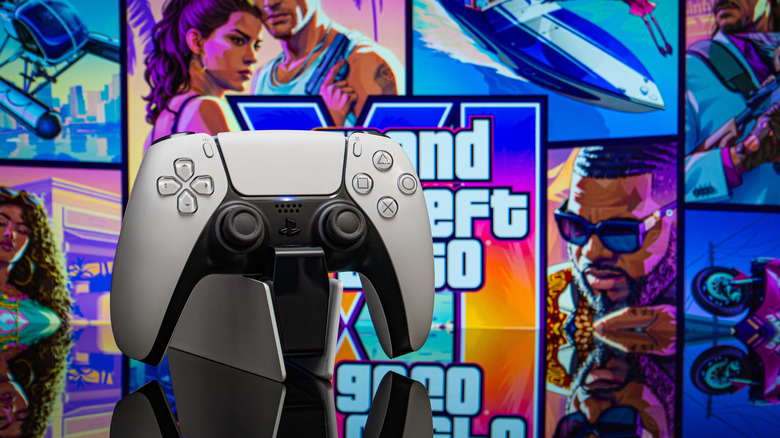
Imagine you're just starting your journey through Leonida in "Grant Theft Auto 6." But as you are making your way through the urban city across the state, your game crashes. It's not a fun state to be in, especially after you've spent time downloading and updating the game. While plenty of reviewers discuss consistent performance on the PlayStation 5 Pro, the base PlayStation 5 isn't always as smooth as one would hope. But the PlayStation 5 Pro is very expensive – you can pay over $1200 for a used one at your local GameStop – and hard to justify upgrading for one game.
Thankfully, the base PlayStation 5 is enough, even if the game sometimes dips below 30 FPS during heavy action. Rockstar has done a lot of work to get their game optimized on the PlayStation 5 and Xbox Series X/S. Though if your base PlayStation 5 is struggling to keep up, it can kill the enjoyment of the game. Sadly, a simple reset/uninstall can't fix it either. But eager users and reviewers have found a few fixes/optimizations that can help get your fictional crime spree back on track.
Stuttering, choppiness, and continuous frame drops
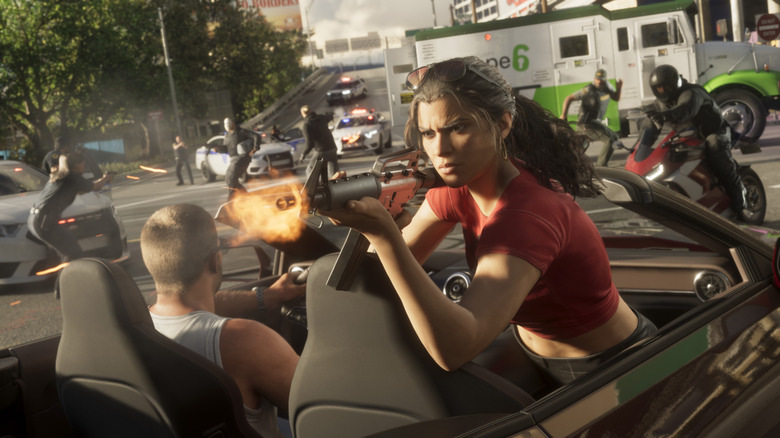
While Rockstar wanted players to focus more on a more cinematic experience with "Grand Theft Auto 6," frame stability is important. You don't want those 30 FPS to dip too low and too often during intense shootouts or while you're outrunning police cruisers. Unfortunately, that can happen on the base PlayStation 5. Reddit poster Junttiana suggested a fix that has helped players smooth out some unwanted stuttering by noting that clearing the cache and turning off High-Bandwidth Digital Content Protection (HDCP), both of which some gamers believe may be contributing to framerate issues.
Clearing the PlayStation 5 cache requires you to boot your console into Safe Mode, which you access by holding down the PS button until you hear a second beep, then connecting the gamepad through USB, and pressing the button again. From there, you should see some options; choose "Clear Cache and Rebuild Database" > "Clear System Software Cache." Once you leave Safe Mode, go to your system settings, then select "HDMI," where you should see a toggle that lets you disable HDCP. Turn it off, then quickly restart your PlayStation 5. These fixes should help with general stability, but remember, you'll likely still see some dips because the game is relatively new and the base PlayStation 5 is being pushed to the limit.
The game becomes too blurry or too hazy
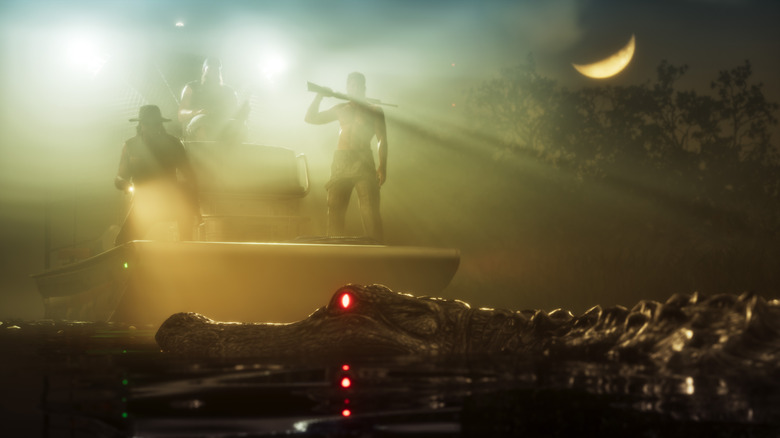
Unfortunately, one big hit that base PlayStation 5 players take is the high blur effect while playing. Digital Foundry has done some digging with regards to image clarity and blurriness, but it's not good news for base PlayStation 5 players. According to them, PSSR can potentially fix the blurring issues — the bad news is that it is a PlayStation 5 Pro feature.
At the very least, if you don't have the premium console, you can partially mitigate it by lowering the motion blur strength or turning it off completely, in the game's settings menu. It's recommended to reduce it first to see if that's bearable, since setting it to zero can make the camera panning more jittery. Motion blur helps blend frames so everything feels less choppy to play. To turn down motion blur, you have to do this in-game: go to your settings, then navigate to "Display" and select "Motion Blur Strength" beneath it. Moving the slider left lowers it, while moving it right makes it stronger. In a recent Reddit post discussing motion blur, some users agreed with Digital Foundry's findings: turning up motion blur while playing on an OLED can be a better experience than lowering it. But for non-OLEDs, you might want to try lowering it.
Lighting, blooming, and loss of sharpness
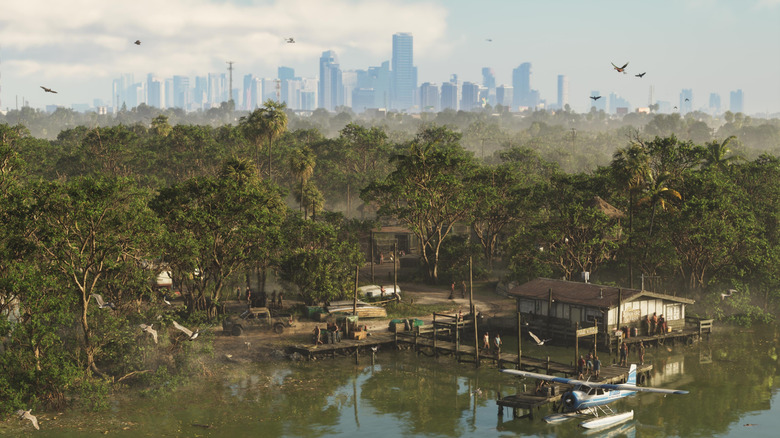
The other issue Digital Foundry cited with the base PlayStation 5 while playing "Grand Theft Auto 6" is its overall soft look compared to the PlayStation 5 Pro. That's mainly because it doesn't use PSSR and instead relies on 1440p rendering with spatial upscaling and heavy temporal anti-aliasing (TAA). If lowering the motion blur strength doesn't help, you might need to adjust brightness and recalibrate HDR, which you can do directly on your PlayStation 5 via "Settings" > "Screen and Video." From there, select "Video Output" and choose "Adjust HDR" (it must already be on). You can also do it in-game under "Settings" > "Display" by selecting "HDR Calibration" after you toggle it on.
It's also worth triple-checking that you're using your TV's Game Mode, if it's supported, since it can reduce input lag by turning off heavy video processing that may affect the overall image. Just about every review raved about "Grand Theft Auto 6" being one of the best, if not the epitome of cinematic gaming, which is why you'll want your base PlayStation 5 and TV to deliver the best graphics they can while you're playing.