

2 Uses For Your Roku TV Streaming Device's USB Port
We may receive a commission on purchases made from links.
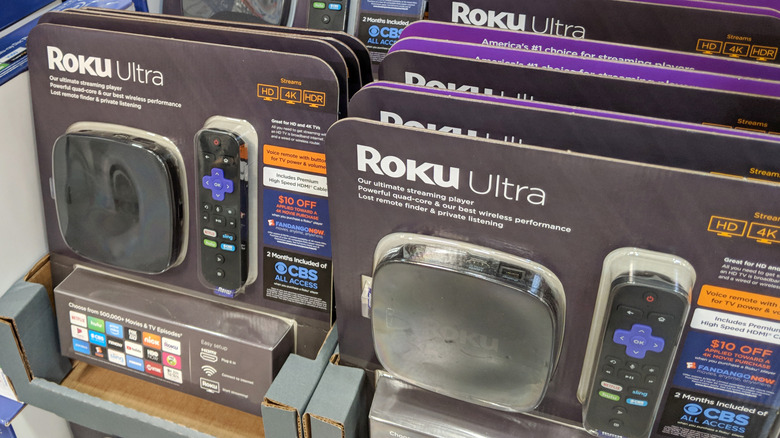
Roku's portfolio of streaming media players is widely popular and is often recommended among the best streaming devices for those who want to enjoy smart TV features. The brand offers five streaming devices, each of which delivers an easy-to-use interface and a host of helpful and user-friendly features that make your life easier. Some features include private listening, support for Apple AirPlay, and access to local TV channels. However, the Roku Ultra and the Roku Streambar SE are much more powerful (and expensive) options in the company's stable, while providing a few extras — such as a USB port.
Roku has also included a USB port in some of its older devices, such as the Roku 2 XS. While the USB port on your Roku TV streamer isn't as versatile as the one on a PC, it still is pretty capable and can be used for a variety of things. If you haven't paid any heed to your Roku's USB port, you're missing out. Here's how you can make the most of it.
Play offline media files
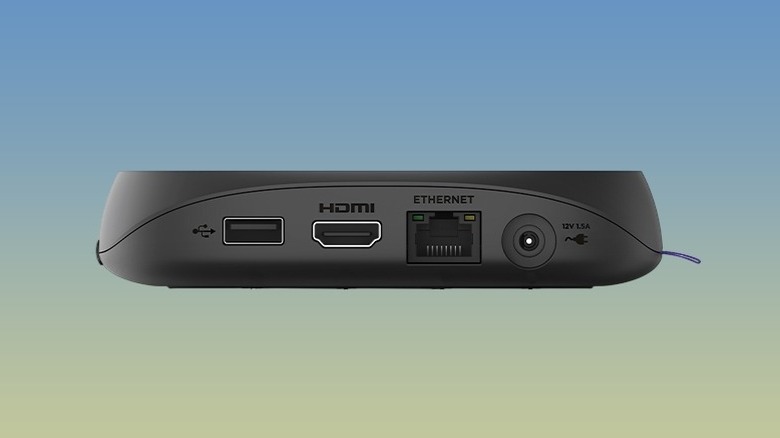
If you're someone who likes to store media offline and is looking to play it through your Roku streaming player, you are in luck. You can use the built-in USB Type-A port on your Roku device to connect external storage devices, such as a USB flash drive or an external hard disk drive, and play the stored content. The streamer uses the Roku Media Player app to play the media. While the app is typically installed by default, you can install it from the Roku Channel Store if it's not already installed.
Roku supports a wide range of video, audio, image, and playlist formats, giving you plenty of freedom in what you can play. As you can expect, DRM-protected content is not supported. In other features, you can supply your own content artwork and subtitles in the USB drive to go alongside your content. Another highlight of Roku's USB support is its ability to handle USB hubs. So if you want to connect multiple USB flash drives at the same time, you can do so using a hub.
Use an Ethernet adapter for wired internet
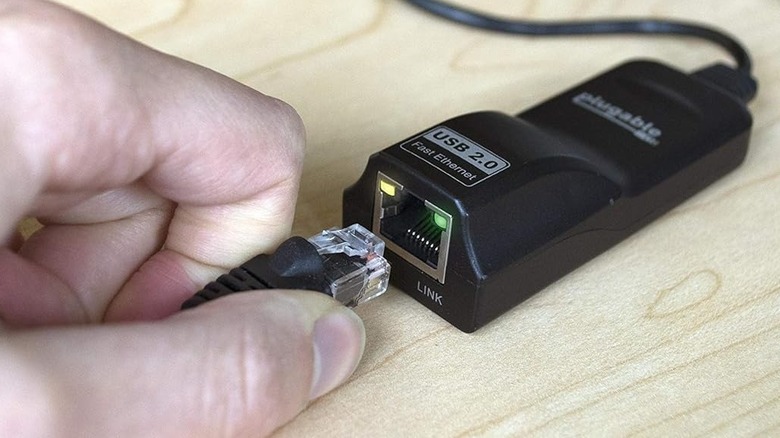
If you're having trouble with Wi-Fi on your Roku streaming device featuring a USB port, you can use a USB to Ethernet adapter for a wired connection. This will help you get reliable and fast internet on your Roku device. As the Roku Ultra already comes with a built-in Gigabit Ethernet port, this feature is mostly useful for the Roku Streambar lineup. You'll need a USB Type-A to Ethernet adapter, such as the Plugable USB 2.0 to Ethernet Adapter or the TRENDnet USB 2.0 to Fast Ethernet Adapter, to make use of the feature. You simply need to plug in the adapter and attach the Ethernet cable. Once the cable is attached, go to Settings > Network, and use the Set up connected option and choose Wired.
Besides the Streambar lineup, you can also add an Ethernet connection to older Roku Express devices and Roku streaming sticks. However, the setup is slightly more complicated as these devices use the built-in Micro USB/ Type-C port for power. So, you'll need an adapter that can also supply power while sending the Ethernet signal. The Ugreen Ethernet Adapter and the Cable Matters Micro USB to Ethernet Adapter are Roku's recommended options for Micro USB devices, and you can consider the Finevoy Ethernet Adapter with Roku Streaming Sticks using the USB-C port.