

Does It Matter Which USB Port You Use On Your Computer?
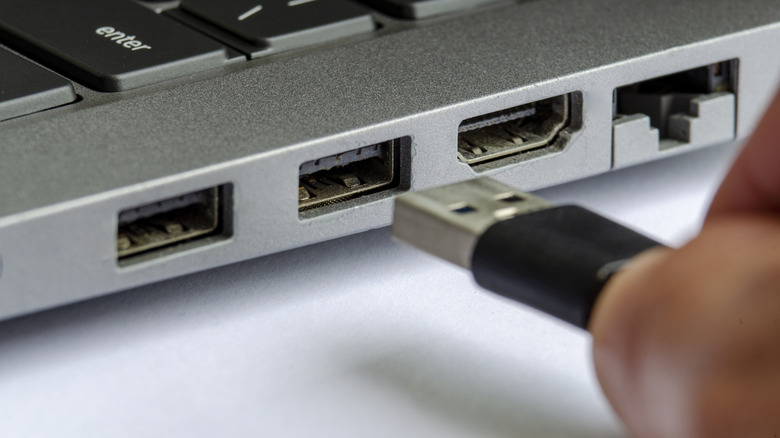
When you're getting ready to plug an external hard drive or USB flash drive into your favorite device, you have a choice to make. That's because most computers have multiple USB ports, and despite following the same standards, they're not all the same. You can plug a USB-A device into any Type-A port, but whether you'll see different results depends. Does it matter which USB port you pick? Technically, no. But also, yes.
Common USB ports used today include USB Type-A, which you normally see on computers and laptops, and USB Type-C, found on phones and mobile devices. USB-B, USB Mini, and USB Micro are the other types that aren't as commonly found in consumer-grade computers. We will focus on the USB Type-A ports.
Most modern computers include several USB-A ports of varying types. Depending on when they were built, they could be older, like USB 2.0, or newer, like USB 3.1. They are universally compatible, but plugging your modern device into an older port could affect your experience significantly. For example, file transfers are much slower on a USB 2.0 connection, especially if the device being plugged in is designed for the faster, newer USB speed capabilities. So, while the port doesn't matter to get the job done, since every USB Type-A port will work fine with USB Type-A connectors, using an older port could slow down communications and make file transfers take longer.
The big difference between USB Type-A ports on your device
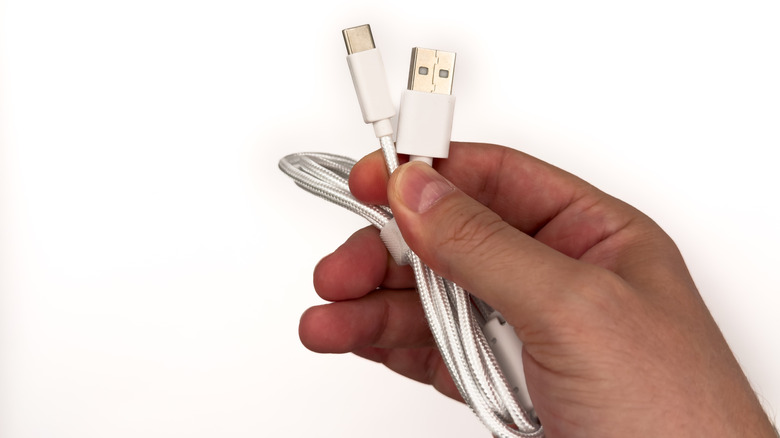
To understand which port works best for which device, pay attention to the manufacturer's recommendations and device protocols. A USB Type-A 2.0 hard drive will work fine in all USB Type-A ports, but plugging it into a USB 3.1 port won't give you higher speeds just because the port could handle it. You'll be limited to the slower speeds of USB 2.0. The same is true with a USB 3.1 hard drive plugged into a USB 2.0 port. You'll get the maximum available speeds for the older connector.
Another factor to consider is the power draw of various USB ports. USB 3.1 delivers significantly more power than USB 2.0, so devices made for USB 3.1 plugged into that port will charge faster. USB 2.0 can provide up to 2.5 watts, while USB 3.1 can provide up to 4.5 watts. USB4, the latest iteration, supplies up to 100 watts for a massive improvement in power delivery. So, plugging into a newer, more capable USB port can charge your modern devices faster, such as a handheld gaming PC or a smartphone.
There is an exception to the universal port rule. Devices that require more power or higher speeds might call for a particular USB port. Virtual reality headsets are an excellent example. Most require a USB-C cable and a suitable port, USB 3.0 or higher. That's because the port's capabilities are required for high-bandwidth video, audio, data, and power (electricity) transfers, all necessary for the VR headset to work properly. Anything older than 3.0 would be too slow. So, if you try and plug a VR headset into them, you'd likely see an error message, or the device wouldn't function correctly — the port might trickle-charge the device, but it won't transfer data, video, or audio.
How to identify the USB ports in your computer
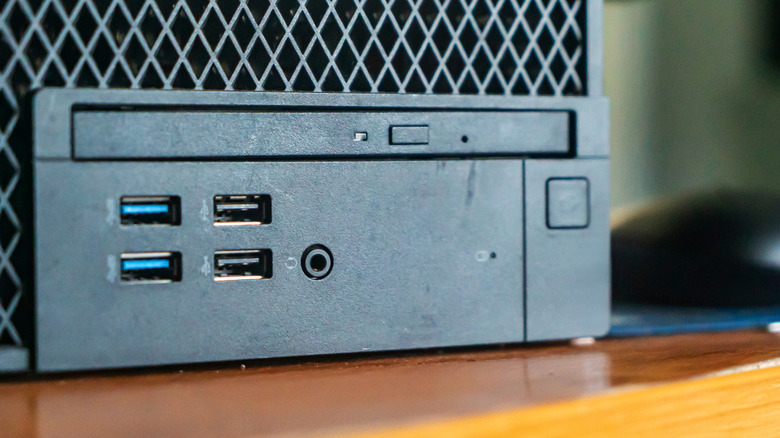
In newer laptops and desktops, USB ports are color-coded to help identify the version in use. A blue port means it supports USB 3.0, or SuperSpeed USB, including USB 3.2 Gen 1. A purple USB port indicates a Huawei SuperCharge port or USB 3.1, similar to the blue ports. Other colors you might encounter are yellow for USB 2.0 and USB 3.0 ports, orange for USB 3.0, red for USB 3.1 Gen 2 or USB 3.2, and white for older USB 1.0 ports. The most common color of all is black or grey, which is generally USB 2.0. If there are no colors outside of whatever the core color used by the manufacturer is, you may be able to identify the ports by nearby labels.
You can use Device Manager on a Windows PC to identify USB ports available in your computer. You can also see which USB ports belong to which hub through the tool to locate them — core USB sources are referred to as "buses." On a Mac, you can use the system information tool to find the speed of your USB ports. With other types of USB ports, especially older standards, there's less variability in speed and compatibility.
When weighing Micro USB versus USB-C, the benefits are obvious. USB-C is faster, newer, supports higher standards, and is used in a wide variety of modern devices, from smartphones and tablets to handheld game consoles. In addition, the USB power delivery standard is only available for USB Type-C cables and connectors. Micro USB only supports 2.5 watts to 10 watts versus the 240 watts of Type-C.