

4 Hidden Ways To Keep Your Old Android Phone Feeling Brand New
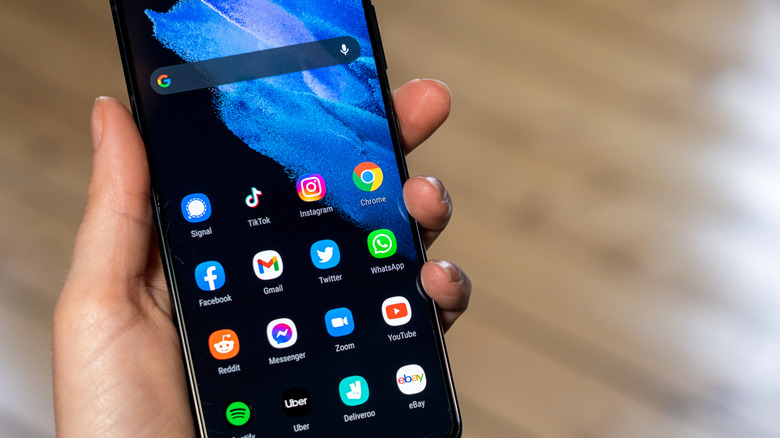
It's common for older Android phones to turn laggy and sluggish over time, which is often one of the reasons why many people start thinking about upgrading their phones. However, buying a new device can be a costly endeavor, and you need to avoid common mistakes while buying Android phones. But if you own a relatively recent Android phone and it's physically fine, you can often extend its lifespan by tweaking a few settings, doing a bit of spring cleaning, and changing some hidden options to give it a new lease of life.
We have already covered how to fix slow animation speeds on old Android phones. But that is just the tip of the iceberg. There is so much more you can do on Android, such as clearing the cache to speed up day-to-day performance. Here are four of the relatively uncommon and hidden ways to make your Android phone feel brand new.
Change the background process limit
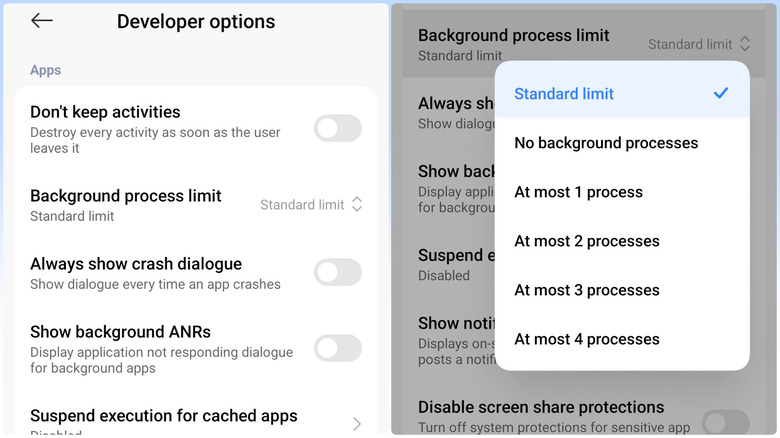
If this is the first time you are reading about the background process limit, you're not alone. It's not a setting that you would normally see on any Android phone. It's a special option hiding under your phone's Developer Options. As the name suggests, it limits how many processes run simultaneously in the background. While it's okay for a new phone with powerful hardware to run a dozen or so processes in the background and still feel snappy, older hardware is less forgiving and can make your phone lag. So, by limiting the number of background processes running at any given moment, you can boost the performance of your Android phone.
To do so, first head to Settings > About > Software Information, and tap on the Build number seven times until you see the "You are now a developer!" message on the screen. Then, head to Settings > System > Developer options > Background process limit. The limit would typically be set to Standard, but you can change it to At most 4 processes. Keep in mind, by restricting the number of background processes, you are asking the phone to kill older processes as the number of total background processes goes above four. This can result in some apps getting closed as you switch to others, thus impacting your multitasking experience.
Use running services to find troublesome apps
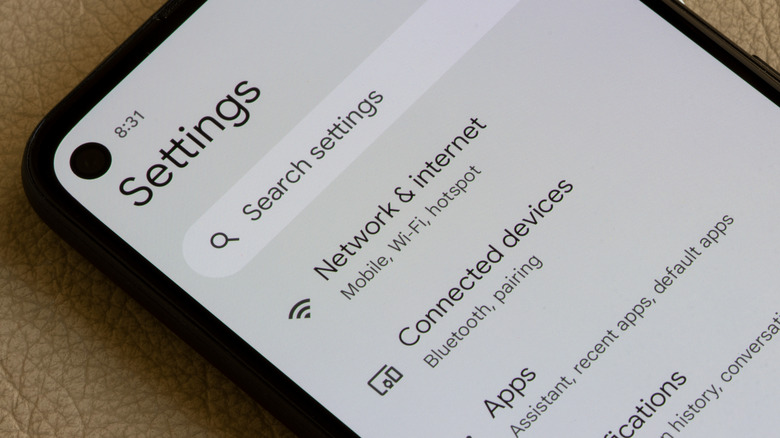
Another helpful little option found in your Android phone's developer options is Running services. It can tell you about all the services running on your phone at that moment, how much RAM they are consuming, and for how long they have been running. This can help you identify any problematic apps and processes that are either consuming too much memory or shouldn't be running when they're not in use. You can take these learnings to uninstall apps that you don't need or stop those you use occasionally from running in the background.
To see running services, navigate to Settings > System > Developer options > Running services. If you want to uninstall any apps or stop them from running in the background, go to Settings > Apps, find the app, and tap on it. You'll see the option to uninstall it and a toggle next to Allow background usage. You can disable it, but note that it may lead to delayed notifications from those apps, plus they won't sync any data in the background. Notably, some manufacturers may disable the Running services option on their smartphones, which leaves you with uninstalling the apps as the only option.
Use lite versions or web apps
A few years ago, lite apps were a big thing in the Android world, as budget Android phones used to have limited RAM and storage. However, they have since become less popular as affordable phones now have a significant amount of memory and storage. Still, these apps are an excellent way to get a better experience on older phones that don't have adequate system resources. While many companies have stopped making lite versions, you can still find Lite or Go (in the case of Google) versions for some of the most popular apps, such as Facebook, Instagram, Google, Gmail, Google Maps, Pinterest, and TikTok. Other major apps that are relatively lightweight and faster than their regular counterpart include Opera Mini and Telegram X.
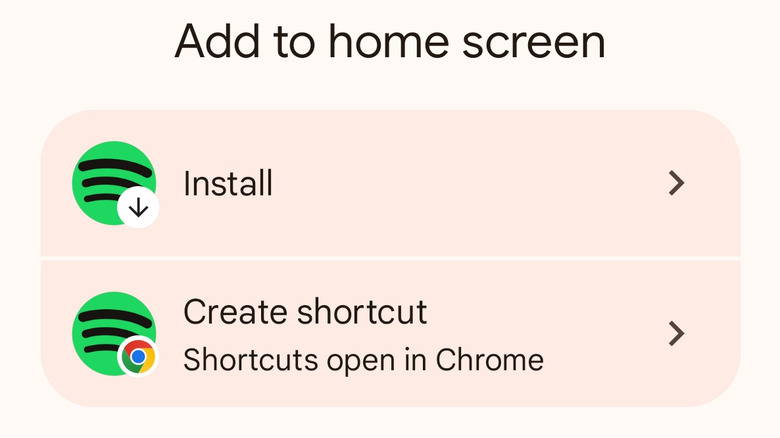
In the absence of a Lite or Go version, you can use the web app of most online services. It's easy to install a web app; all you have to do is open Chrome and navigate to the website of the service you want, and then select the Add to home screen option in the three-dot menu. If there is a proper web app available, you'll get the Install option; otherwise, you'll get the choice to create a shortcut on the home screen that will open the website when triggered. Web apps are pretty lightweight and use substantially fewer resources than native apps.
Remove unnecessary widgets and live wallpapers
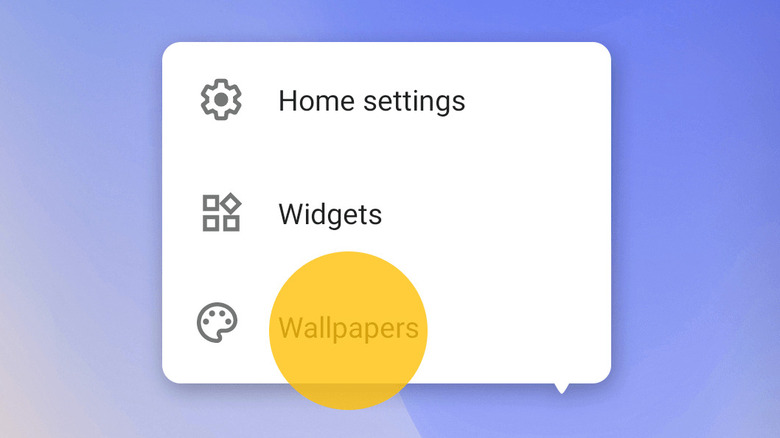
While this is not a hidden feature of Android, you can free up critical system resources by removing live wallpapers and any rarely used widgets from your phone's home screen. This is important because older phones have limited resources, and you don't want to waste them on frequently updated but sparsely used widgets and live wallpapers, no matter how good they look. It's easy to remove a widget; press and hold the widget, and you'll see a menu with the option to remove it.
To change the wallpaper, tap and hold an empty space on your home screen, and you'll see the various options to customize it, including changing the wallpaper. Pick a static one to replace the live wallpaper. Besides removing widgets and live wallpapers, you can also consider switching to a minimal launcher to save more resources. Minimal launchers keep things simple and often give you just a list of apps with a search function. It may seem like a big switch, but it can potentially help free up system resources.