

You Can Store Your Car Keys On Your Android Phone - Here's How
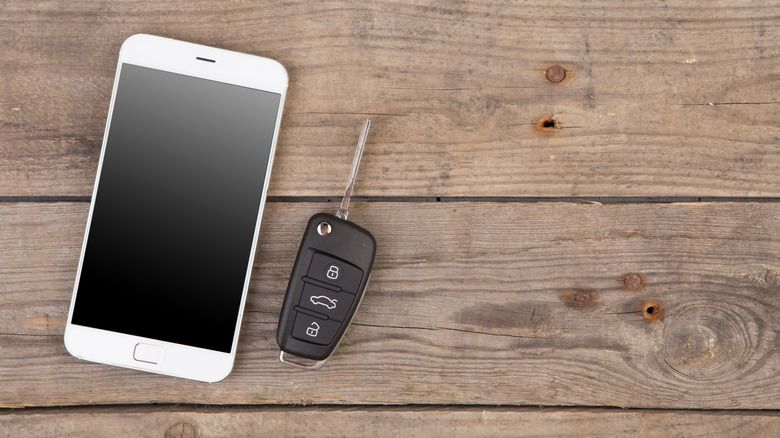
As part of the general advancement of automotive technology, cars have started to come closer in line with computers and electronic devices. By integrating popular electronic frameworks into a car via infotainment screens, users can link their existing devices to them for a heightened degree of control. For example, if you have an Android smartphone or smartwatch, you can store a digital key to your car on it, which adds a variety of remote features like starting the engine and locking doors.
Assuming both your car and your personal device are compatible, you can create and save a digital key on the latter, which has all of the same functions as a traditional car key fob. Even after your battery dies, you can still open your car doors and start the engine for a few hours if you can't charge it soon. If you're having difficulty keeping track of physical car keys, you can keep a convenient digital key in your Google Wallet alongside your other miscellaneous cards and IDs.
You can store a digital key on your phone or smartwatch
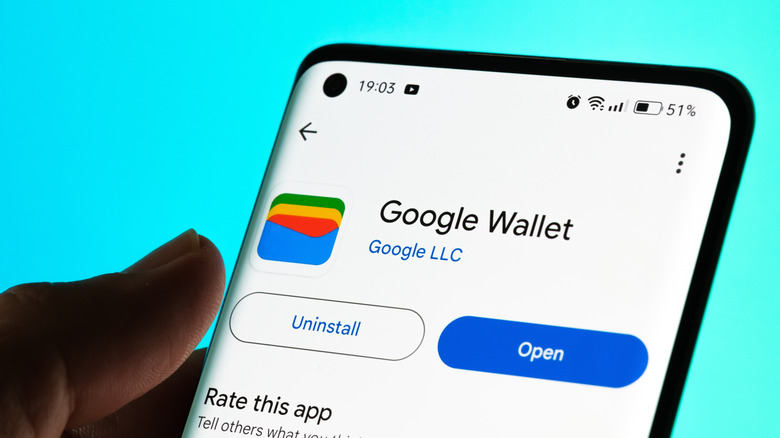
Before you can create and store a digital car key on Android, you need to ensure both your car and your personal device are compatible with the process. Older cars or obsolete phones may not have the necessary features or updates to facilitate a digital key. To see if your car and device are compatible, check the Digital Car Key page on Android's website. For Samsung devices like the Galaxy Watch, check the Digital Key FAQ page on Samsung's website for a list of compatible devices.
If everything's compatible, setting up a digital key is straightforward, and all methods ultimately store the key in the Google Wallet app. If your car's manufacturer has a dedicated app, you can install it and follow the full process there, as the step-by-step will vary between brands. Another possibility is that you may have received an email when you purchased your car with an Add to Android link that streamlines the process. A third alternative is to do the setup on your car's head unit if it's compatible with digital keys, which you can check in the manual or with the manufacturer.
However you go about it, you'll just need to sign in with your Google account, agree to the terms and conditions, and pair your phone with your car. Depending on your car's model, you may need to place your phone over a dedicated car key reader. If you also have a compatible smartwatch paired to your phone, you'll automatically be prompted to add the digital key to it as well. If you need to do it manually, just pull up your digital key in your Google Wallet, check its details, and tap Add key to watch.
You can start the engine, open the trunk, lock doors, and more
Once your digital key is set up on your Android device, you can use it for just about any function you would normally find on a car key fob. For instance, you can lock and unlock your car doors, as well as start the engine. When you first set up your digital key, it will have passive entry enabled, which automatically unlocks the door when you're near, starts the engine when you enter, and locks the door when you leave. You can turn this feature off and perform these actions manually on your phone if you prefer.
If you pull up your digital key via the Google Wallet app on your phone, you can engage certain remote features on your car, such as opening a power trunk or activating the car's alarm. You can also add Quick Command tiles to your Google Wallet app to easily activate any of these features.
Finally, if you have a saved digital key on your phone, you can share a copy of it to Android or iPhone users with a quick text message, which can be helpful if you share your car with a friend or family member. You can easily disable or delete another user's access if you don't want them to have it anymore. Similarly, in the event your phone is lost or stolen, you can log into your Google account on another device and remotely disable or delete your digital key using the Find Hub website.