

Why Your Apple CarPlay Keeps Disconnecting (And How To Fix It)
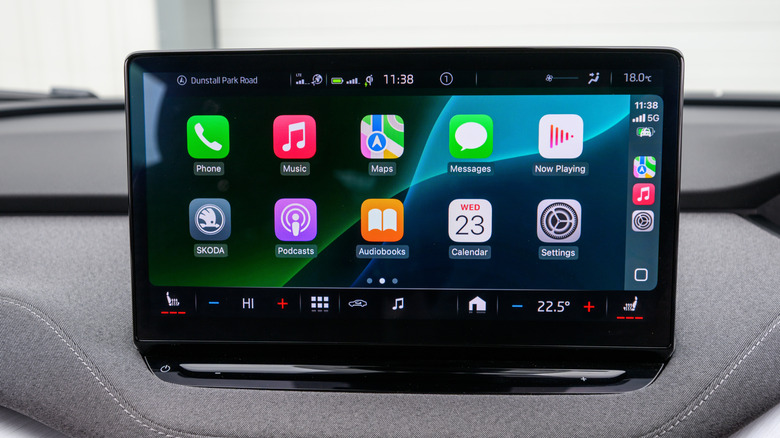
Apple CarPlay makes using your iPhone on the road both safer and easier. All you need to do is bring your iPhone along, start the car, and make sure it's connected. Once you're up and running, CarPlay pulls in the best parts of iOS, whether you're firing off messages, navigating to your next stop, or cueing up a playlist for the drive. You can even fine-tune your experience using some of the best CarPlay tips and tricks.
That said, the software behind your CarPlay and iOS experience isn't totally immune to hiccups. One problem you might run into is a full-blown CarPlay disconnect — the whole interface dropping out without warning. It's annoying, especially when you're in the middle of a drive, and there are plenty of reasons why it happens. Sometimes it's as simple as a connectivity setting or an overdue software update. Other times, it comes down to the accessories you're using to power your CarPlay setup. A preliminary fix you can try is to make sure your iPhone is running the latest version of iOS, as an outdated build can often cause wireless CarPlay to misbehave. You can do this by heading to Settings > General > Software Update and downloading anything waiting in the queue. However, if you're still having the issue after updating, here's why, and what you can do to get CarPlay back up and running.
Wireless connectivity is only great when it works
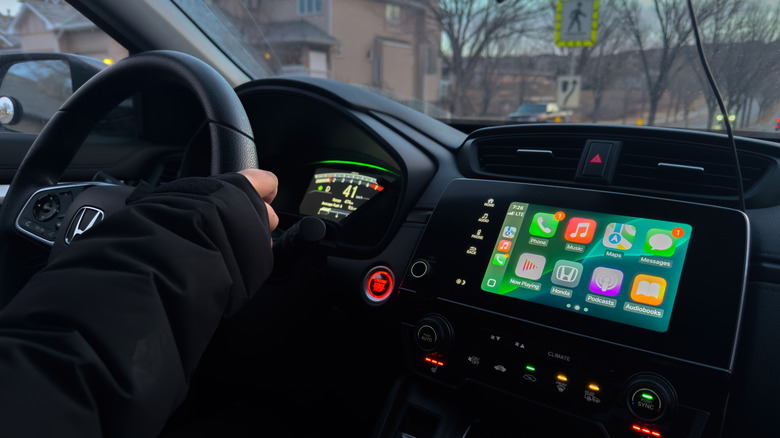
If you're using the wireless version of Apple CarPlay — the kind that doesn't need a USB cable — your car relies on both Wi-Fi and Bluetooth to mirror your iPhone. That also ties directly into a common question people have: Can you use Apple CarPlay without plugging your iPhone in? The short answer is yes — but only when those wireless features are enabled and working together. That means you'll want to double-check that both Wi-Fi and Bluetooth are actually enabled on your iPhone when you hop into the driver's seat. The quickest way to do this is by swiping down from the top-right corner of your screen to pull up Control Center. If the Wi-Fi and Bluetooth icons are lit up in blue, you're good to go.
For a quick reset, you can either tap both icons to disable and tap again to enable, or go to Settings > Wi-Fi and Settings > Bluetooth, respectively, and toggle the buttons. On the Bluetooth settings page, you can also see what devices your iPhone has been paired to. If your iPhone is juggling multiple remembered accessories — old earbuds, a smart speaker in your house, or even another vehicle — it's possible that it's trying to connect to one of these other devices, which may be causing CarPlay to drop or fail altogether. Clearing out unused Bluetooth pairings and forgetting devices can help cut down on these conflicts. It's also worth restarting your car's head unit (if the vehicle allows it) to force a fresh connection handshake. You may also want to clear your iPhone from your vehicle's memory. Go to Settings > General > CarPlay. Select your vehicle, tap "Forget This Car," then reconfigure your CarPlay connection.
Wired connections can be just as finicky
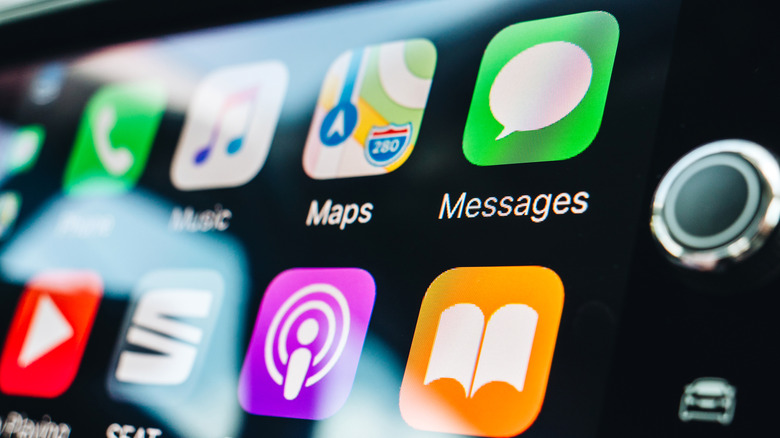
If your version of CarPlay relies on a wired USB connection, keep in mind that iPhones can be picky, especially when you're using a cable that isn't made by Apple or at least MFi-certified, and a low-quality or off-brand one can be enough to break the connection outright. Swap in a different cable (preferably an Apple or MFi-approved one) and see if that clears things up. It's also worth giving your iPhone a quick reboot. Power it down, wait a few seconds, and turn it back on to give both your phone and your car a clean slate. Sometimes that fresh handshake is all CarPlay needs to start working normally.
Likewise, if you use third-party adapters to convert a wired CarPlay setup into a wireless one, they can be just as finicky as a cheap cable. If CarPlay keeps cutting out, try giving the adapter a full reset. Most adapters have a tiny button or a quick reboot sequence in their companion app. Once it restarts, re-pair your iPhone again. It's an extra step, but clearing out old pairing data often solves weird dropouts or lag.