

Logitech MX Master 4 Review: The Biggest Update To The Best Mouse
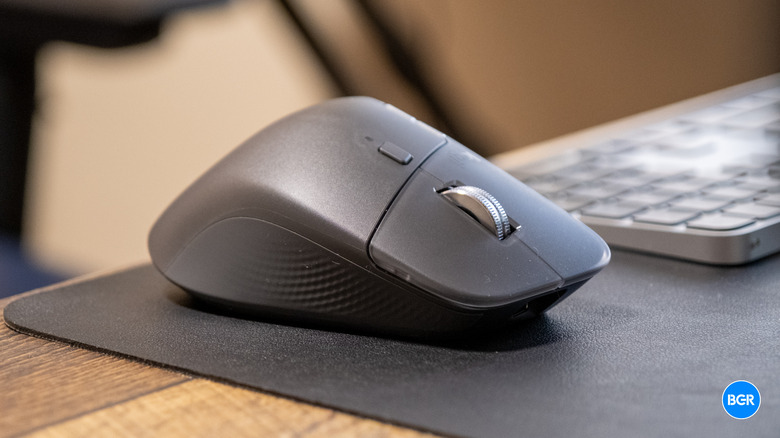
The Logitech MX Master line has been my go-to mouse for productivity work for over a decade now, and for good reason. Each generation has refined what was already an excellent formula, adding thoughtful features while maintaining the core ergonomic design that made it a favorite amongst professionals. Now, Logitech is back with a follow-up in the form of the Logitech MX Master 4.
With the MX Master 4, Logitech faces an interesting challenge. When you've already created what many consider the best productivity mouse on the market, how much should you change? The MX Master 3 was already excellent, after all. The answer, it seems, is to add meaningful new features like haptic feedback and an Actions Ring while refining the existing formula. Do these things come together to make for a meaningful upgrade?
Design
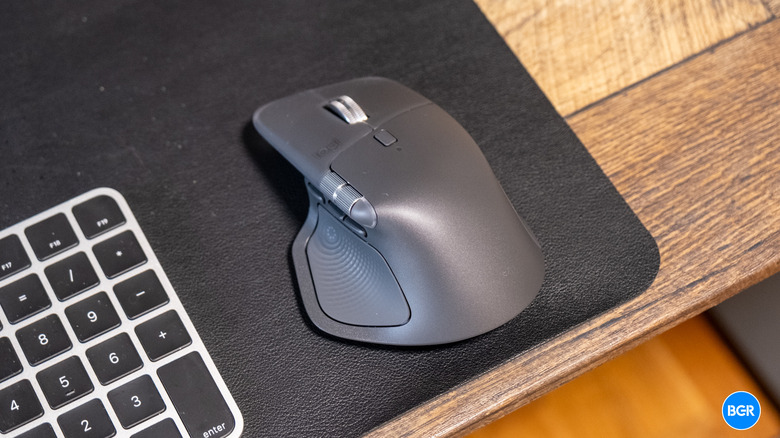
The general design of the Logitech MX Master 4 is very similar to the previous-generation model, but with the fourth generation Logitech has made more changes to the mouse than any updates in the past.
Logitech has switched to a new silicone build that feels slightly more rugged than the MX Master 3, and I really like it. My MX Master 3 has shown some wear after a few years of daily use, which is pretty normal for any heavily-used mouse, but the new materials on the MX Master 4 seem like they might hold up better over time. Of course, it's impossible to know after only a few weeks of using the mouse. The new materials also feel nice to hold — I've seen some reviews arguing that the surface is less grippy than before, but I didn't find that to be true. If anything, the mouse feels more premium in hand to me.
The button layout remains largely familiar, with the upgraded MagSpeed scroll wheel taking center stage. Both the main scroll wheel and the horizontal thumb wheel feel high-quality, and the horizontal scroll wheel remains one of my favorite features — it's particularly handy when editing audio or video timelines where horizontal navigation is constant.
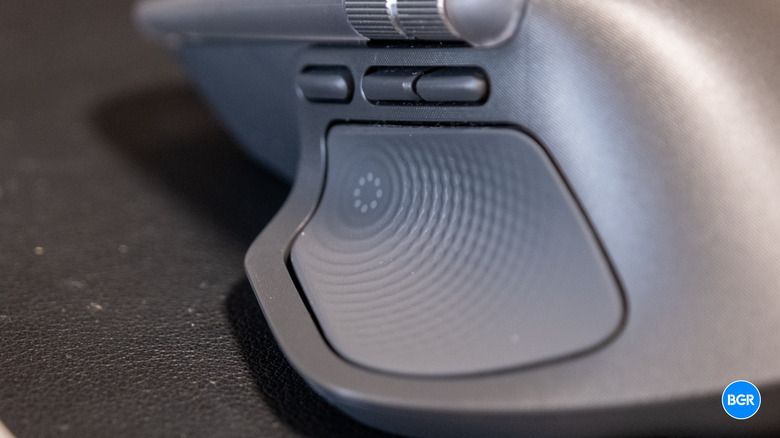
The MX Master 4 keeps the same buttons and controls as its predecessors, while adding some more. For example, there's a new customizable thumb button, adding to the two that were already there. While I don't use these extra buttons super regularly in my daily workflow, having more options for customization is always welcome. Also new to this generation is a dedicated "Actions Ring" button positioned where your thumb naturally rests, adding another layer of customization options. We'll get into this control more later.
The mouse charges via USB-C, and you can continue using it while it's plugged in — a small but important detail for those times when you forget to charge. Logitech offers the MX Master 4 in several colors, including "Graphite," "Black," and "Pale Gray." I'm reviewing the graphite model.
As a whole, the Logitech MX Master 4 looks and feels high-quality and premium — perhaps even more so than previous-generation models. The only downside? There's still no left-handed version, so if you're left-handed you'll either need to be used to a right-handed mouse or look elsewhere.
Features and performance
The MX Master 4 connects through either a Logi Bolt USB receiver or Bluetooth, with support for up to three devices. The connection felt solid during my testing. I've had some issues with MX Master mice maintaining stable connections in the past, particularly in environments with lots of wireless interference. While it's entirely possible connection issues could arise with longer-term use, I experienced nothing problematic during my testing period. The ability to switch between three devices with the press of a button remains incredibly useful for anyone working across multiple computers or tablets.
The headline new feature is customizable haptic feedback, which is activated when you use the Actions Ring or certain other controls. There are four levels of haptic feedback, and I liked the feel of it at maximum settings. You can choose from the other options though, or if you prefer, disable it entirely.
For gaming, the MX Master 4 is perfectly responsive for casual play, but it's clearly not built to be a gaming mouse. The 125Hz polling rate is more than fine for productivity but won't cut it for competitive gaming. This is a deliberate choice to maximize battery life, and it makes sense given the mouse's target audience.
Software
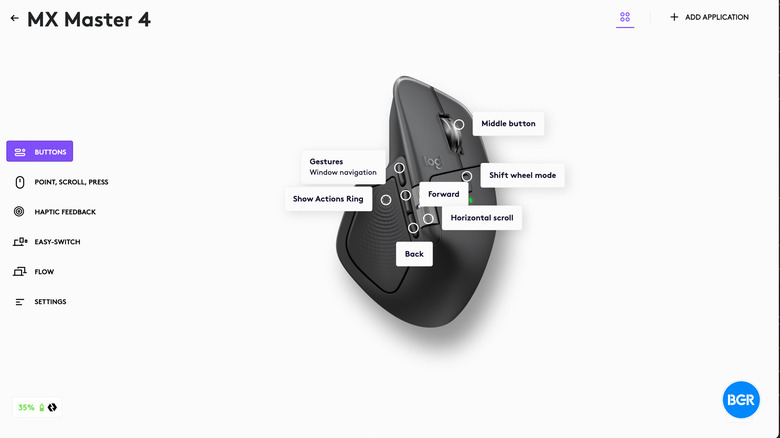
The MX Master 4 relies heavily on Logitech's Options+ software, which has become increasingly polished over the years. All features are customizable through the software — you can set app-specific profiles, assign keyboard combinations to buttons, and even create complex macros for more advanced customization. The software is relatively well-designed and easy to navigate, making customization straightforward even for users who aren't particularly tech-savvy.
The new Actions Ring deserves special mention. It's a neat idea that essentially gives you a customizable dial for shortcuts, which can be system-wide or app-specific. I find it to be a pretty neat idea, though I didn't end up using it quite as much as I thought I might.
 Christian de Looper/BGR
One aspect I'm less enthusiastic about is the permissions required. Logi Options+ needs extensive system access, including input monitoring on macOS. While I understand this is necessary for the software to function properly, it's still something to consider from a privacy perspective. There's also no onboard memory for storing custom settings, meaning you'll need Options+ installed on every computer where you want to use your customized configuration. This isn't a dealbreaker, but it does mean you can't just plug the mouse into a new computer and have all your settings ready to go.
Battery
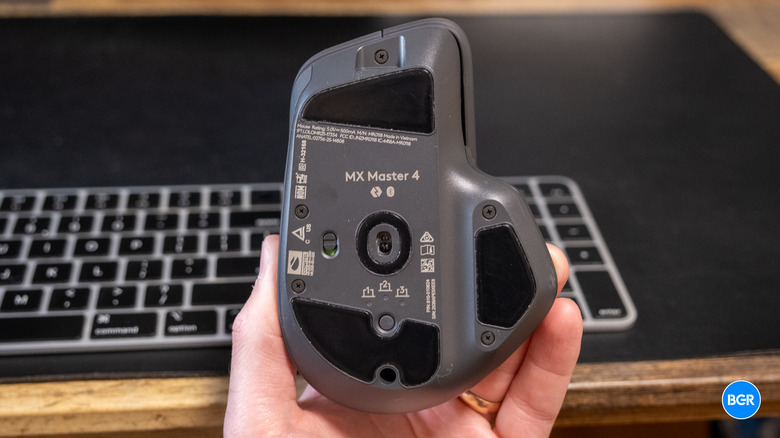
Battery life on the MX Master 4 is frequently highlighted as outstanding, with Logitech rating it at up to 70 days on a full charge. While it's hard to fully judge battery performance in a shorter testing period, I can say that battery life was never an issue during my time with the mouse.
Even more impressive is the fast-charging capability — a one-minute charge via USB-C provides three hours of use, essentially eliminating any downtime even if you forget to charge regularly.
Conclusions
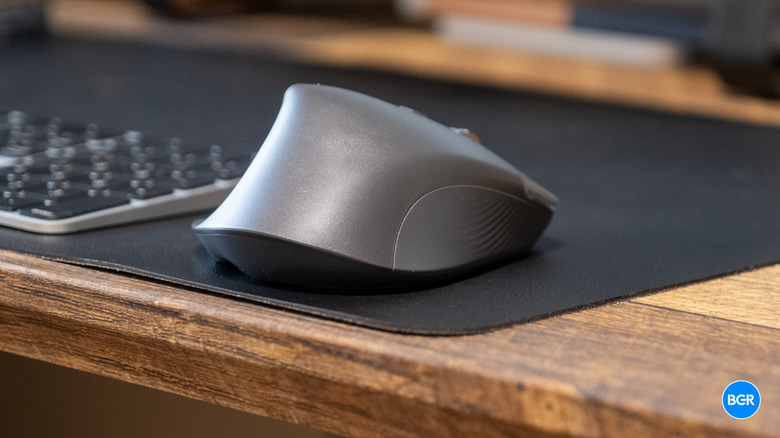
The MX Master 4 proves that the best mouse for productivity and creativity can indeed get even better. The haptic feedback adds a cool new touch to the experience, while refinements to the build quality and materials make an already-premium product feel even more polished. The Actions Ring might not revolutionize everyone's workflow, but for those who embrace it, it could prove useful. My only real complaint is the price — at around $120, it's a significant investment for a mouse, though one that's likely worth it for professionals and creative users who use their mouse for hours every day.
The competition
When it comes to premium productivity mice, nothing really compares to the MX Master 4. The Keychron M6 is a competitor at a lower price point, but it's not as well-built or as easily customizable. It's a good alternative for those who want to spend less, but you're definitely making compromises. If gaming is a priority, you'll want to look at dedicated gaming mice from Logitech's G series or competitors like Razer, which offer higher polling rates and features specifically designed for competitive play.
Should I buy the Logitech MX Master 4?
Yes. It's the best mouse you can buy for productivity or creativity tasks.