

You Can Turn Your Old PC Into A TV Gaming Console With This One Trick
Valve has recently announced a new Steam Machine, and this small PC looks like it's going to be the talk of 2026. But what if you have an older PC or one of those fun little mini-PCs and want to have a similar experience on your TV? You might be surprised that it's fairly easy to take a spare PC and turn it into an impressive TV-based gaming console. While older machines might not be able to play those fancy AAA titles released this year, computers with outdated parts like a Ryzen 5 processor and a dedicated graphics card like GeForce GTX 1650 would make for a great retro or indie gaming console.
This trick will work on any computer running Windows 10 or macOS 12 and up, as well as on the most up-to-date versions of Ubuntu. This is all possible thanks to Steam's built-in Big Picture Mode. Valve has designed Big Picture Mode to be used with a TV while supporting several game controllers. This allows users to enjoy their Steam library from the comfort of their own couch. I myself have an ACEMAGICIAN AMR5 mini gaming PC that I picked up a few years back to use exactly for this purpose, and all it requires is a couple of clicks to enable.
Setting up Big Picture Mode
Setting up Big Picture mode is a simple process that should only take a couple of minutes.
- Launch Steam
- Log in to your account.
- Click the TV icon located on the upper right of the screen, next to your username.
You can now navigate the interface using a gaming controller. To exit Big Picture Mode, simply hit the Exit Big Picture icon in the top right of the screen or hit Alt + Enter on a keyboard.
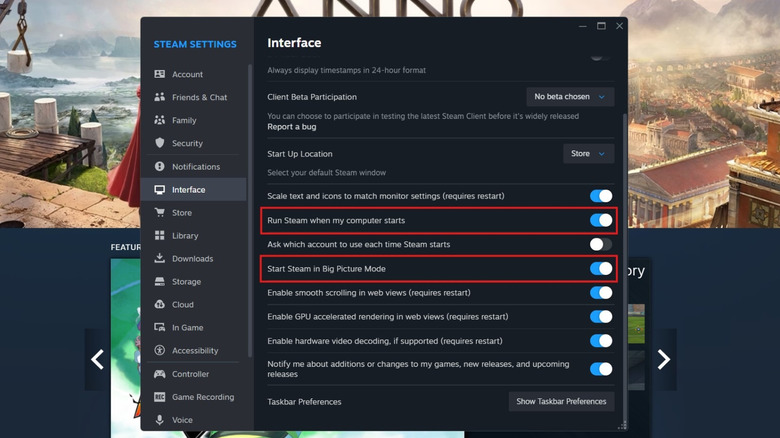
If you don't want to go through the hassle of opening Steam and selecting Big Picture Mode every time you want to access your library of games, you can instruct Steam to load into Big Picture Mode automatically when launched. With Steam open and logged into your account:
- Select Steam from the top menu.
- Click Settings.
- Select Interface on the sidebar.
- Enable Run Steam when my computer starts.
- Turn on Start Steam in Big Picture mode.
Turning your PC into a Steam Machine
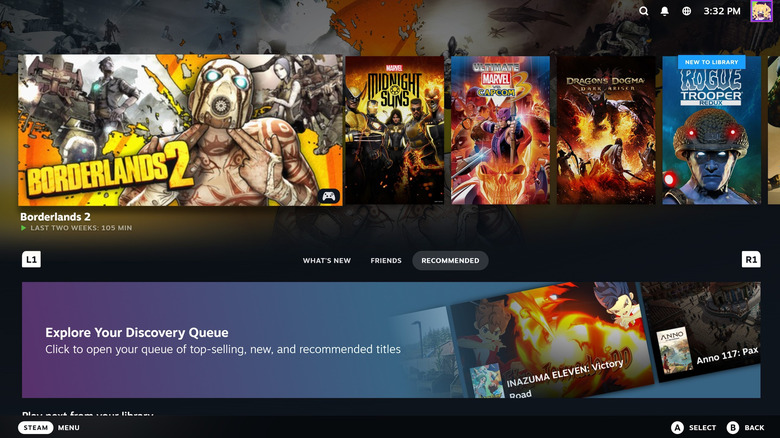
But what makes Steam's Big Picture Mode a benefit when you can simply use Steam on that extra PC like normal? Big Picture Mode was designed to make the gaming experience better on larger screens, such as televisions. The mode takes the Steam interface and allows you to navigate it sitting on the couch with a traditional video game controller instead of solely relying on a mouse and keyboard.
Valve has implemented a robust list of compatible controllers, including those from major gaming consoles, such as the official Xbox 360, One, and Series X|S joysticks. Official PlayStation 4 and 5 controllers are also supported, as well as Nintendo Switch Pro controllers. Many popular third-party offerings from established brands may also work, but Valve doesn't provide official support for them.
Steam makes it easy to know which games can be played with a controller by showing a Full Controller Support icon. Games that require some level of keyboard and mouse functionality with be marked with a Partial Controller Support icon, so keeping a wireless keyboard like the slim and sleek Keychron K3 and an ergonomic Keychron M5 Bluetooth mouse nearby will help make your Big Picture Mode gaming experience a better one. Only the Steam Controller in Big Picture Mode provides complete controller support for every video game on the platform, including those not made for joysticks.