

5 CISA Security Rules Every iPhone User Should Know

Mobile phones have become the primary way many people talk to friends and colleagues, manage their finances, access their email, and store media libraries and personal information. Unfortunately, the convenience of having access to just about everything on a single device that fits in your pocket makes your smartphone an attractive target for cybercriminals. The iPhone 17 includes a powerful new security feature, but even those with the latest technology Apple has to offer still need to understand and implement basic security measures. The Cybersecurity and Infrastructure Security Agency (CISA) has released an update to its Mobile Communications Best Practices Guidelines, and it has provided five pieces of important guidance specifically for iPhone users.
CISA is the operational lead for federal cybersecurity, tasked with reducing risk to America's cyber and physical infrastructure. It provides security guidance to both government entities and the general public, and when it releases security recommendations, they're backed by government intelligence and analysis of previous cyberattacks. Its recently updated advice for iPhone users isn't particularly complicated or challenging to implement. In fact, the five guidelines CISA has laid out are straightforward measures that you can start using right away.
Enable Lockdown Mode
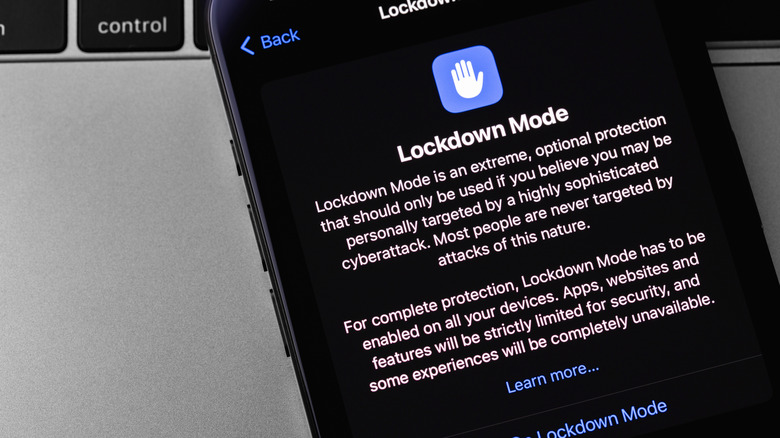
Included with the release of iOS 16, Lockdown Mode will protect your iPhone from spyware. Apple introduced it to defend specifically against spyware threats, and while it was initially intended for high-target individuals such as journalists and government officials, CISA now recommends that all iPhone users enable it. Lockdown Mode works by reducing your iPhone's exploitation points, essentially closing off pathways to spyware, apps, and websites.
Your phone will behave differently when in Lockdown Mode, as it restricts certain features and app functionalities. The most noticeable effects of the feature will likely concern your communications. With Lockdown Mode enabled, most message attachments will be blocked, as well as link previews in the Messages app. FaceTime calls from anyone you've not called in the past 30 days will be blocked, and all shared photo albums will be removed. Additionally, your iPhone will no longer automatically join unsecured Wi-Fi networks. Web browsing will also be more restricted, with some websites potentially loading slowly or not operating correctly.
These limitations may seem inconvenient, but if you feel the security benefits of Lockdown Mode outweigh its frustrations, you can enable it by navigating to Settings, then Privacy & Security, followed by Lockdown Mode, and finally Turn On. You'll be able to confirm the process by tapping "Turn On & Restart" when prompted. You can disable Lockdown Mode at any time by following the same steps and selecting "Turn Off."
Disable SMS fallback
When your iPhone isn't able to send a text message through iMessage, it's capable of automatically sending it through SMS. This will happen at times when the recipient has a poor internet connection, or when iMessage is unavailable on either the sender's or receiver's end. Such messages are notable for appearing in green bubbles in iMessage conversations. It may seem convenient that SMS is available to send your message when iMessage is unable to do so, but the problem with the SMS protocol is that it has no encryption whatsoever.
iMessage, however, features end-to-end encryption, which is why CISA recommends disabling your iPhone's ability to automatically utilize SMS messaging when iMessage isn't available. When texting over SMS, your message is sent in plain text that can be intercepted by hackers, or anyone with the technical ability to monitor cell phone networks. When SMS fallback is turned off, however, your messages will only send through iMessage's secure, encrypted connection.
To ensure your iPhone doesn't use SMS as a fallback option, start by navigating to Settings, then Apps, then Messages. Scroll down until you see "Send as Text Message," then tap the toggle to turn it off. Once disabled, your iPhone will no longer automatically convert failed iMessages into less-secure SMS texts. Note that this only disables the phone's automatic functionality. You will still have the choice to send an SMS text within the Messages app, and you will still be able to send SMS texts to anyone you know who doesn't have iMessage, such as Android users.
Turn on iCloud Private Relay
iCloud Private Relay is a privacy service that Apple includes as part of an iCloud+ subscription. It protects your browsing activity in Safari, and when it's enabled, it ensures that no single party can see both who you are and what websites you're visiting. Without Private Relay, information such as your DNS records and IP address can be seen by your network provider, and the websites you visit. Over time, this information can be used to build a profile of your location and browsing history — and it could even be used to determine your identity.
CISA recommends using iCloud Private Relay because the service ensures iCloud devices — such as your iPhone — have masked IP addresses, use secure DNS, and split all web traffic information between servers controlled by Apple and a third party. This will help prevent those profiles from being built out of your online activity, as it prevents your service provider and websites you visit from tracking repeated and identifiable data about you.
In order to put iCloud Private Relay to use, you'll need an active iCloud+ subscription. These start at just $0.99 per month and include features like cloud storage in addition to one of Apple's best iPhone privacy features, Hide My Email. Once you have an iCloud+ subscription, turning on Private Relay is as simple as navigating to Settings, then Apple Account, followed by iCloud, then Private Relay, and tapping the "Private Relay" toggle to the "On" position.
Protect DNS queries
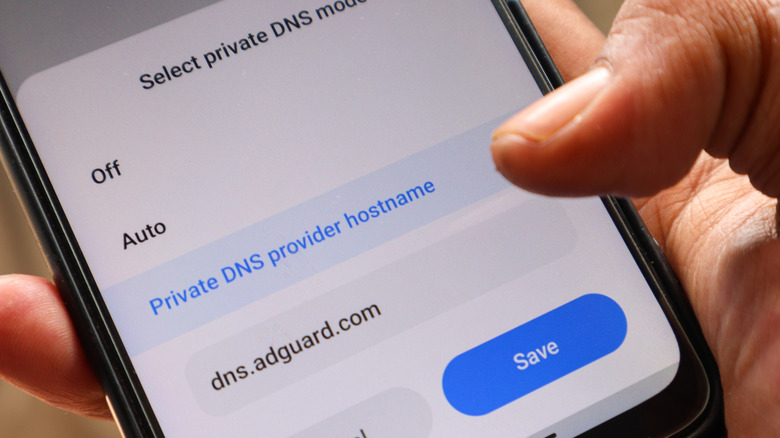
Whether you're interested in Apple's iCloud Private Relay or not, CISA recommends you find a way to protect your DNS queries. The Domain Name System, essentially, is the internet's phone book. When you visit a website on your iPhone you type its domain name into your browser, but the way our devices interact with these websites is through IP addresses. One way to protect the information that goes back and forth in this process is by encrypting your DNS queries.
CISA states that using an encrypted DNS service can prevent the interception and manipulation of exchanged data by threat actors. It also acknowledges that while iCloud Private Relay provides enhanced privacy and security by encrypting DNS queries, there are some free alternatives available. For iPhone users, CISA recommends Cloudflare's 1.1.1.1 Resolver, Google's 8.8.8.8 Resolver, and Quad9's 9.9.9.9 Resolver. Each of these provides encrypted DNS service for free to the public, and you can use their app — or a provided configuration profile — to set them up on your iPhone.
Review and restrict app permissions
CISA's final recommendation for iPhone users is to review permissions for the apps on your phone. Every app requests permission to access certain features and data, with things like location, contacts, photos, camera, and microphone access being some of the most common. While some of these permissions are required for apps to provide full functionality, many apps request far more access than they actually need. A dictionary app doesn't need your location, for example, nor does a restaurant guide really need access to your camera or microphone.
You can review what permissions have been granted to the apps on your iPhone by navigating to Settings, then Apps. Here you'll see all of your apps listed alphabetically, and upon clicking one you'll see which features it's been given access to. Notifications, Background App Refresh, and Apple Intelligence are some of the features you may want to let the app continue to access. But if you're finding certain permissions given to apps that don't really need such access, continue to work your way through the features, turning off permission as you see fit. CISA recommends you do this regularly, especially if you're one to try out new apps quite frequently.