

This New Google Chrome Feature Is The Productivity Boost You Didn't Know You Needed
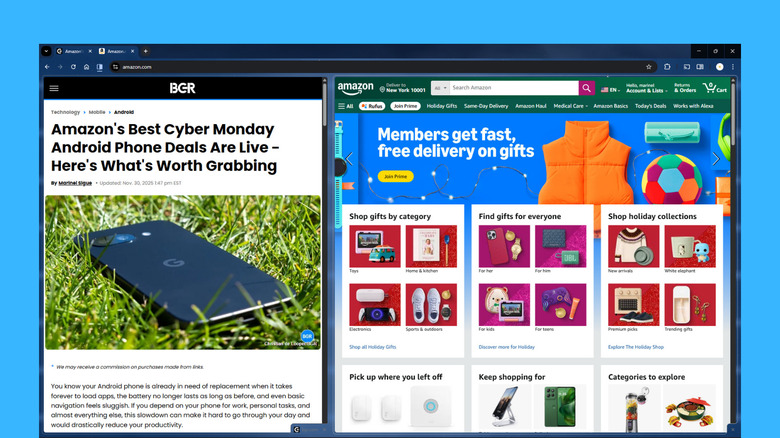
For the longest time, Google Chrome hasn't exactly been seen as the epitome of multitasking. One of the biggest factors for this is the lack of a split view. It's a feature in Opera, Edge, and Vivaldi that users have grown to enjoy enough to switch from Chrome. But starting with Chrome's most recent update, that's about to change.
If you've been on Chrome this past week, you might have noticed the new split view option that comes up when you right-click on any tab. Just as its name suggests, split view in Chrome lets you split the screen into two different webpages — one on the right and another on the left. This makes it easier to browse two pages at the same time instead of having to switch tabs frequently, or doing the old workaround: opening the tabs in two different windows and then using your computer's built-in split screen assistant. Chrome's split view can come in handy for boosting your productivity during both work and personal hours. For instance, you can go into split view when you're comparing prices from two online platforms, taking notes while reading, or playing a video while browsing social media on the side.
Although there's no official announcement about the new split view in Chrome, some users have noticed it in version 142 and others on version 143. So, make sure to update Chrome to the latest release if you haven't yet. Afterward, here's a quick guide on how you can use split view in Chrome.
How to use split view in Chrome
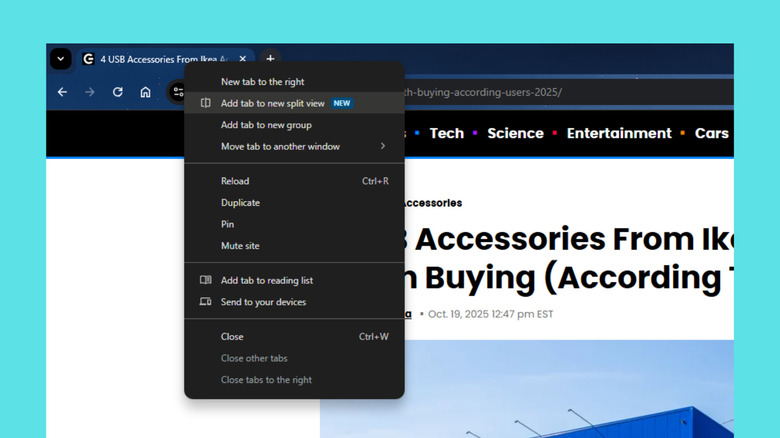
To set up your Chrome browser tabs in split view mode, first open one Chrome window and visit the webpages you want to view side by side. Then, go to one of the tabs, right-click on it, and choose Add tab to new split view. This will move the current tab to the left half of the split view. On the right side, select the other tab you want to display. From here, simply click anywhere on either page to browse it or use its address bar to do a Google Search. You can customize and manage split view with these steps:
- To resize the webpages, drag the middle divider to the left or right.
- To swap the sides, go to the split view icon in the top-left of the screen and select Reverse views.
- To close a webpage, find and click the X icon in the bottom-right corner of that page.
- To deactivate split view, press the split view icon and choose Separate views. This will move the webpages to their own tabs.
- To make it easier to switch from the regular view to split view:
- Go into split view mode using the steps above.
- Right-click on the split view icon that appears to the left of the address bar.
- Press Pin. This will keep the split view icon on the toolbar permanently.
- In a regular tab, click the split view icon to activate split view in Chrome.
While using split view in Chrome, you can still open other regular tabs in the same window like you normally do. You can also have multiple split-view sessions in one window.