

Your Roku TV Can Help You Find Lost Remotes - Here's How
We may receive a commission on purchases made from links.
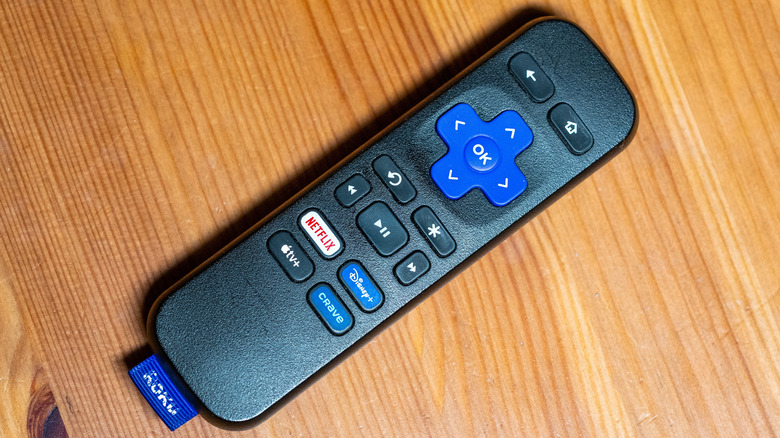
Roku streaming devices and smart TVs all come with a Roku remote control. From one device generation to the next, the company has pretty much kept the remote's look and feel the same, save for the occasional new button or feature. But one thing has almost never changed, and that's the controller size. Roku remotes are small, which means that misplacing one is bound to happen at some point.
Tucked under couch cushions may be a frequent-enough hiding spot that you'll always check there first, but there could be a day when you simply can't locate your Roku remote — regardless of how much you've retraced your steps. Fortunately, there are numerous Roku TV tips and tricks for getting the most out of your Roku hardware and software.
For instance, did you know that there's a good chance your Roku product has an integrated remote finder? Roku's lost remote finder feature works with any Roku remote that has a built-in speaker. So, if you've been thinking about buying a Roku Streaming Stick, look for models that come with the Roku Voice Remote Pro or Roku Voice Remote Pro 2nd Edition.
How to use the Roku lost remote finder feature
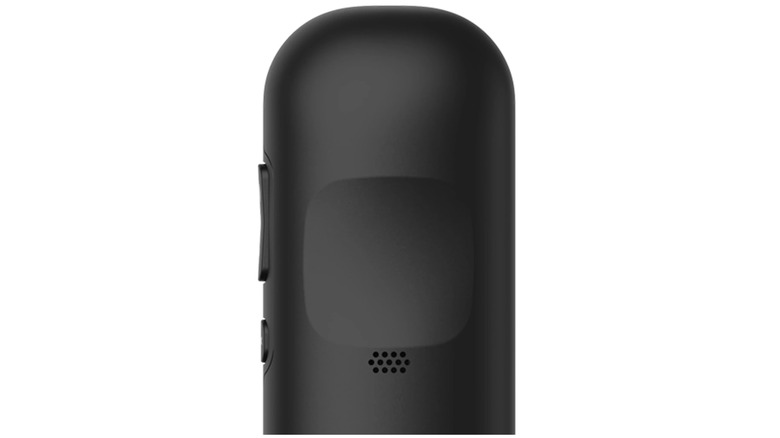
If you already own a Roku device — and it doesn't support lost remote finder — you'll be able to purchase one that does from the Roku accessories store. You can also buy new Roku remotes on Amazon and at various brick-and-mortar retailers. When you activate lost remote finder, the Roku remote connected to that device will emit a chime for up to 60 seconds. Once you locate the remote, press any button to stop the sound.
Both the Roku Voice Remote Pro and Roku Voice Remote Pro 2nd Edition support hands-free voice commands, and you can trigger the lost remote finder by simply saying "Hey Roku, where's my remote?" You'll also want to make sure you're speaking loudly enough for your voice to project through an entire room. Alternatively, you can control your Roku TV with an Android phone, and use the app to locate a lost remote.
To do so, open the app and tap Devices. Select the Roku device that's missing its remote, tap the three dots icon, then tap Ping Remote. The Roku app also acts as a secondary remote to activate the lost remote finder in Roku OS. Tap the Remote icon from the navigation bar, then press Home > Settings > Remotes & devices > Remotes. Choose the remote you've lost, then select Find remote.
Other ways to track down your lost Roku remote
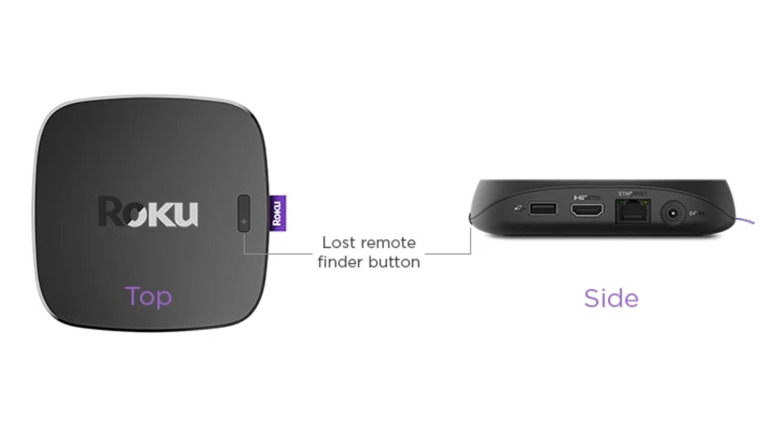
Certain Roku streaming devices and smart TVs have a built-in remote finder, too. Hardware like the Roku Ultra features a lost remote button on the side or top of the device. Just press the button to start the remote chime. If you own a Roku-powered TV, you'll be able to use the buttons or joystick to navigate to the Inputs tab, where you'll be able to highlight the Find Remote option.
Those with a Roku Pro Series TV have it even easier: There's a Find My Remote button right on the TV (above the power button). You'll also be able to customize the lost remote sound in Roku OS for specific Roku controllers. Press Home on your Roku remote (or Roku mobile app), followed by Settings > Remotes & devices. Choose the remote you want to modify, then select Change remote finder sound.
Once you hear a tone you like, press OK to save it to your remote. Two things to keep in mind about finding your lost Roku remote: If the batteries are low or dead, the lost remote finder won't work. The feature also won't work if your Roku remote has fallen out of range of your Wi-Fi network.