

5 Underrated Google Apps You Need To Try On Your Android Phone
If you're an Android user, you likely have Gmail on your phone. It's one of those essential apps that many rely on every day for work and personal use. Other than Gmail, Android users have other Google favorites on their phones — Chrome for browsing, Meet for video conferences, Maps for directions, and Drive for storage. They're among the most popular and the best free Android apps Google has released.
But there's actually more to Google than just these mainstream apps. A quick look at its developer page on the Play Store will uncover a whole suite of tools available for your Android phone. Some of them are unseen stars that are just as handy and feature-packed as Google's frequently-downloaded apps.
If you're into discovering new ways to boost your productivity or have fun, here are five underrated apps developed by Google you should give a try. They all have 100 million downloads or fewer, but they are surprisingly handy for different users.
Photomath
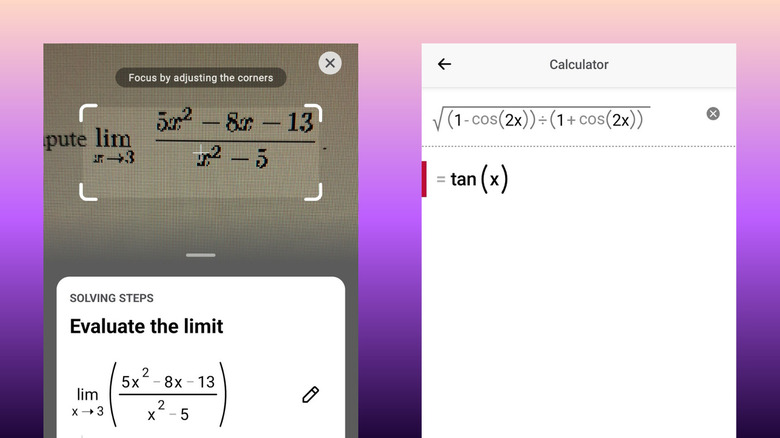
Math problems are the bane of some students' existence. And even with your unlimited access to the internet, it's not easy to search for their answers online, mostly because the equations are hard to type out. After all, most phone keyboards lack math keys like exponents, pi, and summation. To solve this dilemma, you can use the Google app Photomath.
Photomath is like Google Lens, but specifically for math problems. You use it to scan the question — whether it's handwritten, printed, on a screen, or in an image file — and get the answer with the step-by-step solution. This helps you understand the process better and apply it to similar problems in your assignment. In terms of coverage, Photomath supports all sorts of math problems at any educational level. It works with basic word problems, arithmetic, and higher-level calculus, to name a few.
Besides the camera analysis, Photomath includes a built-in calculator. This can come in handy if the camera can't accurately scan the math equation or you just prefer typing it out. The calculator is a simplified version of a scientific calculator, complete with square root, trigonometry functions, and calculus operations, among others. Immediately after you enter the equation, Photomath will reveal the answer to the problem. You can then press the Show Solution button to see how the problem was solved. While you can access the basic step-by-step solution for free, Photomath features more detailed instructions via the Plus subscription. It provides custom visual aids, animated tutorials, and extra tips on solving problems.
Lookout
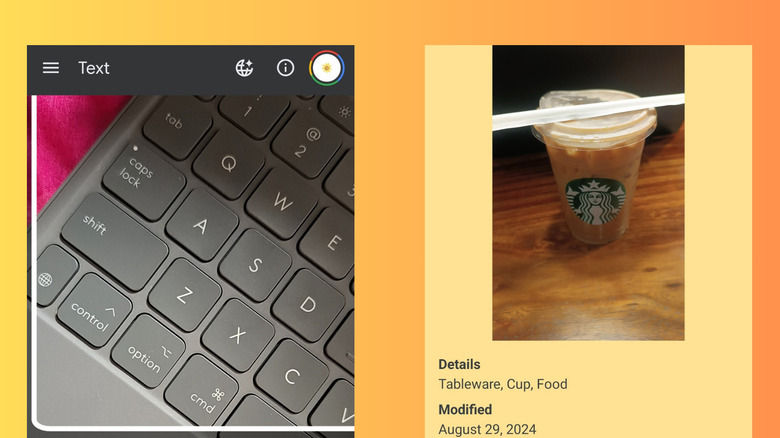
Your Android phone's camera can do more than just take selfies and record videos. With the lesser-known Google app called Lookout, you can turn your camera into an accessibility tool to better see objects and read text in front of you, which is handy for those with visual disabilities.
Powered by computer vision and generative AI, Lookout can assist you in seven different contexts: Text, Documents, Explore, Currency, Food labels, Find, and Images. In Text mode, you simply point the camera at the text you want to read, and it will automatically read it aloud — no need for button presses or initiation on your end. This can be helpful when reading short lines like signage. If you want to read longer passages like an entire document, use Document mode instead. Lookout scans the text on the document and converts it into a digital format. You can then listen to it or read it yourself. For your convenience, you can change the background color, adjust the letter spacing, and increase the font size.
Aside from reading, Lookout helps identify specific objects. For example, you can choose Currency mode to check what banknote you have (available for U.S. Dollars, Indian Rupees, and Euros only). The Food label option reads the label or barcode of packaged food. The Find function looks for specific items like cups, vehicles, and doors in images. You can also try Explore to learn whether there's a person nearby or what objects are around. Finally, there's Image mode. It looks at the uploaded photo, verbally describes it to you, and answers your follow-up questions about the image. Since Lookout only requires Android 6.0 (released in 2015), it's one of the best ways to repurpose an old Android phone.
Read Along by Google
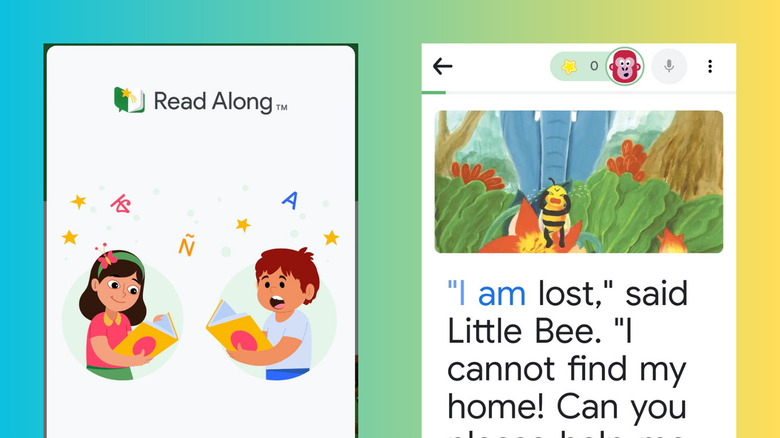
When it comes to teaching children, a Google app that might come to mind is YouTube Kids. After all, it's packed with both entertaining and informative videos that cover a broad range of topics. But Google actually developed a dedicated educational app much more suitable for young learners: Read Along by Google.
Just as its name suggests, Read Along is designed to read along with your kid. It has stories that come in different levels, with the recommended stories changing depending on the kid's reading ability. This way, they won't get bored reading the same material over and over. Read Along also features a reading assistant named Diya, who's powered by Google's text-to-speech and voice recognition features. Diya listens to every word said out loud, and every time the kid gets stuck or mispronounces a word, Diya says the right pronunciation and waits for them to continue.
To encourage your young learner to continue using the app, Read Along includes fun rewards like stars and prizes. They get stars for correctly reading a word or answering in-story quizzes and get prizes for completing achievements, like earning 100 stars or finishing a Level 1 story. Other than stories, Read Along comes with some fun but still educational games — one of which is Jumbled Words, where the kid unscrambles the letters on the screen to spell the word Diya says. As of this writing, Read Along is limited to 11 languages: English, Arabic, Bangla, Gujarati, Hindi, Marathi, Portuguese, Spanish, Tamil, Telugu, and Urdu. The upside, though, is that it's completely free, has no ads, and works offline. Just download the story you want your kid to read, and it should be accessible even when you're not connected to the internet.
Chrome Remote Desktop
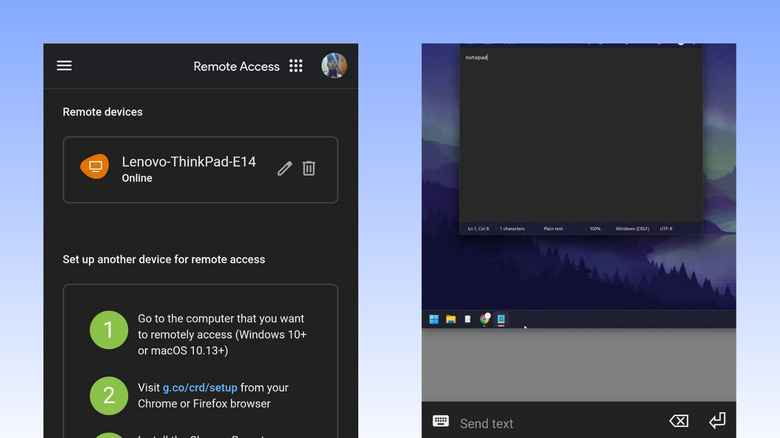
There used to be a time when phones and computers were largely independent devices. But now, they're pretty much integrated to the point that you can control your Android phone from your PC. The same is true the other way around — you can also access your computer from your Android phone, using an overlooked Google app called Chrome Remote Desktop.
What Chrome Remote Desktop does is pair your Android and computer using your Google account. Once you set up Chrome Remote Desktop on your computer, you can start accessing it remotely from the companion app on your phone. You're free to navigate the desktop, type in the Notes app, use any program, or open files. Essentially, what you can do on your computer, you can also do right from Chrome Remote Desktop on your Android device. Besides your own computer, the app lets you connect to a friend's computer, too. They just need to give you a code after configuring Chrome Remote Desktop on their end.
With this versatility, Chrome Remote Desktop comes in handy in several cases. If you're downloading a large file and don't want to sit in front of your computer all day to track the progress, just check it from your phone. If you're in another room but need to send a document from your PC to your boss as soon as possible, it's easy to get it done from your Android device. If your friend needs help troubleshooting a problem, you can access their computer remotely and see the problem for yourself. While using the app might sound too technical, Chrome Remote Desktop is beginner-friendly and easy to pick up.
Google Arts & Culture
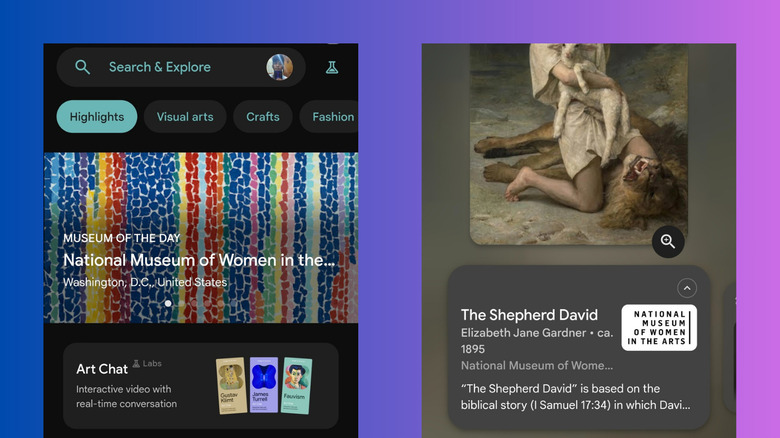
When in-person visits aren't possible, history and art buffs can make do with checking out virtual museums, browsing books, or watching documentaries to satisfy their curiosity. That usually means jumping from one website or app to another. If you want an all-in-one solution, try Google Arts & Culture instead.
This hidden gem covers all sorts of interests, from visual arts and design to travel and food. It has four nifty tabs you can delve into: The Explore tab is the main hub, where you can browse artworks, learn the stories behind them, and experience virtual tours of landmarks and museums. This also contains a weekly digest of curated picks in your selected interests. For instance, if you're into food, it will feature a short explanation on the evolution of Japanese cuisine.
From the Explore tab, you can try the Play tab. Yes, Google Arts and Culture has in-app games for a bit of fun. You can check out Daily Gallery, where you design your own gallery, and Mice in the Museum, where you go through different artworks and listen to two mice talk about them. Then, there's the Studio tab. This features several AI-powered tools that let you make your own art. This includes Art Remix, which lets you change some elements of the artwork, and the Art Transfer, which uses your personal photos to create classic artworks. Finally, you have the Inspire tab. It's similar to how TikTok presents content, with vertical photos and videos you can scroll through. This is great for when you're not looking for anything in particular but still want to browse interesting content.
Why we picked these Google apps

These Google apps were selected based on their Play Store downloads, star rating, and overall usability. Since the really popular Google apps like Gemini, YouTube, and Chrome have at least one billion downloads on the Play Store, we classified as underrated those with 100 million downloads and under. The apps should also be rated with at least 4.0 stars to qualify. In terms of usability, we went with apps that offer practical solutions for different needs, including learning , accessibility, and productivity, to make sure there's an app for everyone.