

Can You Use Apple CarPlay To Track Your Car?
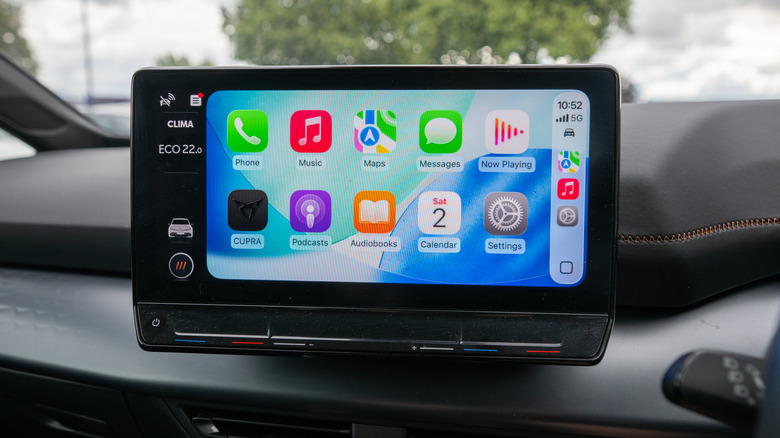
Using Apple CarPlay through your vehicle's infotainment screen can enhance a driving experience, but its capabilities within the vehicle only extend so far. If you're not sure what CarPlay does, it essentially delivers an iOS experience while driving without the need for physically interacting with your iPhone. Among other things, Apple CarPlay brings several free apps users swear by to your drive, but tracking your vehicle isn't one of them.
There's no real way to track your vehicle with CarPlay, as it's not a provided feature. While CarPlay does connect to your infotainment system, it's simply mirroring your iPhone, so it leaves the vehicle when you do. Though Apple CarPlay can't keep track of your automobile once you have left it, there are some workarounds, but one requires an additional Apple product and the other only helps in specific situations.
One easy place to start is checking if your vehicle has built-in GPS. It has become a more common feature in modern cars and is often accompanied by location tracking capability. Unfortunately, you may need a subscription to access these features, but this is largely going to depend on the manufacturer.
Apple AirTags offer a car tracking workaround
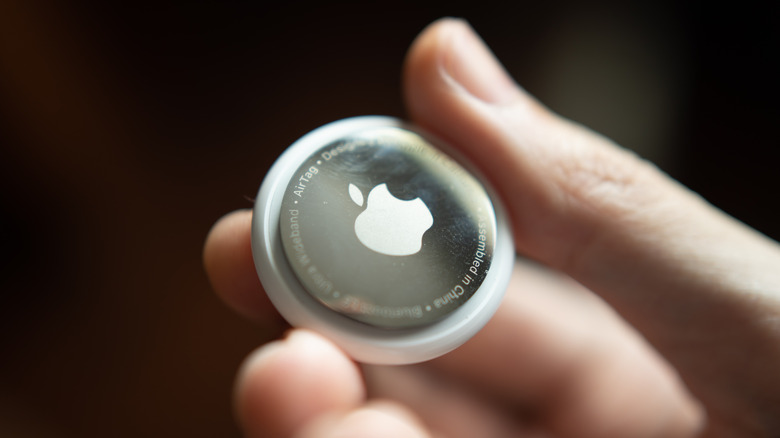
CarPlay won't help you track your vehicle, but you could use an Apple AirTag as a workaround. This is not a perfect solution as an AirTag does not have its own GPS. Instead, AirTags rely on other devices with Apple's Find My network to ping a location. So don't rely on it in an emergency — and there are things you should never track with an AirTag — but it can be helpful if you don't want to shell out for a full-fledged tracking and security system.
Considering Colorado police were giving out AirTags to fight car thefts in January 2025, Apple's little tracking device can be of some help, but if you're looking for real-time updates on the location of your vehicle, it won't work. However, when using CarPlay, two popular map apps can at least help you out of a sticky situation.
Finding your car in a parking lot
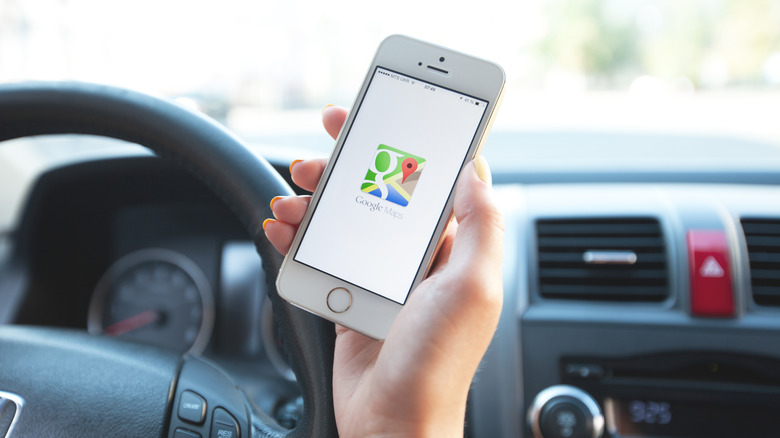
When it comes to finding your car in a congested parking lot, both Apple Maps and Google Maps offer methods of saving the location. This is not real-time tracking while the car is in motion, but it can still help you in the annoying scenario of forgetting where you parked.
Both apps will save your parking spot once you have disconnected from CarPlay and left the vehicle. For Google Maps, it will save your location automatically for 48 hours. You can find your parking spot by tapping the search bar and selecting Saved parking.
With Apple Maps, you'll need iOS 10 and an iPhone 6 or newer. You also need to ensure both Location Services and Significant Locations are enabled. Here's how:
-
Open the Settings app on your iPhone.
-
Select Privacy & Security.
-
Select Location Services.
-
Ensure Location Services is enabled on the next screen.
-
Go back to Location Services and select System Services.
-
Tap Significant Locations or Significant Locations & Routes, and verify it's enabled on the next screen.
From here, just make sure Show Parked Locations is enabled in Apple Maps. To do so, open the Settings app, tap Apps, select Maps and then make sure Show Parked Location is on. Then you can open Maps, search for Parked Car and select it from the results. You'll be able to view the car's location, get directions to it, or add notes. It's not the same as dedicated vehicle tracking, but it will certainly help in a pinch.