

10 Unexpected Ways Google Lens Can Help You Every Day

Even as a hardcore Apple fan, I can appreciate a brilliant product like Google Lens. It's such a simple idea and fantastically executed concept that you wonder how people ever searched before — and for that reason, it's highly unlikely to make the list of products and services Google has killed off over the years. It's not just for simple "what is this thing" searches, though. It's an all-in-one visual interface to Google's vast knowledge base of everything. After reading this, you might want to put Google Lens as your default app.
If you've never tried Google Lens before, there are a few ways to access it. Android users get a dedicated Lens app while iPhone users need to navigate via the standard Google app first; just click the little camera icon in the search bar. From the Google Photos app on either platform, you can search within a photo by clicking the three dots icon in the top right and selecting the "Google Lens" option. You can always access it from the Google homepage in your browser — just drag an image in or use the camera icon — but if you use Chrome, it's even easier. Right-click on any page and find the option to "Search with Google Lens," then click and drag around anything on the page that you want to search for. Soon you'll be able to use Google Lens in your AI-powered smart glasses, too.
Visual shopping
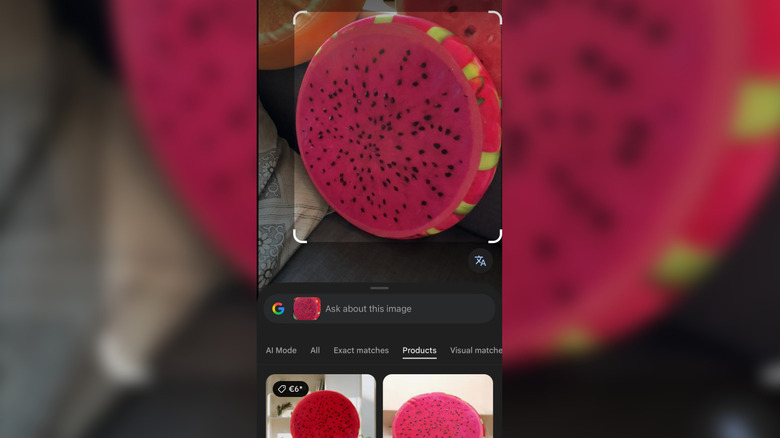
Let's be honest: The Google search results have taken a somewhat downward spiral of relevance lately, with whole pages of sponsored results – only 13% are organic, the rest are junk and ads – and an AI that insists on confidently producing an answer for every query, even if it doesn't have a clue what you're talking about. So rather than trying to figure out what exact combination of keywords will find you that obscure cushion you've seen at your friend's house, it's much easier to search for it visually. Simply open Lens, snap a photo, and it should find an exact match or something that closely resembles your image. If you can't physically move the item to an area with a plain background, use the built-in crop tool to limit the search.
By default, it's going to try using AI to describe your image; after all, Google wants AI mode to be the only way to search, which may not be what you want. Scroll across and select "Products" to force it into shopping mode and quickly locate a match for your item. Be prepared for some uncomfortable truths, though: You may find that what you thought was an expensive boutique item is actually an AliExpress original that's available for a tenth of the price.
Barcode scanner
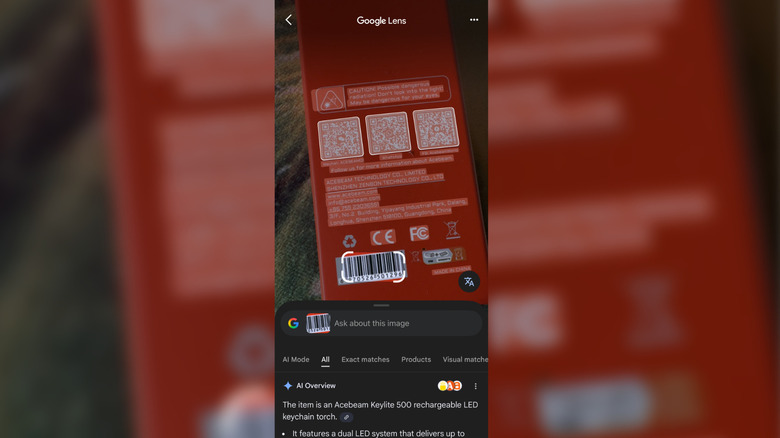
Even better for shopping and comparing prices, Google Lens can read product barcodes, whether they are UPC (Universal Product Code), EAN (European Article), or GTIN (Global Trade Item Number). Unlike a simple visual match that might only surface similar products along with a bunch of fake Temu ones, barcode searching will only find exact matches — even if the retailer has listed them with obscure names and keywords you may never have thought of. It can also be handy for restocking household items locally, using the shopping filters to find nearby stores.
Google Lens can also identify and read the content of 2D barcodes — also called QR codes — but that's less impressive since your built-in phone camera can usually do that as well. Still, the fact that it can pick out multiple types of product barcodes and QR codes in a single shot is impressive, allowing you to quickly tap through each one.
Flower and plant identification
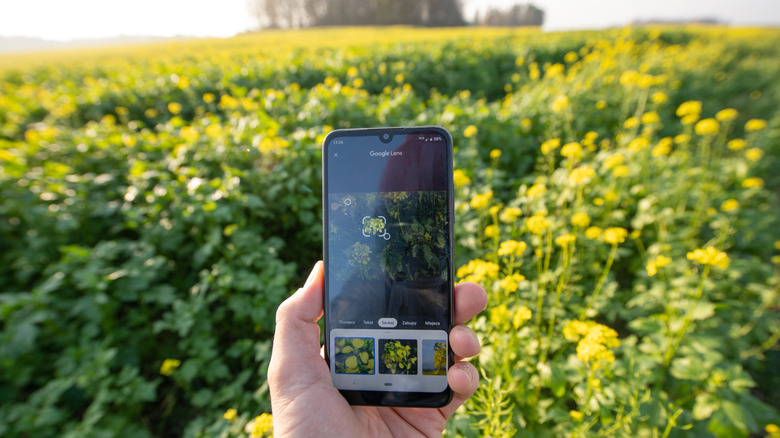
My wife loves all kinds of plants, and Google Lens does a great job at telling us exactly what they are, so she doesn't have to go and hassle the guy at the garden center. Bear in mind that for actively flowering mature plants, it'll almost always give an accurate result. However, if you only have foliage to go by because of the season or plant type, the results are less reliable, as leaves aren't usually as unique. It's not just plant life either; it can identify all kinds of animal breeds and insects. Finally, you'll know if that spider under your bed can actually kill you.
While we're on the topic of "death by Google Lens," this probably goes without saying, but please don't use the app to identify whether mushrooms are edible or not. Google Lens is only a visual algorithm, and there are plenty of mushroom species that look similar with vastly differing effects. Mushroom foraging should only be attempted with a trained professional who can teach you the other identification steps.
Real-time translations
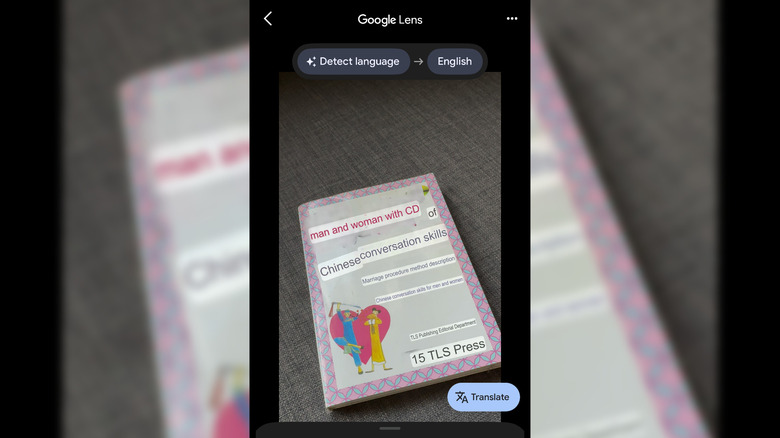
Although it's really using Google Translate under the hood, Lens will identify foreign text, automatically detect the language, and do the same job as the dedicated Translate app without having to switch apps. This is incredibly handy for menus, signage, and shopping in foreign food stores. It even works with languages that flow across the page differently, such as traditional Japanese text that reads top to bottom and right to left. Rather than displaying English in the same direction, it'll overlay it with a more familiar flow of text. Lens even tries its best to match the original font size and overall layout, with multiple text blocks translated simultaneously and correcting for perspective.
Note that there are two modes of operation for translation. The first is live translate, which allows you to point the camera at the text, pause for a moment, and Lens will try its best to translate the text in real-time. However, I find the results less reliable in this mode. For better results, take a picture first using the standard Lens interface, then select the translate feature.
Enhance regular search

Lens is impressive, but sometimes your image might have been a little too vague, even for the might of Google. If you want to narrow your search a little, you can add some keywords at the end of your Lens visual search for a combined query. Just tap into the search bar and type, making sure not to delete the image component.
This can be handy for filtering your shopping results to a specific type of product, an original brand or material, or asking follow-up questions such as watering tips or the best type of soil for that plant you just identified. If Lens guessed wrong, you can gently nudge it in the right direction; even a single word can dramatically alter the results. You can keep doing this by editing your query without losing the context of your original image — and all the classic Google search tricks should also work.
Travel planning
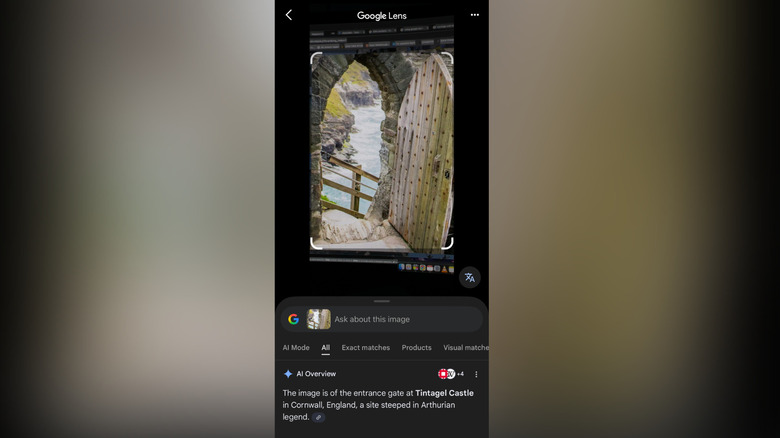
Picking a destination and finding flights is the easy part; figuring out what to do when you get there is where it gets tricky. Between out-of-date articles and AI hallucinations, researching a destination is a minefield on the modern web. Even more so if you want to go off the beaten path. You might turn to social media to find more up-to-date photos of an area: Instagram and Pinterest are full of tantalising glimpses. But a lot of pictures are mere teases. You're lucky if you get a specific name, let alone a map reference.
That's where Google Lens comes in. See something cool? Show it to Lens, and it'll pinpoint it for you from its vast visual knowledge of the entire world. You can help to narrow the search by typing the general location name if it's really vague, but in my experience, it's amazing how accurate it can be even with little context.
Smart text selection

At this point, it should be pretty obvious that Google Lens does far more than just look for pictures that look similar: It's adept at working with textual elements in the viewfinder, too. As well as translation, Lens will classify the text content and automatically offer context-aware actions, such as calling a phone number, following up on a package tracking number, or even locating an address on Google Maps. Scan a business card, and it should offer to create a new contact.
But what happens if you want that text on your computer instead of your phone? If you're on the same Wi-Fi network, use the Google Chrome browser, and you're logged in to the same Google account on both your phone and browser profile, you can copy and paste between your phone and browser. You may need to turn on the "Sync across devices" feature and "Clipboard history" from Settings > System > Clipboard on Android, as well as on Windows. As an Apple fanboy who's spent this entire piece gushing over a Google product, I'll regain a little dignity by mentioning that cross-device copy-paste functionality is built into iOS and Mac OS, and is browser agnostic. But it's impressive nonetheless for Windows and Android users, and something I use on an almost daily basis for URLs that I want to open on a desktop browser.
Digitize your terrible handwriting

Sometimes, picking up a pen and paper just feels better; the humble paper notebook is the ultimate distraction-free device. Handwritten notes can be much more convenient and satisfying to write compared to typing them into a phone, but aren't very good for archiving. Google Lens to the rescue: Just scan a page of handwritten text, and it'll digitize it with its built-in optical character recognition (OCR). There are limits to this technology, particularly if your scribbles are really unreadable, so don't expect miracles. Despite trying, even Google Lens can't yet read a doctor's handwriting.
If you've drawn some diagrams to accompany your notes, these will be ignored too, so you should look at a dedicated tool for anything more than a short paragraph or two of plain text, or make do with a basic photo. Turning your diagrams and mockups into professional-looking presentation slides is a good candidate for Google Gemini, however.
Listen to text (in nearly any language)
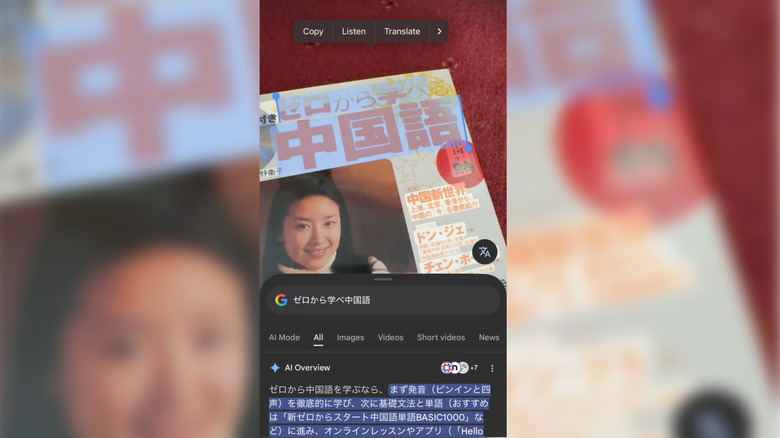
For language learning, especially with different character sets like Japanese or Chinese, modern computing changed everything. There are browser plugins to add pronunciation to complex characters, inline dictionaries when you hover over a word, and input methods that mean you can type any characters using your English keyboard. It's especially important for any language learner to hear the written word being spoken, which is trivial online — but in the offline world, that can be tricky.
Google Lens doesn't just translate foreign text — it can read it back to you, too. Just take a picture, select the text, and the context menu should show a "Listen" option. This works for nearly any language in common use, but be sure to capture a full sentence. In the screenshot above, despite it being Japanese, selecting the kanji alone led to it being read in Chinese, since many of the characters are shared. It was only once I selected the preceding text that it knew to pronounce it in Japanese instead.
Solving math problems

There's really nothing left to test our kids with, is there? With ChatGPT writing entire essays and passing law and business school exams, you might think that solving complex math problems that few people even know how to type into a computer, let alone solve, would be the last bastion of our precious education system. But alas, Google Lens has got you. Just scan a complex equation, and Lens will recognize it — which solves half the problem and is impressive in its own right. It'll then send it to Google Search, and solve it step by step, including showing its workings. It's not just math, either; Google Lens will help with history or science problems, too.
Given that ChatGPT is writing actual legislation now, perhaps one solution would be to ask it to legislate itself out of schools entirely. Claude is at least taking a proactive approach that guides students to find the solutions themselves, making this new mode the right way to use AI for homework.