

You Can Switch HDMI Inputs Using Your Apple TV Remote - Here's How
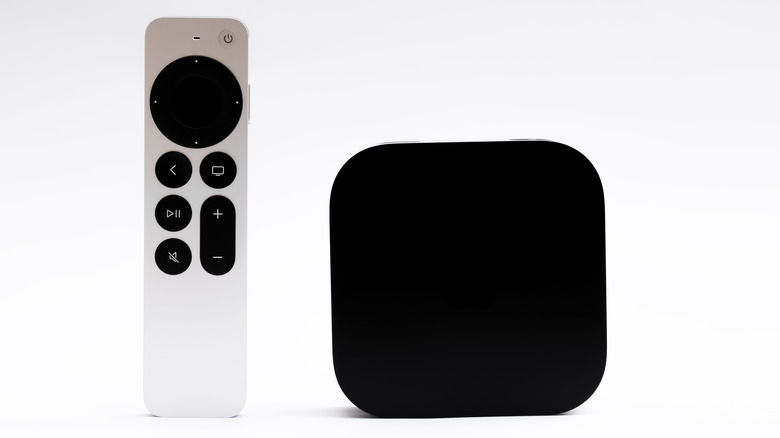
Not only do streaming devices provide a bevy of entertainment apps to choose from — most of which are movie and TV show platforms — but gadgets like the Apple TV 4K can also be programmed to control TV power and volume. It makes your entire TV-watching experience all the more convenient, but there's one important TV function that's missing from the equation: input switching.
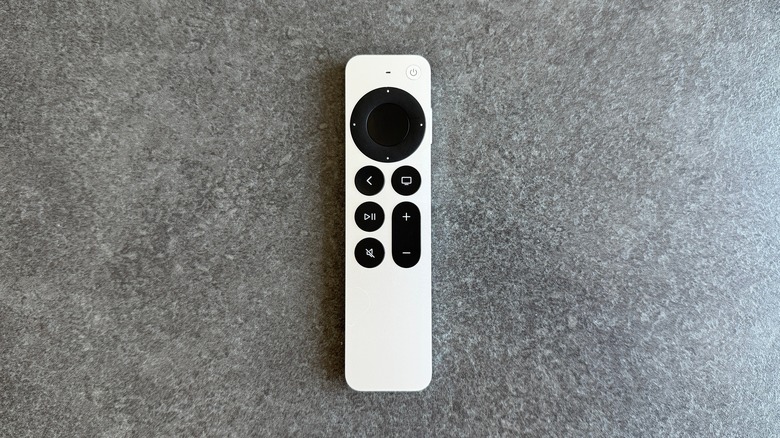
While it's not the biggest deal in the world to switch over to your TV remote for selecting another HDMI port or your TV's antenna input, the fewer remotes, the better. Fortunately, if you don't mind parting ways with your Apple TV's mute function, there's a backdoor method for forcing the input command onto your Siri remote. It's one of several Apple TV hidden features everyone should know about, and it's a process that only takes a few minutes.
To set this up, all you have to do is open Settings on your Apple TV 4K. Navigate to Remotes and Devices, Volume Control, then Learn New Device. Grab your TV remote and walk through the programming wizard as you usually would for volume up and down buttons. When the guide tells you to press the mute button, press and hold your TV remote's input button instead.
After you've locked in the programming, pressing the mute button on your Apple TV remote will bring up your TV's input dashboard. Press the button repeatedly to cycle through inputs. When you've found the input you want to use, simply leave it highlighted for a few seconds, and your TV should switch over.
Your Apple TV already plays nice with other remotes
There are numerous Apple TV accessories on Amazon and at various brick-and-mortar retailers, but if you're looking for an alternative means of controlling your streaming device, there's a good chance you don't need to buy anything extra.
As long as your TV or AV receiver supports HDMI Consumer Electronics Control (CEC) and your Apple TV is connected to your TV's HDMI-CEC-enabled port, you'll be able to use your TV or receiver remote to control some aspects of your Apple TV experience.
Must-have controls — including directional navigation, select, and play-pause — should work without a hitch, though features like voice search will still require the device's Siri remote or an iPhone or iPad. Speaking of which, you can also set up your iPhone or iPad's Apple TV Remote in Control Center to control an Apple TV 4K, Apple TV HD, Apple TV (3rd generation), or an AirPlay-compatible smart TV.
If you have numerous AV components that you'd like to consolidate onto one controller, including an Apple TV, you can also pick up a universal remote from brands like Logitech and Sofabaton to program even more convenience into your home theater setup.