

This One TV Setting Might Be Ruining Your Screen's Brightness
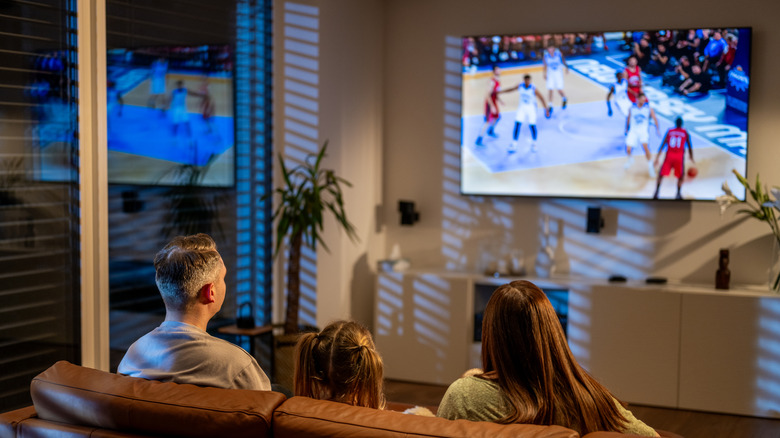
Modern TVs, including those from cheap smart TV brands, are pretty capable and often include technologies like Mini-LED backlighting, quantum dots, and micro-lens array (MLA) to ensure you get a sufficiently bright screen. A TV's brightness is important because it impacts how good HDR content looks on it, how it handles glare and reflections, and how many unique color combinations a TV can display. So, when a TV's screen brightness is low, it's not only about the display being dimmer; the overall visual performance can be affected.
Unfortunately, pretty much all TVs have a setting called an Eco Mode or a power-saving mode, which is often turned on by default from the factory, and ruins your TV's brightness by reducing it to lower the power consumption. Many folks who are not very savvy don't even realize that they are not getting the best performance from their TV due to this setting. Here's what you need to know about the Eco Mode and how you can turn it off.
What is Eco Mode on a TV?
Eco Mode is essentially a low-performance mode that is supposed to make your TV more environmentally friendly by reducing its power consumption. It's typically enabled by default as manufacturers want to ship the TV in its most power-efficient state, often to meet energy-efficiency laws or to get a good energy rating. Different manufacturers have different names for it. Some call it an Energy Saving Step or Low Power Mode, whereas others call it Smart Eco or Power Saving. Despite the different names, it does pretty much the same thing — reduce your TV's brightness, either by dimming the backlight or via pixel-level throttling, depending on the display type.
While it does achieve what it intends and reduces the amount of power your TV consumes, a major side effect of this is that your TV's visual performance is severely impacted. As mentioned, HDR content doesn't look as impactful because of lower brightness, and highlights don't pop the way they are supposed to. The TV's color volume, or the number of unique color combinations it can display, is also reduced because it is directly proportional to the TV's brightness. Moreover, higher brightness helps counter glare and reflections when there is a ton of ambient light, but that's not possible at lower brightness levels.
How to turn off Eco Mode on your TV
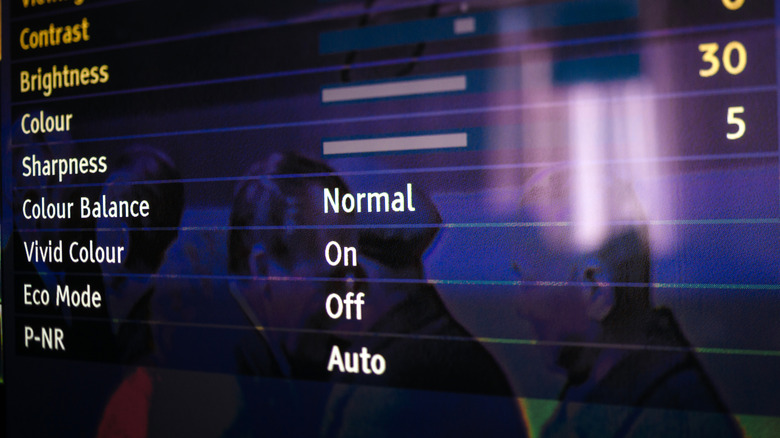
Fortunately, it's relatively easy to turn off the Eco Mode on most TVs. All you need is to figure out the location of this option in your TV's settings. Different manufacturers have it placed at different locations in their menu, so it's typically best to consult the TV manual or reach out to the manufacturer. That said, here are some quick instructions for TVs from major smart TV brands in the U.S.
Samsung: Navigate to Settings > General > Power and Energy Saving and disable Energy Saving Solution. Also, turn off Brightness Optimization on the same page.
Hisense: Go to Settings > Picture > General > Picture Mode. Change it to Filmmaker Mode or one of the Theater Modes for good visual quality.
LG: Under Settings > All Settings > General > Energy Saving, toggle Energy Saving Step from Auto to Off. Additionally, ensure that your TV's picture mode is not Eco or Auto Power Save.
TCL: On the Google TV version, head to All Settings > System > Power & Energy and turn off Energy Saver. On its Roku TVs, you will get a Power Saving mode option under Settings > System > Power. Turn the available options off to disable the Eco Mode.
Sony: Like TCL's Google TV models, Sony's televisions — that also run Google TV – have the Energy Saver option under All Settings > System > Power & Energy. Toggle it off for a better viewing experience.