

5 Hidden Amazon Echo Show Features You Need To Start Using
We may receive a commission on purchases made from links.
Smart home gadgets have become so common that you or someone you know must own at least a few of these. It could be something as small as a single color-changing smart light bulb, or as complex as a whole-home device ecosystem built around a popular assistant like Alexa. What's nice about smart home tech is you can add gadgets to your network in a piecemeal fashion, and one of the most popular device families on the market is Amazon's Echo lineup.
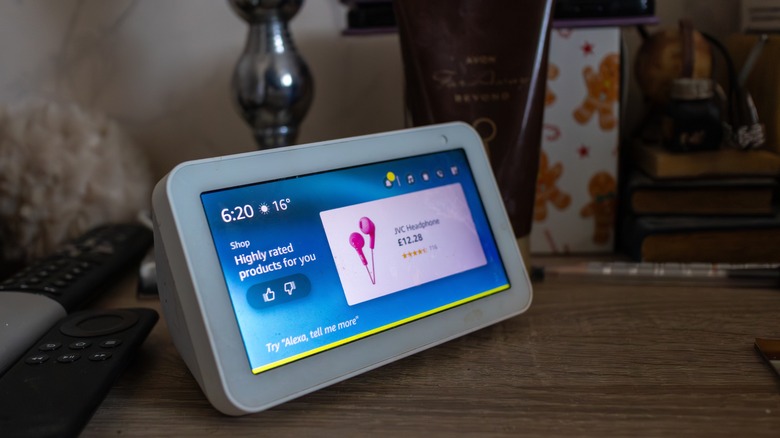
Echo smart speakers and displays have been around for a while, and if you don't own one of the latter, we recommend buying an Echo Show pronto. The Echo Show 5 and Echo Show 8 are the two most popular models you can buy, but there's also the larger Echo Show 11, as well as the even larger Echo Show 15, and the massive Echo Show 21.
One part smart speaker, one part tablet, using an Echo Show is one of the best ways to take full advantage of your smart home. It's also packed with features and settings — many of which aren't so obvious. To that end, we've put together a list of five hidden Amazon Echo Show features you need to start using.
Home Monitoring
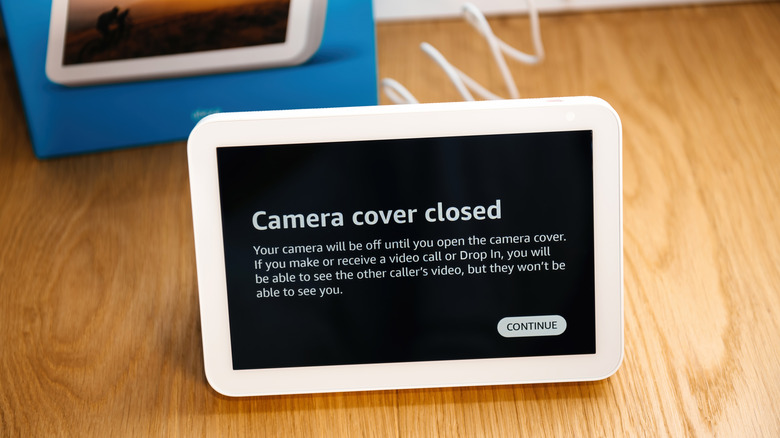
You may have noticed that your Echo Show has a built-in camera with a privacy slider. While the camera is primarily intended for video calls between Echo Show devices and features like Drop In, you'll also be able to leverage the lens as a surveillance gadget. It's a function called Home Monitoring that's easy to activate. Start by swiping your Show screen from top to bottom, then tap Settings > Privacy and Permissions. Slide the toggle next to Home Monitoring to the on position, then follow the on-screen instructions to verify your Amazon account.
Now, when you're on the go, you'll be able to use the Alexa app on your mobile device to view a live feed from your Echo Show cam. To access Live View, simply tap Devices in the Alexa app and select your Home Monitoring-enabled Echo Show. When the live feed is up on your phone screen, you'll be able to zoom in and out by pinching the screen. And if you happen to own an Echo Show 10, you'll even be able to rotate the camera around the room by swiping left or right.
Conveniently, the Echo Show camera also detects motion, so you'll be able to program Alexa Routines that trigger when someone walks in front of the lens.
Show and Tell
Accessibility features are bountiful with the Echo Show lineup, but did you know your Amazon device can help you identify everyday food items you'd keep in a pantry, along with a few other types of objects? Debuting in 2019 as an Alexa function called Show and Tell, this camera-powered capability was designed for blind and low vision users, and doesn't require any extra setup to start using. Just grab a canned or packaged item, hold it about a foot from your Show cam, and say "What's in my hand?" or "What am I holding?"
Depending on which side of the product is facing the camera, Alexa may ask you to lift, lower, or rotate the object for a better view – offering guidance via visual and audio cues. You'll also be able to say "Help with Show and Tell" at any point to hear a few Alexa-narrated tips and tricks for using the feature.
Tap to Alexa
Communicating with Alexa using voice commands is one of the most common ways we call upon the assistant, but your Echo Show (or Amazon Fire tablet) gives you a quieter way to beckon the Amazon tool: a feature called Tap to Alexa. To activate on an Echo Show, tap Settings > Accessibility, then toggle Tap to Alexa on. A finger icon should now appear on your Show screen, and tapping it will pull up the Tap to Alexa dashboard.
From here, you'll be able to tap the Ask Alexa icon (a finger-pointing at a screen) to type in specific commands or requests using your Echo Show's on-screen keyboard. You should also see options for setting a timer, checking the weather, and a handful of other actions. To add even more dashboard actions, tap Add New.
Tap to Alexa is useful when you're tired of issuing repeat voice commands, but it's also great for keeping things silent, which bodes well for those who want to use their Echo Show when someone is sleeping. Oh, and here's a fun bonus: If you'd prefer to use voice commands instead of Tap to Alexa, you can whisper to your Echo device, and if Alexa needs to respond, she'll whisper back.
Alexa Cast
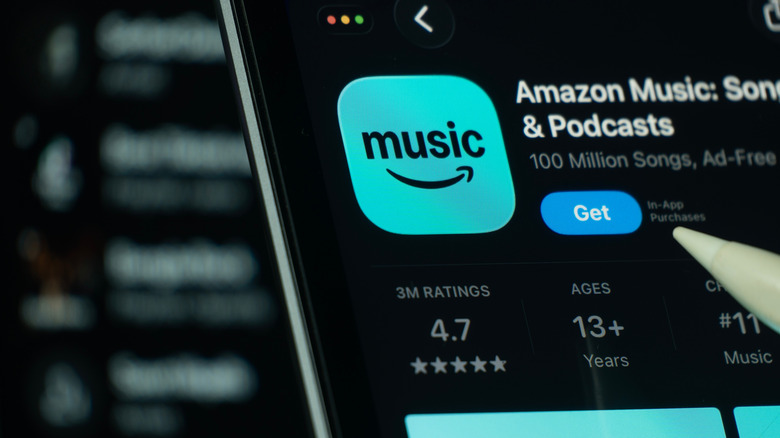
Music-streaming platforms like Spotify and Apple Music give users the ability to cast audio to compatible devices, and so does Amazon Music. The latter lets you cast audio from a mobile device to an Echo Show, Echo speaker, or a compatible third-party speaker (e.g., Bose, Sonos), and doing so isn't difficult. In order for Alexa Cast to work, though, your smart display or speaker needs to be connected to the same Amazon account that you use for Amazon Music.
To cast a song using an iOS device, open Amazon Music and tap the Menu icon at the top-right corner of the screen. Tap Connect to a New Device, then select the Echo Show or speaker you want to cast to. You'll also be able to cast songs from the Now Playing view in iOS, which is also how you'll cast audio using an Android device. Simply tap the Casting icon, then select the device you want to play your music on.
Alexa Emergency Assist

Many of the best smart home devices have at least one or several peace of mind features, and the Alexa ecosystem is no exception. If you're looking for a comprehensive wellness-monitoring platform for checking in on loved ones with your Echo Show, you can sign up for Alexa Emergency Assist. It costs $6 per month (or $60 per year) for Prime members, and gives you and yours access to a 24/7 urgent response team.
Should an emergency occur, you'll be able to notify up to 25 emergency contacts, and you can add critical information to your Emergency Assist plan for first responders to utilize (e.g., gate codes, pets in the home). You'll even be able to task your Echo Show with listening for the sounds of smoke or carbon monoxide alarms, as well as the sound of glass breaking. If your device hears any of those noises, Amazon's Urgent Response team is immediately contacted.