

4 Simple Fixes To Speed Up Your Old Smart TV
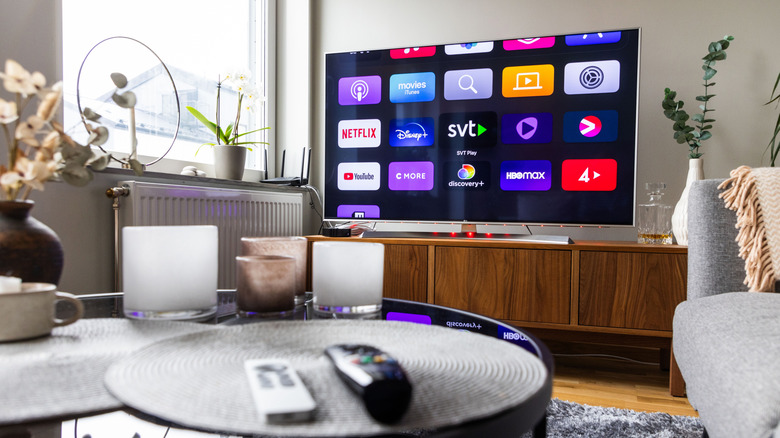
Smart TVs serve as great entertainment for family movie nights and for solo leisure activities like gaming. According to data published by the Hub Entertainment Research (surveying 5,000 American households), 82% currently own a Smart TV set. While it is a small sample size, the data shows a perceived trend: More people now own a Smart TV and that number continues to grow. Still, the fact of the matter is that replacing one is expensive.
Your old Smart TV relies on its hardware and supporting software to keep it functioning. Issues with the software are much easier to fix, especially if you own a Smart TV running a well-supported operating system like Google TV or Tizen OS. Generally, the TV comes with compatible apps that integrate well with the ecosystem, making it much easier to troubleshoot and find fixes. If you've exhausted all software options, the culprit for massive slowdown issues likely lies with the supplied hardware. That's when you might need to consider adding a dedicated streaming device as a backup. Before you spend out of pocket to replace your Smart TV or purchase a new Fire TV Stick, there are a few tricks you can try to get your old Smart TV running smoothly again.
Update your Smart TV software
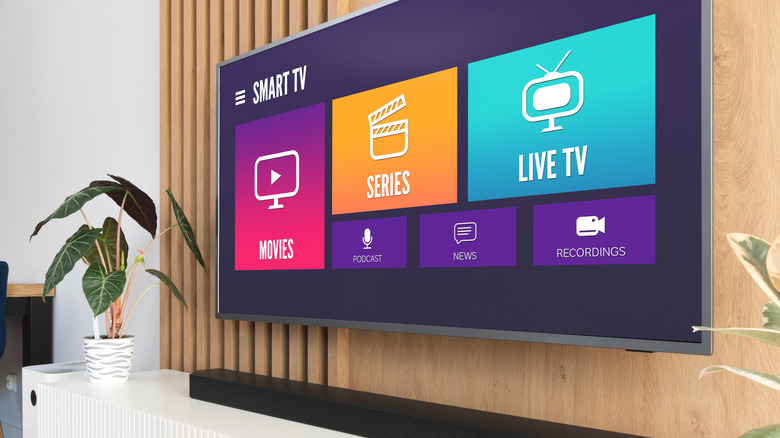
When your Smart TV runs slowly, the first step is to ensure its software is up to date. Depending on the model and brand, the software might be severely outdated or, worse, considered obsolete. Some manufacturers list their Smart TV models online to denote if they still offer support for a particular model. Otherwise, you can manually check in your Smart TV settings if an update is available, usually by selecting the gear icon on the home screen. If an update isn't available and you've waited more than a few years since the last update, then you are more or less out of luck.
If you're not ready to give up just yet, some manufacturers offer a firmware update through their website. The firmware update requires using a computer, downloading the update onto a USB drive, then plugging the USB drive into the Smart TV to begin installing it through the settings menu. It's not a guaranteed fix, but it is worth checking. It's also good to keep the manufacturer's website handy in case you install a bad update and need to roll it back or get a hotfix.
Disable power-saving modes on your Smart TV
When you enable power-saving mode, a Smart TV might not run at full capacity. When this happens, your Smart TV's performance will also be reduced, meaning the TV's processor is using less power than it would otherwise. This will restrict background usage, app data access, and app data syncing. The issue then is the streaming apps you use won't behave properly. You'll start experiencing responsiveness issues when navigating menus and notice more buffering during playback. It makes the whole experience incredibly clunky and slow. It's also worth checking whether these apps need to be updated or reinstalled to ensure they are functioning as intended.
You can usually tell visually if a power-saving mode is enabled. For instance, the screen's brightness will be lower and HDR content (an important Smart TV feature) will have a capped peak brightness. Also, the Smart TV's refresh rate can be reduced while the power-saving mode is enabled. If you're used to your Smart TV offering 120Hz, you might see it capped at 60Hz instead. That's not a big deal for films, but it becomes much more noticeable when you're gaming with a Smart TV. A reduced refresh rate can be frustrating because that's where you notice blur and input lag. Turn off power-saving mode to keep the visual experience more immersive and gentle on the eyes (while also making it feel less slow).
Uninstall unused apps and manage the app cache
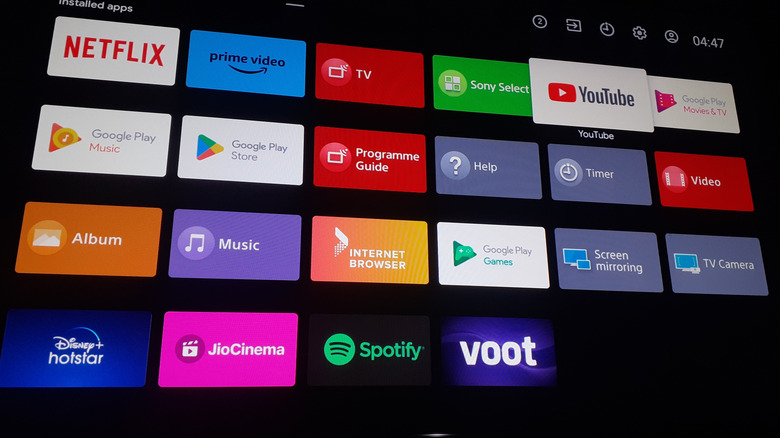
Your Smart TV has limited storage space and RAM. Depending on the brand and model you've purchased, you may not be able to install all the apps you want since doing so will slow down your Smart TV. A Smart TV's processing power is simply limited, and filling its storage also leads to storage fragmentation. If there are too many apps, the Smart TV takes longer to load because it takes longer to find the right data for the app. It also means the app cache fills up and it can't create new caches if the storage reaches capacity. Overall, your Smart TV app experience will start to feel sluggish and loading times will become more noticeable.
Clearing the app cache is a temporary solution, but you still want the cache used as intended to achieve faster loading times and to save app preferences for quicker access. If you delete it too often, you're essentially forcing the app to redownload the relevant files every time you access them. Plus, modern TV platforms have become more efficient at managing caches when storage becomes too full, so the whole practice becomes a bit redundant. Still, it doesn't hurt to clear it if it's been a while. You can clear the app cache by opening the app management screen on your Smart TV and selecting the Clear Cache option (sometimes you need to press the More Options button on your remote to open the menu next to an app). Otherwise, just uninstall the apps you don't use to avoid exceeding processing power and storage limits.
Check your Smart TV's network connectivity
Believe it or not, performance issues with a Smart TV might not actually be a result of internal hardware or software problems. It could simply be because you're not supplying a strong enough internet connection. One common problem is router placement: The problem might be due to how far away your Wi-Fi router is from your Smart TV or there may be interference from nearby devices or objects which are physically blocking the signal. The easiest way to fix this is to connect your Smart TV directly to your router via an Ethernet cable.
Using a wired connection means you can offload Wi-Fi to your other devices like your phone, tablet, and laptop. It should also provide a more stable connection to your Smart TV which you'll notice in the form of faster loading screens, smoother streaming, and quicker downloads. If you're into cloud gaming on your Smart TV, you'll thank yourself later for switching to a more consistent, stable internet connection.