

Is Android Auto Draining Your Phone Battery? Try This Out
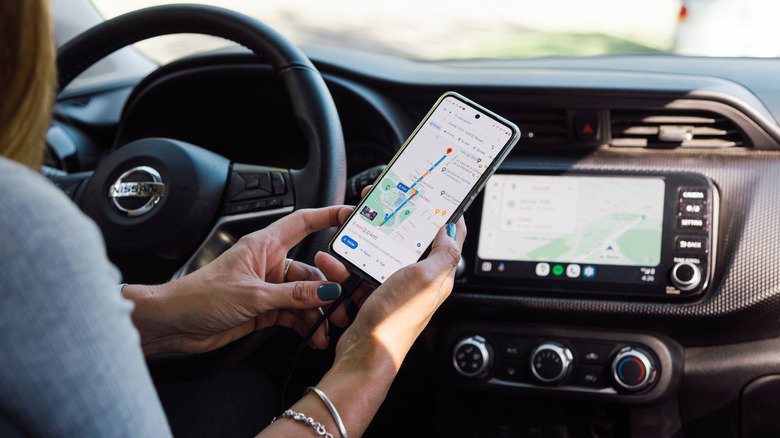
The convenience and fun of using Android Auto while driving can quickly turn into annoyance by the fast drain of your phone's battery. Android Auto is designed as a way to pair your smartphone to your car, enabling you to access Google Maps, your music, your messages, phone calls, and more through your car's screen display. Android Auto even has a secret menu to give you more customization options. It's not fun, however, to watch the battery rapidly drain as you drive along, or reach your destination only to have a nearly-dead phone.
One way to combat this is to keep your phone connected via wire to your car so that it continues to charge as you use it, helping to protect the battery. Another way is to turn off your location and thus reduce the amount of work your phone is doing. These help because of the reason why Android Auto drains your battery so quickly in the first place.
When Android Auto is running, it is accessing a lot of features on your phone at once, more so than you use just sitting around at home. This puts extra pressure on the batteries and causes them to lose life faster. The environment of the car can also cause a faster battery drain. If your phone is in direct sunlight, or if the car is overall too hot inside, it will make your phone work harder and lose battery more quickly.
Use an Android Auto wired connection instead of connecting wirelessly
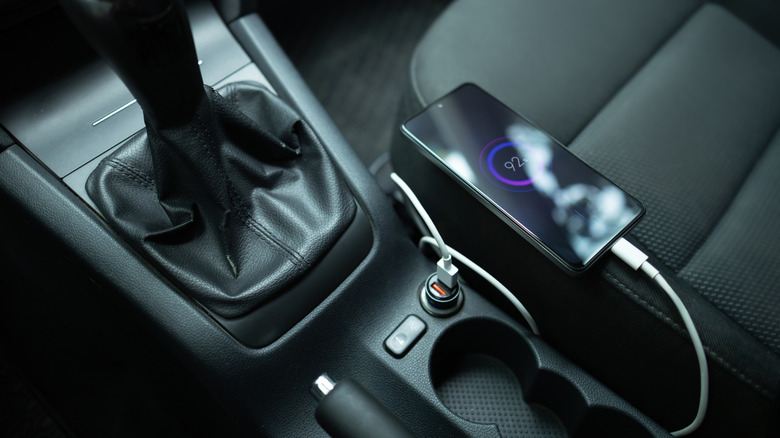
When you enter your vehicle, Android Auto will connect wirelessly. That is very convenient, but not optimal for your battery. A way to combat this is by connecting your phone through a wire to your car's port so that the car charges it while driving. This will fight the battery drain, though it can be an uphill battle if you have multiple apps being used at once while you are driving, such as listening to music and following a Google Maps navigation.
You can just use the charging cord your phone came with to connect to your car, but there are also alternatives. Looking around online at sites like Amazon shows a bunch of available options to connect your phone to your car for Android Auto. Though a lot of cars may be getting rid of Android Auto, it's worth looking around to see what type of wire meets your needs for length, positioning, and car connection.
I've experienced a potential downside to this wired charging method. When going around a tight corner or hitting a speedbump, sometimes the cable will shift and it will disconnect Android Auto from the car. It comes back on its own, but it takes it several seconds, which can be a pain when navigating a city you are unfamiliar with. If you don't find wired charging convenient in general, there is another alternative.
Turn off your location to prevent more battery usage
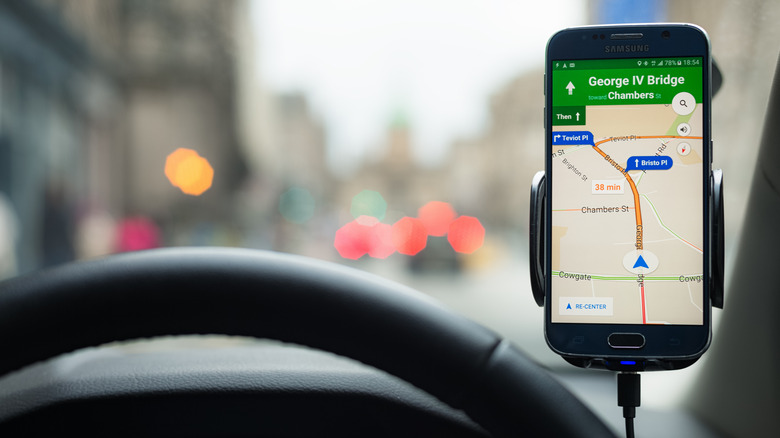
When using Android Auto, Google Maps automatically runs to help you navigate. This is very handy on road trips or if you are driving around areas you don't know well. If you are just going to the local grocery store, though, you don't need navigation running and draining your phone battery.
To prevent this unnecessary battery usage, go into the settings options in your phone to turn your location off. Since it won't be able to track you, navigation won't drain your phone's battery. The placing of this setting can vary depending on your specific phone. Settings is a good place to go to find what has access to your GPS location, though it may also be found faster by dragging down on the home screen to bring up a mini-menu with items like Bluetooth, Wi-Fi, airplane mode, and more alongside your GPS location.
With some tinkering, you can enjoy Android Auto during your drives without worrying about battery life. There are even settings you can adjust to improve Android Auto altogether, such as training Google Assistant and setting up preferred apps. By using wired charging when you need the full Android Auto experience, and turning off your location when you don't, your phone's battery life will last longer.