

5 Useful Samsung TV Features You Need To Start Using
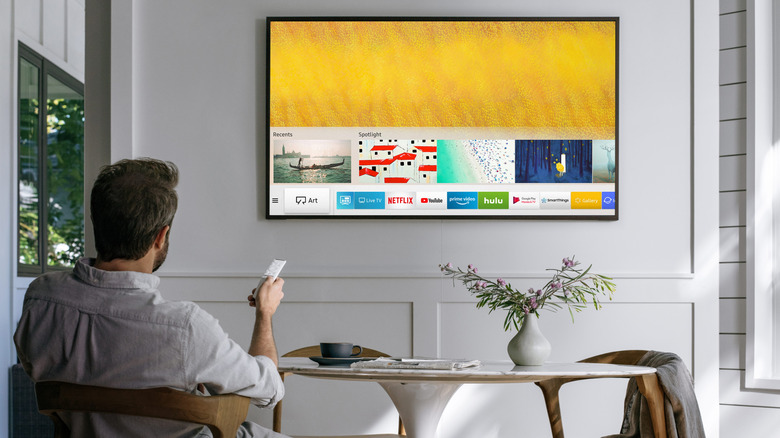
Samsung is one of the best major smart TV brands out there, and for good reason. They're durable, come with great picture quality, and are paired with a convenient remote that charges via solar power. They also offer a range of features in the software department. For instance, there's the smart assistant Bixby that answers any query you have. You even get hundreds of apps to install, thousands of free channels, and a gaming hub that's accessible even without a connected console.
However, Samsung TVs have more to them than meets the eye. Beyond the typical streaming apps and TV channels, they include nifty features to improve your viewing experience and expand the capabilities of your TV outside of entertainment. These features are pretty much tucked away in the menus, though, so you might not be as familiar with them. That isn't to say they won't be just as useful in your everyday life. To get you started with making the most out of your Samsung TV, here are five of the handy Samsung TV features worth exploring.
Find your phone
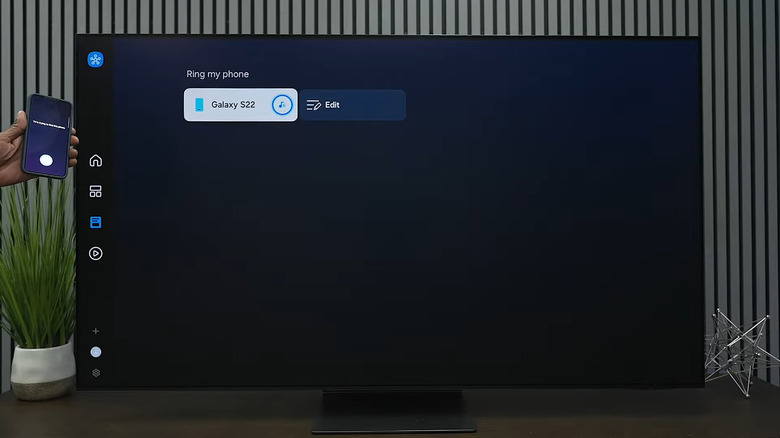
Every time you misplace your phone at home, your first instinct is to call it from another device — typically someone else's mobile or your computer. But if you have a Samsung TV, you can actually use that to ring your lost phone. This feature is powered by SmartThings, so you need to add your smart TV to SmartThings to get started. Here's how:
- Turn on your TV.
- Launch the SmartThings app on your phone.
- When prompted, grant the necessary permissions.
- Tap the Devices tab at the bottom.
- Click the plus icon in the upper-right corner.
- Go to Add device.
- In the Samsung devices section, press Add.
- Choose TV.
- Wait for your phone to finish scanning for nearby devices.
- Select your Samsung TV from the results.
- On your Samsung TV screen, take note of the PIN code that appears.
- Back on your phone, enter the TV's PIN code.
- Hit Done.
- Change the Location, Room, and Device name as needed.
- Tap Done to exit the setup.
Your TV should now be connected to SmartThings. From here, you can locate your misplaced mobile. Follow these steps:
- Go to your TV's home screen.
- Navigate to Connected Devices on the left panel.
- Open SmartThings.
- Select the Life tab.
- Under Ring my phone, click on your lost device.
Your phone will start ringing. Once you find it, simply swipe up to dismiss the alert. The "Ring my phone" feature works via internet connection, so even if your phone is disconnected from your home Wi-Fi and is only running on mobile data, it should still ring when prompted.
Share the Mobile Remote with others
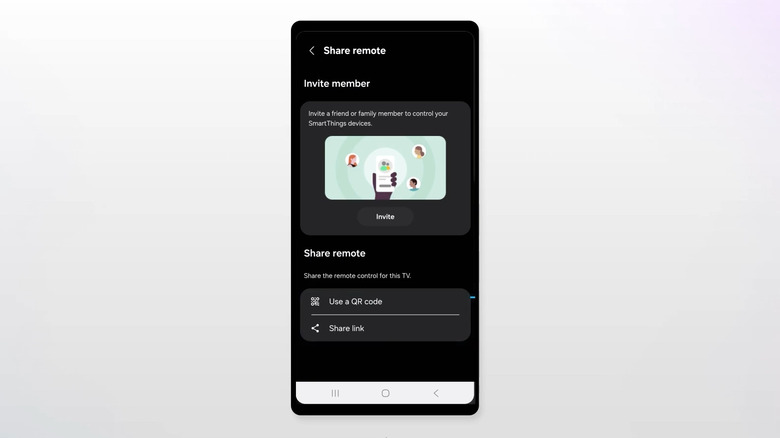
It's now pretty common to use your phone as an alternative remote for your smart TV. After all, it's always with you, quick to set up, and sometimes even easier than a standard remote. The only downside, though, is that it usually isn't as convenient for group use. You might not be comfortable with other people holding your device or passing it around. Fortunately, Samsung TV lets you share your Mobile Remote with others. This way, when your original remote is nowhere in sight, they can still control the TV without touching your phone.
To access this feature, you'll need a 2025 Samsung TV and either an Android phone running at least Android 11 or an iPhone with iOS 16 or later. If you satisfy these requirements, here's how you can share your Mobile Remote:
- Install SmartThings on your phone and the other person's phone.
- Add your Samsung TV to your SmartThings app:
- Power on your TV.
- On your phone, open SmartThings.
- Select Devices.
- Hit the plus icon at the top.
- Go to Add device.
- Choose Add under Samsung devices.
- Navigate to TV > [your TV].
- Type the PIN code presented on your TV.
- Wait until your TV is successfully registered.
- Go back to the Home tab on your SmartThings app.
- Under Favorites, select your TV.
- Press Remote in the bottom-right corner.
- Tap the share icon.
- Choose Use a QR code.
- Ask the other person to stay close to the TV.
- Let them scan the QR code on your phone.
The Samsung Mobile Remote will then open on their end, and they can begin controlling the TV as usual.
Access and create Microsoft 365 files without external devices
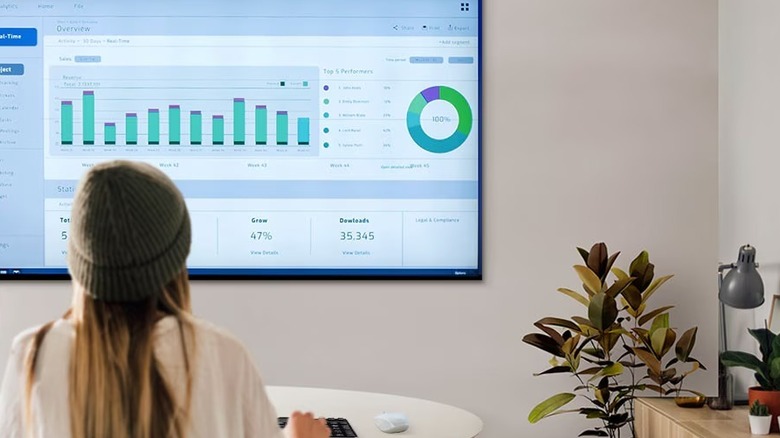
In office settings, TVs typically serve as large monitors for meetings and presentations. Just hook it up to your laptop via HDMI and start displaying your Word, PowerPoint, or Excel file. But while this works perfectly fine, Samsung TV offers a more convenient way to access Microsoft 365: via Workspace. This native app lets you use Microsoft 365 directly from your TV, without connecting any external sources like a laptop. All you need is a keyboard and mouse combo to control the TV and run your presentation as you normally would.
Keep in mind, though, that this setup doesn't actually install Microsoft apps on your TV; it simply opens Microsoft 365 from a browser. This means you won't get the full desktop features. But if you're only presenting a file or doing basic tasks like writing a document or filling out an Excel sheet, then you shouldn't have any issues. Follow this guide to use Microsoft 365 on your Samsung TV:
- Press the home button on your remote.
- Go to the left side panel.
- Click on Daily+.
- From the apps at the top, select Workspace.
- Under Web Service, tap Microsoft 365.
- Type your Microsoft 365 email address.
- Hit Next.
- Enter your password.
- Press Next.
- When prompted to stay signed in, choose Yes.
Once you're in Microsoft 365, you can then create a new file from the left side panel or open one of your existing files from the main menu. The interface looks like you signed into Microsoft 365 from a computer browser, so navigating might feel familiar.
Turn your phone into a computer alternative
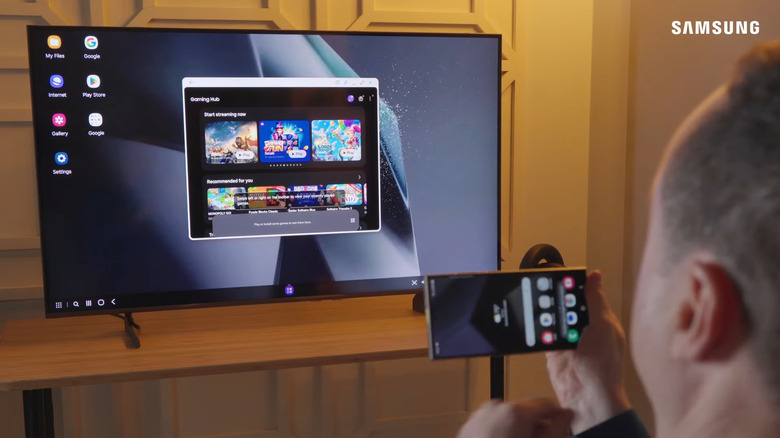
Your phone can now handle nearly anything your computer can, but what's probably limiting you from doing more is its screen size. It can be too small for tasks like multitasking and showing presentations. The good news is, Samsung TV lets you convert your phone into a desktop-style interface with Samsung DeX. It's one of the most practical uses for your Samsung phone's USB port anytime you need to work on a bigger screen fast. To get Samsung Dex on your Samsung TV up and running, here's what you need to do:
- Plug your Samsung phone to the TV via a USB cable.
- On your TV, go to the home screen.
- Navigate to Connected Devices > Daily+ > Workspace > Samsung DeX.
- On your phone, swipe down twice to view your Quick Settings.
- Select DeX.
- Press Start now.
If you prefer to pair your phone to your Samsung TV wirelessly, do the following:
- Connect your TV and mobile to the same Wi-Fi network.
- On your phone, launch Settings.
- Tap Connected devices.
- Select Samsung DeX.
- Hit Start DeX.
- Press Allow in the pop-up.
- Choose your TV from the list.
- Click on Start now.
- On your TV, select Allow to proceed.
- Back on your phone, scroll down through the Samsung DeX reminders.
- Hit Start.
Your Samsung TV will then display the DeX interface, which looks a little like Windows. You can use your phone as a mouse to navigate, but for the best experience, it's recommended to go with either a Bluetooth or USB keyboard and mouse. With your peripherals, you can proceed with using and installing apps as needed. To close DeX, click the Start menu in the bottom-left corner of your Samsung TV and select Exit DeX. You'll automatically be taken to your TV home screen afterward.
Control the TV with gestures
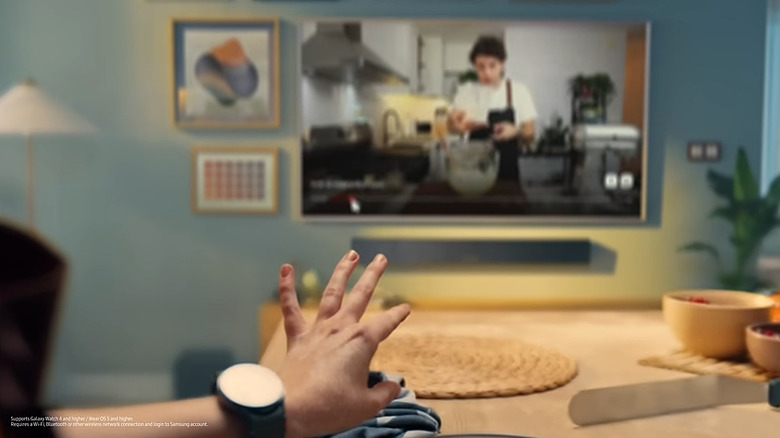
Using the physical remote or your phone to control your smart TV is pretty much the standard. But Samsung TV came up with an unconventional way to navigate your TV, all without holding anything in your hands. It's called Universal Gestures, and it has been a Galaxy Watch feature for a few years now. It was originally designed to control the smartwatch using just hand movements, but in early 2025, Samsung integrated the feature into its newest Samsung TV lineup, too.
Universal Gestures works on 2025 Samsung TVs and 2023 and 2024 U7000 TVs running a 2025 OS update. You can't, however, use the gestures without a Galaxy Watch 4 or newer with at least Wear OS 5. With these devices ready, follow these steps to get started:
- Install the latest SmartThings app on your phone and Galaxy Watch.
- Log in to the same Samsung account on both devices.
- Register your Samsung TV to SmartThings from your phone.
- On your Galaxy Watch, launch SmartThings.
- Tap on the TV listed under Favorite devices.
- Scroll up twice.
- When prompted, hit the check mark to pair your watch to the TV.
- On the Bluetooth pairing request on your TV, click on the Pair button.
Afterward, make sure to leave your phone next to the TV and stand close enough as you're controlling it. Then, you can proceed with using Universal Gestures. There are six gestures to remember. First is simply moving your wrist back and forth to move the cursor. Next, press your index finger and thumb together to select an item. Then, make a fist to go back or cancel an item. If you're watching a show or movie, move your hand towards you to pause and then flick it outward to play. Finally, clench your fist two times to go to the home screen. To stop using Universal Gestures, just cover your watch screen.