

You Should Change These 3 Apple TV HDMI Settings For A Better Picture
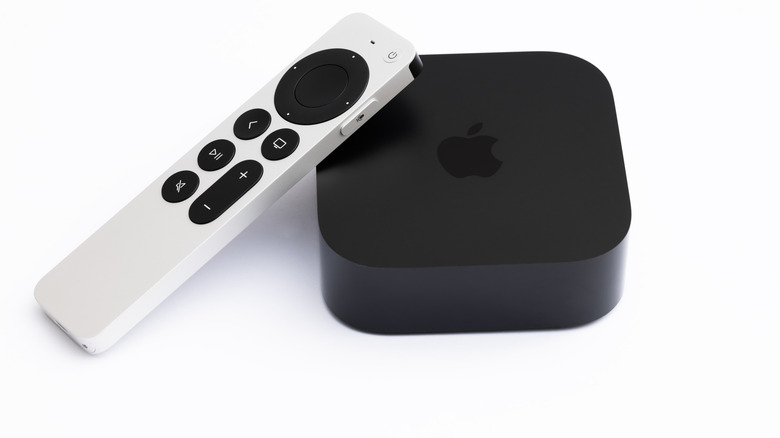
The Apple TV set-top box is one of the most interesting pieces of hardware to superpower your TV, whether it's a newer or older model (here are some of the ways it's changing in 2026). For more than a decade, I've been using the device as the core of my televisions, and I discovered that having a good HDMI cable (your Apple TV can help you understand if you do) in addition to tweaking the HDMI output, adjusting the Chroma setting, and using Match Dynamic Content can greatly improve your TV picture.
Besides these features, there are several other settings not related to HDMI that can make a complete difference for better picture quality on your TV, such as changing the video format to 4K standard dynamic range (SDR) or even using your iPhone to calibrate the color of your television. Still, those more specific HDMI settings can be a game changer for when you're planning to watch HBO's latest "A Knight of the Seven Kingdoms" or even some of the recently awarded Apple TV shows at the Golden Globes. In this article, you'll learn where to find these settings and how to ensure they're toggled in a way that improves your television's picture quality and improves your Apple TV experience.
First: Check the HDMI connection
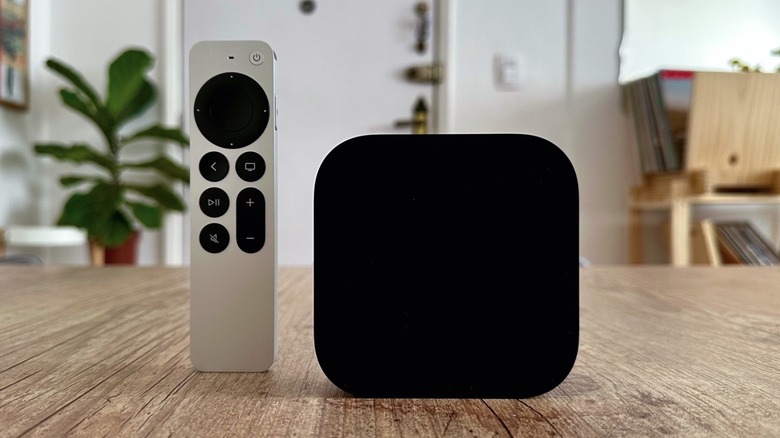
If your HDMI cable is outdated or doesn't properly transfer data between your set-top box and your TV, then the tips in this article may be useless. This is why your Apple TV has a Check HDMI Connection feature under its Settings. This diagnostic tool doesn't change the quality of the picture by itself, but if your cable isn't up to snuff, this means you're actually getting a worse picture quality. After all, even if you tweak all the settings on your Apple TV for the best image, if your TV or your HDMI cable can't handle the data coming back and forth, you'll probably end up with flickering, black colors looking gray, or weird high dynamic range (HDR) brightness issues.
When you use the Check HDMI Connection tool, the Apple TV pushes a high-bandwidth test signal through HDMI to check for errors, instabilities, or other issues. If the device detects something off, it will recommend lowering some of the settings, like chroma or frame rate, or even disabling HDR. You might think lowering these settings will make your experience worse, but it will actually help the Apple TV adjust to the best picture quality your TV can deliver.
Tweak the HDMI Output
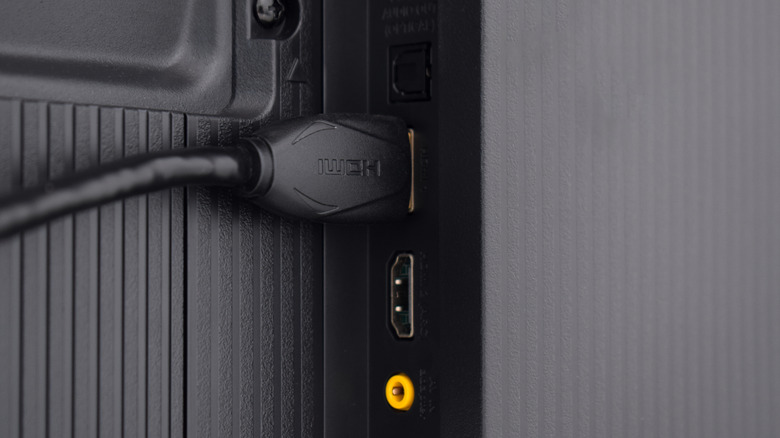
Now it's time to tweak the HDMI Output option in your Apple TV settings. The latest Apple TV 4K (2022) supports three different color space formats: YCbCr, RGB High, and RGB Low. Essentially, this setting is important because it determines how the device sends color information to your television. The easier it can transfer data, the better the image quality will be.
As also explained by Apple, YCbCr is the video-native format for most televisions, so this is the best solution for those who connect the Apple TV to a smart TV, as there is minimal conversion when sending data. RGB High offers full-range RGB, but it's a standard for computers and monitors, which means that black can look gray and contrast might appear washed out. While you could choose RGB Low, as it matches traditional video levels, it doesn't use the most compatible format for TVs in general, so just stick with YCbCr.
Change the Chroma setting if you have a brand new TV
If you're using the latest Apple TV 4K and you have a fairly recent smart TV 4K with an appropriate HDMI cable (like an HDMI 2.1 version), go to your Apple TV settings and look for Chroma options. Chroma is a form of compression that is responsible for how much color detail is included in the video signal. You can choose between two formats on your Apple TV 4K: 4:4:4 or 4:2:0.
If you're constantly streaming at 4K, 4:4:4 will send significantly more data, meaning a slight bump in picture quality and cleaner text if you have the appropriate gear. However, if your TV doesn't support this format, keep it at 4:2:0. Most movies and TV shows use this form of color compression, and this chroma format is more than enough to ensure you have a great experience.
Match Content
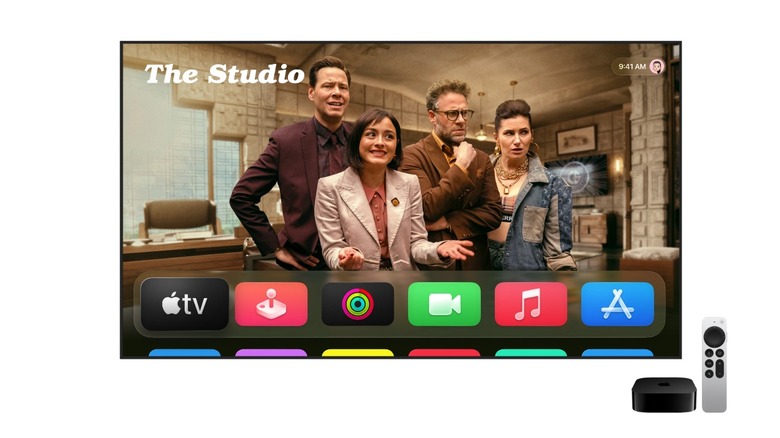
As mentioned above, most Apple TV and modern TV setups should use the 4K SDR format, which makes sure HDR is only used as needed, preventing the device from trying to make everything look too bright. However, a more HDMI-related setting to tweak is Match Content, for which you should turn on both the Match Dynamic Range and Match Frame Rate features. With them, the Apple TV ensures the picture you're seeing is being displayed in the format it has been mastered in and your TV understands.
Still, it's important to note that sometimes a brief black screen might appear before playback starts. This is the HDMI connection resyncing to a different signal. However, if you have the latest Apple TV 4K and a compatible HDMI 2.1 TV, you have Quick Media Switching, which avoids exactly that. So it's the best of both worlds. The only reason to turn these two features off is if your TV, HDMI cable, or AV receiver is unstable or gets frequent dropouts when you're trying to watch something. In other words, if you have an old TV, matching dynamic range and frame rate might be too much for it. But if you have anything from the past few years, you're more than fine, and you will have a better picture quality from your HDMI thanks to these settings.