

You Can Speed Up Any Old Computer With Your Spare USB Ports - Here's How
If your PC is a few years old, it probably doesn't feel as fast anymore. PCs running Windows slow down after years of use for a number of reasons. While you can't always fix the root causes, there's another simpler option to improve the computer's performance: ReadyBoost. It's a built-in Windows feature that lets you use a USB flash drive as a cache on computers with low RAM and an HDD. This cache is then used to store frequently accessed files. Since pulling them from the flash drive can be quicker than reading from a disk, your computer feels noticeably faster.
To be clear, ReadyBoost is not a replacement for RAM, but supplements it. RAM is where your computer loads the data required for active apps and files. For instance, if you are running Google Chrome, the OS will load the required files on to RAM while the session is active. After that, the space will be freed up, making room for other apps. RAM is still much faster than the cache on a flash drive. But, on old PCs with 2-4GB of RAM, where an upgrade is not possible due to hardware constraints, using a flash drive and a spare USB port can improve performance.
Make your old computer faster with ReadyBoost
To use ReadyBoost, you will need a fast USB flash drive with at least 4GB of storage, a free USB port, and a computer running Windows 10 or earlier. Older versions of Windows 11 do also support ReadyBoost, but any version newer than Windows 11 22H2 no longer supports ReadyBoost functionality by default.
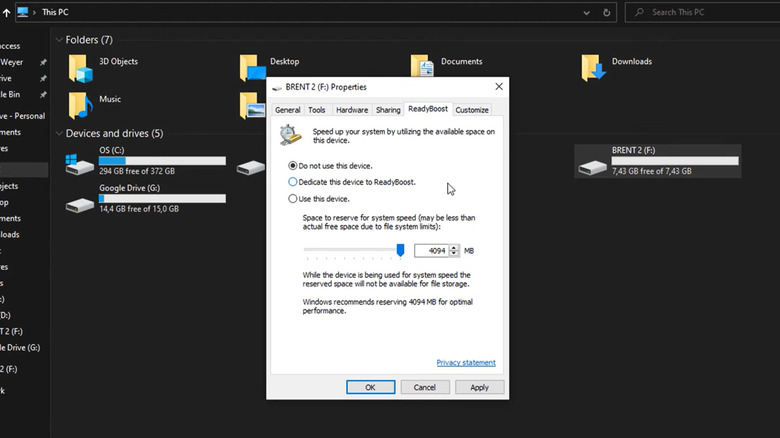
Now, to activate ReadyBoost, plug the USB drive into an available port on the PC, and press Windows + E to open File Explorer. Then, right-click on the flash drive, choose "Properties," and navigate to the "ReadyBoost" tab. Select the "Use this device" option, drag the slider to configure the space you want to reserve for ReadyBoost, and click "Apply" and "OK" to save the changes. Windows will now create a "ReadyBoost.sfcache" file on the flash drive.
When you turn on ReadyBoost, Windows will suggest the amount of space to reserve for optimal performance. Generally, it's recommended to dedicate 1-3x the installed RAM. For older computers with 2 GB of RAM, you can reserve 2-6GB for ReadyBoost. ReadyBoost can also work with an SD card, as long as it's fast enough.
ReadyBoost doesn't work on modern PCs
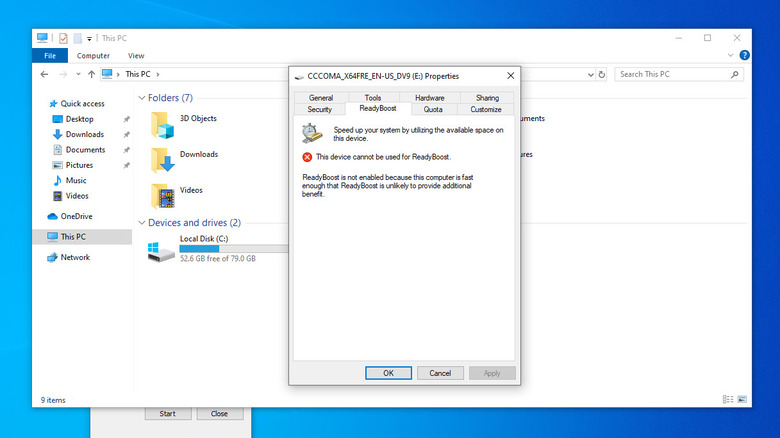
If you plug a USB drive into a PC running Windows 11, you might not even see the ReadyBoost tab. Similarly, on Windows 10, if the computer is fast enough, has sufficient RAM, or uses an SSD as its boot/storage drive, you may not be able to set up ReadyBoost. Under all these conditions, ReadyBoost offers no real benefit and may even make things feel slower in some cases. The feature was designed for older computers with slow mechanical drives, where a USB cache can speed things up.
Most modern computers already ship with SSDs and 8-16GB of RAM, making them fast enough to handle everyday tasks and even light multitasking. Since SSDs are already much faster than traditional drives, using a flash drive as a cache won't provide much of an advantage. In simple words, while ReadyBoost delivers a performance boost on old computers, it may not be of any help on modern ones. But for older ones, it may still add a few years to the computer's life, keeping it useful a little longer.