

What The Symbols & Check Marks Next To Android Text Messages Really Mean

As a long-time staple on Pixel phones that recently took over for Samsung Messages in the U.S., Google Messages is the closest thing we have to a default texting app on Android. It has built-in RCS support and tons of helpful features, like AI-powered scam detection and the ability to "unsend" messages, so it's easy to see why the app has so much momentum lately.
Along with richer messaging features, Google Messages now includes more visual status indicators, such as a blue dot next to contact cards. You'll recognize some of these symbols if you use platforms like WhatsApp, Telegram, or Facebook Messenger, but Google's app doesn't always spell out what they mean.
Google Messages uses four symbols or check marks to indicate the delivery status of your messages. First, you'll get a timer symbol to show that your message is in the process of being sent, then you'll see a single check mark when it's sent successfully. Similarly, you get double check marks when the message is successfully delivered to the recipient, and finally, color-filled double check marks when the recipient has read the message. However, you won't get the color-filled double check marks if the receiver has turned off read receipts.
What do these other symbols mean in Google Messages?
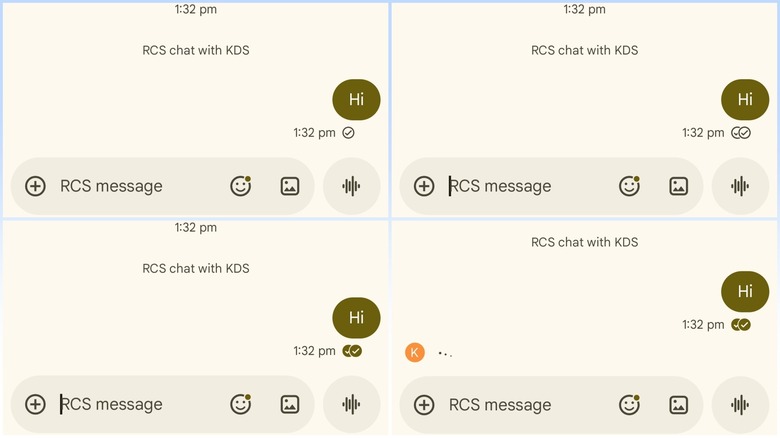
Besides the various delivery status check marks, Google Messages may show a typing indicator (three dots bouncing up and down), depending on the recipient's settings, to let you know when the person you are talking to is typing. You'll also notice a lock symbol in some conversations to show that you are having an end-to-end encrypted chat with the receiver. Additionally, a red exclamation mark appears when the message has failed to deliver for some reason — it might be a connection issue, your cellular plan may have lapsed, or the recipient's number could be invalid.
Finally, if you don't see any of these symbols or check marks (except for the red exclamation mark), that generally means either you or the recipient does not have RCS advanced chats enabled on their device. In these cases, your conversation defaults to the older SMS or MMS protocols as a fallback. You can check whether advanced chat features are enabled by going to Messages settings > RCS chats > Turn on RCS chats.