

Don't Make These Mistakes After Updating Your Android Phone
Updating your mobile device or Android phone regularly comes with the territory. It doesn't matter what brand of phone you have; software updates are a definitive part of the experience and something you should never avoid on Android. You'll want to update the system software as soon as possible, too, because those software packages include important bug fixes and security enhancements that make your phone safer. They might also introduce new features or interface improvements, meaning it's worth keeping up with them — ultimately, they should make your phone better and more responsive. There are a lot of new, excellent features added to Android with each major revision.
While updating your device is fairly intuitive, sometimes the process is more complex. Most phones won't prompt you to follow these extra steps either, and they may not show up as recommendations from experts in forums or online unless people note they're having problems after an update. For example, it's always good to review your device settings after a major update because new options may have been added and old options may have changed or been adjusted. In some cases, important settings may have reset, such as those to do with your mobile data preferences and background downloads. Google was even involved in a class action lawsuit for abusing this feature or a particular toggle.
When all is said and done, if you updated your device or are planning to, you might want to avoid making these mistakes afterwards.
Not clearing your phone's cache and rebooting
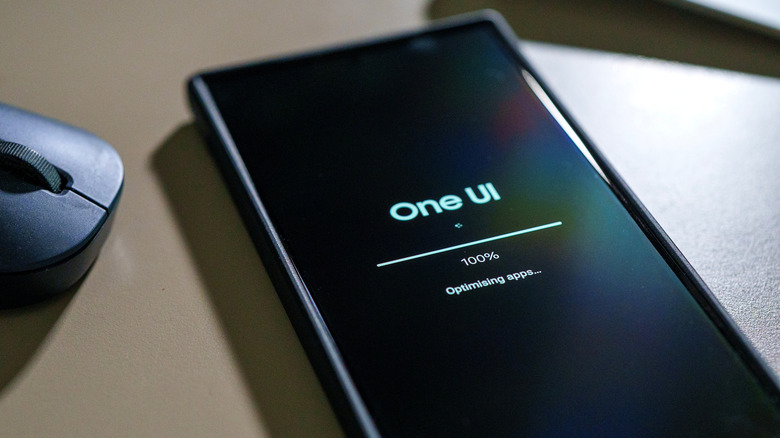
After a software update has completed, everything may seem to be working optimally, and that's great, but you should get in the habit of clearing the device's system cache, a temporary storage directory, and rebooting. Here's why. During a software update, the system downloads and installs temporary files, which are stored in a portion of the on-device memory in a partition called the cache. Those files can take up a lot of unnecessary space, but they could also potentially slow your device down. There may be other temporary files there from using the previous apps and software version, as well. So, it's just a good, healthy habit to clear out that cache and reboot for a truly fresh install of the new software version.
To clear out the cache, first power down your device. Once that's done, open the Android Recovery menu by booting the phone appropriately. For Samsung Galaxy devices, press and hold the power and volume up buttons simultaneously and wait as the phone boots. Pixel devices use power and volume down, as do most Motorola phones.
In recovery, use the volume keys to navigate and the power button to select an option. Navigate and highlight the Wipe Cache Partition option and select it. You will be asked to confirm, so do so. In a moment, the cache will be wiped, and a status message will appear. The phone should return you to the main recovery menu, where you can navigate to Reboot System Now and select. After your phone restarts, you should be all set. It will not cause the loss of personal data or settings, just temporary files.
Not doing more after the cache wipe
After a major update, you should also consider updating individual apps through Google Play or the app store you use, such as Samsung's Galaxy Store. Sometimes, apps only show an update available for specific Android builds or versions, meaning more updates may appear after the system software has changed. You can easily check this in Google Play by navigating to your profile icon in the top right > Manage apps & device > and selecting Update all or See Details to learn more.
While not a primary concern, unless you already know you're running out of storage space, you might also want to check available capacities. Software updates can install large data packages, essentially meaning the system takes up more space. A device low on storage — less than 10% free according to Google – may experience performance issues. To double-check this, open settings and navigate to Storage, or Device care > Storage on Samsung, and you should see available space listed. If space is running low, you might want to remove some apps, clear app caches, or delete old photos and videos if you can back them up.
If you're still experiencing freezes, hang-ups, or crashes, you can also reboot your device in safe mode. It differs from phone to phone; Samsung does things differently from Pixel, for example, which is why Google recommends visiting the manufacturer's support site for your device. But safe mode stops all extra apps from running in the background and removes home screen widgets. Think of it as a barebones version of the current software to find problems. You would then boot in safe mode and continue to do so, removing recent apps one by one until you find a culprit.