

How To Prevent Your Apple TV From Spying On Your Activities
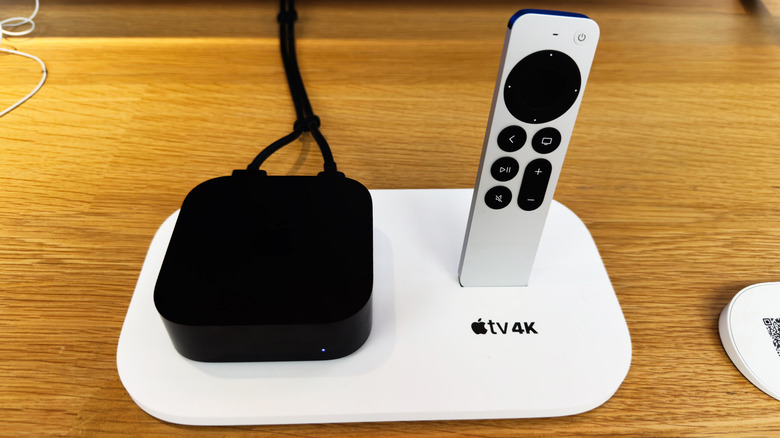
Smart TVs can spy on you by tracking what you watch, what you search, and a whole lot more. Some smart TV manufacturers have even been sued for these spying allegations. One of the most prominent ways a smart TV operating system tracks you is by using something called Automatic Content Recognition (ACR). ACR is pretty invasive and is built into TVs from some of the biggest smart TV brands, including Samsung, LG, and Sony. Fortunately, Apple TV devices, which rely on the company's tvOS platform, don't include ACR and have a relatively better privacy track record than other platforms.
However, that doesn't mean Apple TVs lack any sort of tracking, and you can keep using them without worrying about your privacy. Depending on the options selected when you set up your Apple TV device or run an app for the first time, the company or the developers of the app installed on your Apple TV could be getting information about your location, analytics data, what you are searching, and more. So, if you care about your online privacy and would rather not have your information being fed to Apple or app developers, here are some privacy settings you should adjust.
Changing Apple TV app tracking and analytics data sharing settings
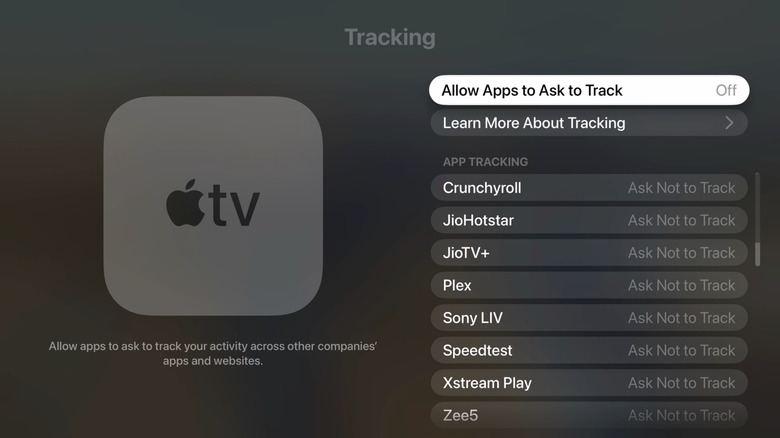
Apple TV makes it pretty easy to change most of its privacy-related settings, even if you skipped them when you were setting up your device. You can find all the relevant options under the Privacy and Security section in the General menu of Apple TV settings. tvOS versions 17 and older have the Privacy section instead of Privacy and Security. The first notable setting you'll find in Apple TV's privacy settings is Tracking. It includes an option to allow or deny apps to track you and lists apps for which you have requested permission to track you. This permission allows them to track your activity across other apps and websites. For example, you might have allowed Crunchyroll, which is a popular anime streaming service from Sony, to track your activities.
You can select Crunchyroll and remove that permission. You can also deny all apps from asking to track by disabling the Allow Apps to Request to Track option. Additionally, you can stop sharing analytics data with Apple or app developers. The option to stop analytics data sharing is also found under Privacy and Security. Scroll down to the Analytics and Improvements section and turn off Share Apple TV Analytics. Below this option, you'll also see the setting to allow Apple to use your Siri interactions to improve Siri and dictation. You can also turn it off if you don't want Apple to use your voice data.
Restricting access to location, Bluetooth devices, and more
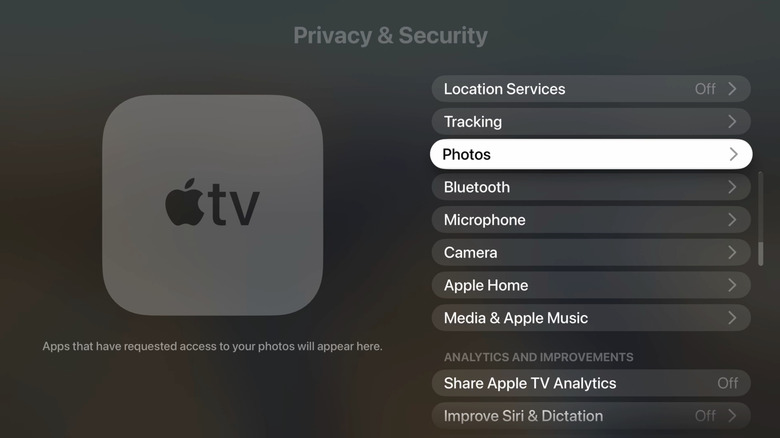
Besides app tracking permissions, you get the option to check and restrict permissions to access your location, photos, Bluetooth, microphone, camera (if available), Apple Home data, and your activity in Apple Music and media library. Simply navigate to Settings > General > Privacy & Security, and you'll find each of these options listed. You can go into each option to check if any of your installed apps have access, and if you think that access is unnecessary, you can revoke it.
If you also use the company's Apple TV streaming service, the app tracks what you're watching, downloading, browsing, etc., to give you personalized content recommendations, among other purposes. If you don't want to get these recommendations, you can go to Settings > Apps > TV > Use Play History and turn off the option. However, there is no way to turn off the data collection, as it's used by the company to figure out how many people are watching its shows, pay royalties to content owners, etc. Once you have updated the privacy settings on your Apple TV, here's how you can also prevent smart Android TVs from spying on you.