

Every Apple TV Owner Should Be Using This Visual Setting
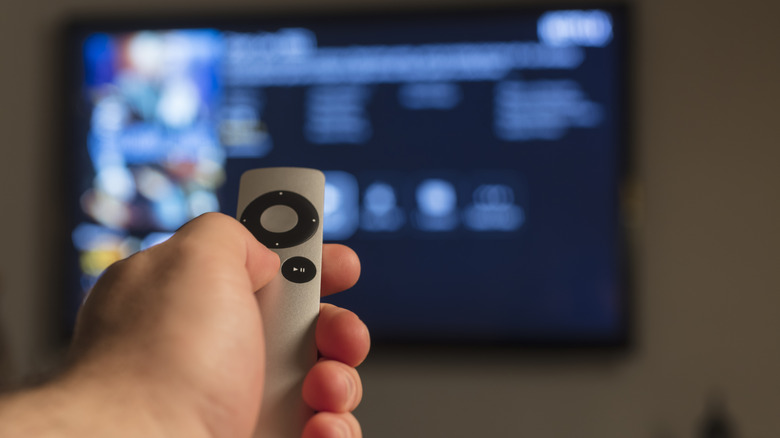
So, you're one of those people who love binge-watching before bed. In that case, you already know how annoying it is to turn on your Apple TV in a dark room and get washed in blinding white light. It strains your eyes and makes you uncomfortable real quick, the exact opposite of what was supposed to be a relaxing movie night. The good news is, Apple TV offers a quick solution to this in the form of the built-in Dark Mode. The device is usually already set to Dark Mode out of the box, but if yours isn't, it's incredibly easy to change this Apple TV setting.
All you have to do is open the Settings app. Then, head over to General and select Appearance. From here, you can click on Dark to permanently set the system to Dark Mode, or select Automatic to switch between Light and Dark Mode depending on the time of day — Light during the day and Dark at night. With Dark Mode enabled, you can navigate your Apple TV better without the harsh glare. It's much cozier and calmer, too.
More nifty Apple TV settings to make the screen easy on the eyes
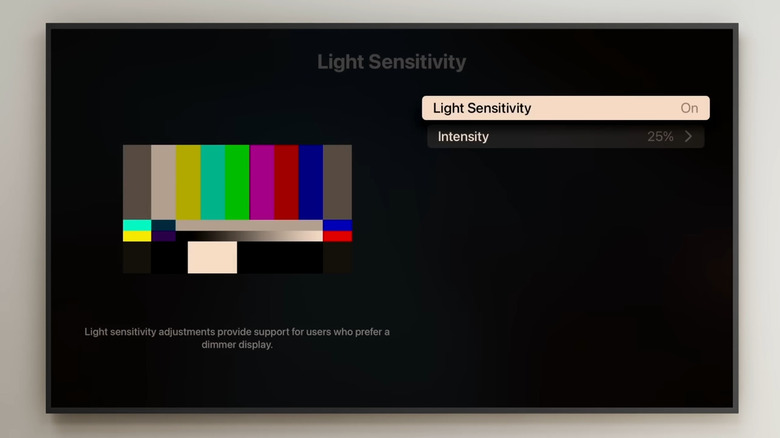
On top of the Dark Mode setting, Apple TV comes with two other tools to keep the screen more comfortable to look at: Light Sensitivity and Reduce White Point. Both features are part of Apple TV's accessibility settings. What Light Sensitivity does is make the screen look dimmer. Reduce White Point — which is similar to iPhone's battery-saving feature — also effectively dims the display, but it does so by toning down the colors' brightness level. To turn on these Apple TV features, here's what you need to do:
- Launch the Settings app.
- Select Accessibility from the menu.
- Under Vision, click on Display.
- Scroll down and choose Light Sensitivity.
- Press Light Sensitivity to enable it.
- Go to Intensity.
- Change the percentage to your desired level.
- Return to the Display settings.
- Head over to Reduce White Point.
- Hit Reduce White Point to activate it.
- Choose Intensity.
- Set your preferred intensity percentage by moving the slider.
If you don't want to go into Settings every time you want to turn these features on and off, you can add them as accessibility shortcuts instead. Follow these steps to set this up:
- Go to the main Accessibility menu in the Settings.
- Choose Accessibility Shortcut on the bottom of the screen.
- Click on both Light Sensitivity and Reduce White Point.
From here, you can quickly enable and disable both features right from your Apple TV's Control Center. Just long-press on the TV button on your remote and hit the person icon to open the accessibility shortcut panel at the top of the screen. An even quicker way is pressing three times on the back button to bring up the accessibility shortcut panel, but in the middle of the screen.