

5 Hidden Google Pixel Features That Can Make Your Photos Even Better
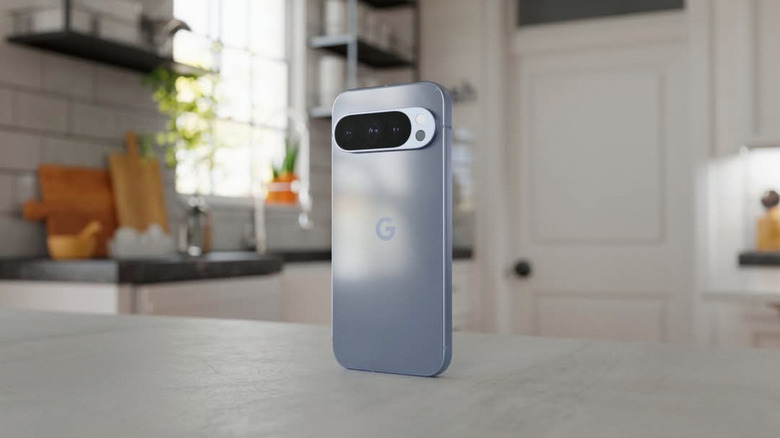
For years, Google positioned its Pixel phones as category-defining cameras, challenging Apple, Samsung, and everyone in the mobile industry with hardware and especially software innovations. Google used computational photography (artificial intelligence) to enhance photos well before the era of generative AI chatbots like ChatGPT and Gemini. All a Pixel user has to do to capture high-end photos is open the camera app, point, and shoot. That's what you want in 2026 from a high-end phone like the Pixel 10 — however, if you also take advantage of some of the hidden features in the Camera app, there's room to improve your photos even further.
That can mean using some generative AI features that Google developed for its Pixel devices — features that are available exclusively on the newest Pixel handsets, including the mid-range Pixel 10a. Also, users may want to familiarize themselves with the Google Photos editing features that can help them improve images after they're saved, which may include other AI tools that handle these editing tasks. That said, Pixel users should also be aware of what manipulating images with AI means, and how these images are perceived by anyone seeing their photos.
It's not just the software, but also the hardware. The newer the Pixel phone, the better the cameras, and the more complete the Camera app experience. In what follows, we'll highlight various hidden features that can improve your Pixel photos. You may need one of Google's newest models to take advantage of them.
Choose when to use Night Sight
Introduced with the Pixel 3, Night Sight has been updated over the years to improve low-light photography. For example, Google added Night Sight support to Panorama mode in 2024 when it unveiled the Pixel 9 series. The feature should help you capture better panorama shots in low-light environments than before, and it's something to consider when visiting landmarks that can benefit from a panorama mode. But Pixel phones automatically detect low-lit environments and activate Night Sight. You may not want that to happen at all times, as Night Sight mode waits a few seconds to process the data after you've pressed the shutter button.
For dimly lit panorama shots, Night Sight will take longer than usual to capture panoramas. If that's the case, and you don't want to wait, you can turn off Automatic Night Sight in Photo mode by tapping the Night Sight icon toward the right of the viewfinder, then dragging the slider from "Max" to "Off." Also, go to Settings and set the "More light" option to "None." If the flash is on, note that Automatic Night Sight will not work. The Pixel camera has a Night Sight mode that you can manually switch to if you want to take low-light photography while Automatic Night Sight is disabled.
Master the blur

Speaking of camera modes, the Pixel Camera has a Long Exposure mode that lets you capture photos where fast-moving objects are blurred. Think of photos of cars on the highway or waterfalls and water movement. Rather than tweaking manual settings to obtain that long exposure you need to capture that blurring effect, just select the Long Exposure mode in the camera app and the phone will handle everything for you. That said, you will have to hold the phone still after pressing the shutter button so the Pixel can perform its magic. The feature is available on Pixel 6 phones and newer.
Long Exposure isn't the only place where you want blur in images. Portraits are the kind of images that benefit from a blurry background, and the Pixel 10 can help you manage how much background blur you apply. Switch to Portrait Mode in the camera app, then tap the controls button in the lower right corner and adjust the blur slider. You can manage other settings in this menu, including shadows and exposure.
On the other hand, you won't like blurry images that aren't supposed to have things out of focus. Thankfully, Pixel phones offer two features that can fix blurry images, called Face Unblur and Auto Unblur. Introduced with the Pixel 6 series, Face Unblur ensures that faces aren't blurry in images of fast-moving subjects. The phone will take two photos at the same time (one with the ultra-wide camera and one with the main camera), then the handset will use machine learning to combine the two into a single image where faces aren't blurry. Meanwhile, Auto Unblur is a Pixel 10 feature that can remove blur from images without any user action.
No more closed eyes in group shots
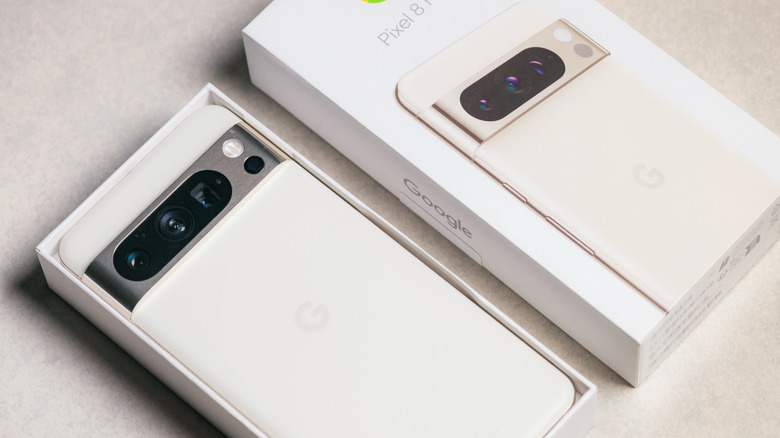
You may be able to control the subject when it comes to portrait photos, and you should be in control when capturing panorama and long exposure shots. But all bets are off when trying to capture a group photo while ensuring all the participants coordinate their poses, movements, and especially their blinking to help you grab the perfect shot. That's where Auto Best Take comes in, a mode that can capture up to 150 frames on Pixel 10 phones to ensure that everyone in the photo is at their best. The feature builds on the Best Take functionality that Google introduced for the Pixel 9 series in 2024.
To enable Auto Best Take on your Pixel 10 phone, you'll need the help of Google Photos, which comes pre-installed on all Pixel phones. If you haven't used Google Photos before, make sure to open the app and complete the setup process that appears on first-run. After that, tap the settings icon in the bottom left corner of the Camera app and enable the "Top Shot" setting. Once these two steps are performed, head to the same settings section, tap the three-dot menu, then enable the "Auto Best Take" option.
Best Take is available on Pixel 8 and newer models and offers similar functionality to Auto Best Take. The difference is that you have to go to the Google Photos app, open a photo from a sequence of similar images, then tap the "Edit" button and find the "Best Take" feature in the Actions menu. Best Take will let you choose between different faces for the people in the image to select the desired expression. Best Take isn't as good as Auto Best Take, however, as it relies on post-processing edits rather than capturing additional images while you take group shots.
A Camera Coach available on-demand
Pixel 10 phones have a new Camera Coach that leverages Google's Gemini AI models to help you capture better photos. The optional feature is available in the camera settings under the three-dot menu. Once you enable it, the Camera Coach feature will no longer be hidden. The next time you point the camera at a subject, a button will appear near the top right corner. Tap it, and a window will appear at the bottom of the viewfinder to show you how the AI sees the shot. The Camera Coach will also provide suggestions on how you may improve the photo. It might tell you to reframe the shot and zoom in or out to obtain a different perspective.
Camera Coach will require an internet connection to work properly, as the AI processes information in the cloud, not on the phone. That is one downside of the feature; you will have to allow Gemini to analyze your photos. However, Google said during the Pixel 10 launch that Camera Coach will send a single image to the cloud, which will then be deleted. Google won't train the AI on the Camera Coach images. Also, if the Guided Frame accessibility feature is enabled, you won't be able to use Camera Coach at the same time. Guided Frame helps people with vision impairments take photos on Android devices, so you can't use both at once. Finally, Camera Coach only works with Photo, Portrait, and Night Sight modes.
By using Camera Coach, you can improve your photography skills by learning how to capture better images. In time, you may disable it once you start seeing things like the AI does.
The natural language edits you needed
You can improve the photos you capture with your Pixel phone after you take them by editing them in Google Photos and other apps. If you're using Google Photos to store images and perform edits, you should be aware of a new feature that's exclusive to Pixel 10 phones. Google Photos lets users edit images by simply describing the changes they want in natural language. Maybe you know how you want the photo to look, but don't know exactly which menus to use or how far to adjust a slider to obtain the brightness you want. You can type a message in conversational language in Google Photos to tell the AI to make the photo brighter. You can include additional commands, like telling the app to remove objects and people from the image, altering colors, or changing backgrounds. Even simple commands like "make it better" should work.
The downside of using this feature is that you may be doing more than altering shadows and removing reflections. You may be creating an image of an event that did not happen by changing the content. Some people may consider such images misleading. Starting with the Pixel 10, Google is adding C2PA Content Credentials to images captured and edited with the Pixel Camera. This invisible digital watermark will tell you whether an image was captured with a camera. It will also disclose edits, and whether they were made with AI.