

Don't Plug In An HDMI Splitter Until You Know These 3 Rules
We may receive a commission on purchases made from links.
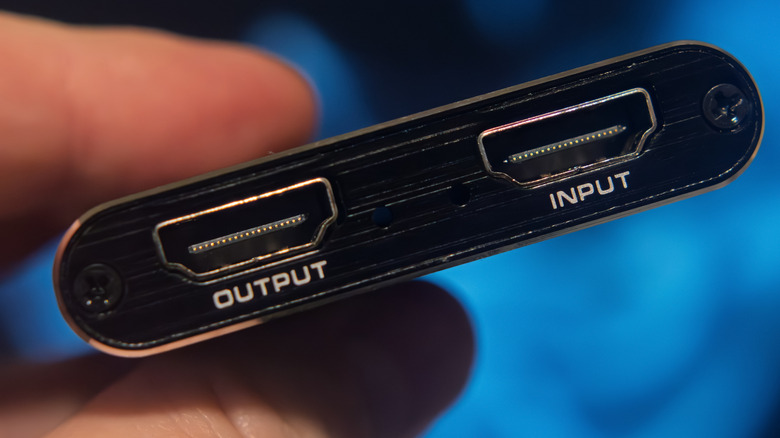
One of the great things about the HDMI standard is that there are many ways to augment the connection or experience to achieve various setups. For example, you can swap a wired HDMI cord for a wireless HDMI connection if you don't want messy, cluttered wires all over your entertainment center. You can also set up an HDMI switch, a bridge if you will, to quickly swap between different devices all connected to a single port. Another excellent tool is an HDMI splitter which effectively allows you to split the signal, from a single connection to multiple displays.
A splitter mirrors content from the single incoming port to multiple displays. That allows you to do things like send the same media stream to separate rooms, to present the same content on multiple displays in a conference or meeting — making sure everyone can see — or to broadcast to multiple screens for education, marketing, and other activities.
Using an HDMI splitter is simple enough, you merely connect the device or stream you want to output to the single incoming HDMI port on the splitter, and the external ports go to the extra displays. However, there are some things you should probably know before you start plugging things in.
A splitter is not for extended displays

At the risk of repeating, a splitter mirrors a signal input, meaning it sends the same signal to separate displays. It cannot provide an extended display experience to multiple monitors if you're connecting a PC. What that means, simply, is that you cannot use multiple monitors separately as an extension, offering a larger screen area. When using a splitter, you will see the same exact interactions, media, and content on all screens.
An HDMI switch is also a different device that's used to send multiple sources to a single input. It helps when your TV or monitor only has a limited number of HDMI ports, but you need to connect multiple devices. You use the switch to change the active signal between them, but they all go to the same input on the display or TV. This allows you to connect, say, a game console and media player to the same HDMI port and then switch between them depending on which device you're using.
Either way, if you're trying to extend your displays and use multiple monitors individually, an HDMI splitter is not for you. If you're trying to use multiple devices with a single input, go with a switch instead. If you're mirroring a stream, you're in the right place.
Plan your outputs [and cables] in advance
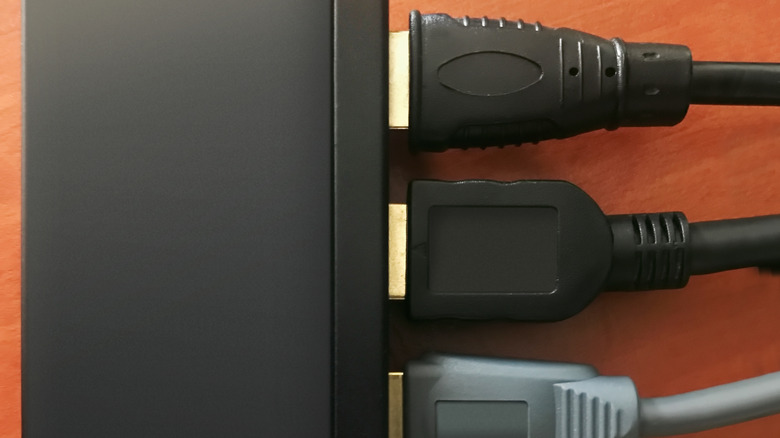
A splitter can come in numerous forms, commonly available in configurations such as 1x2, 1x4, 1x8 up to 1x16. There are also active and passive splitters, passive being self-powered and best for short distance use, active requiring separate power — usually via its own external power source — that works best for longer distance setups.
What you need to plan in advance, however, is how many HDMI cables you'll need, and how many displays you'll be connecting to. A 1x2 splitter takes the signal and splits it between two displays. A 1x4 splitter sends it to four displays, 1x8 to eight displays and so on. But you'll need enough extra cables to go to those extra displays you want to connect. You'll also need to make sure those cables are long enough, depending on how dispersed the displays are.
Before plugging in a splitter or buying one, think about how many outputs you need and whether you want an active or passive device. Also, consider how many extra cables you'll need to connect everything. You'll need one HDMI cable going from the splitter to the media source, and then an extra cable for every additional display you plan to connect. If you have two displays, you'll need two cables, and for three displays, you'll need three, and so on. You might be able to get away with using a wireless HDMI adapter to cut down on some of the cords, but keep in mind you'll likely need a free power outlet or power source for the adapter, too.
Make sure your splitter is compatible with your devices
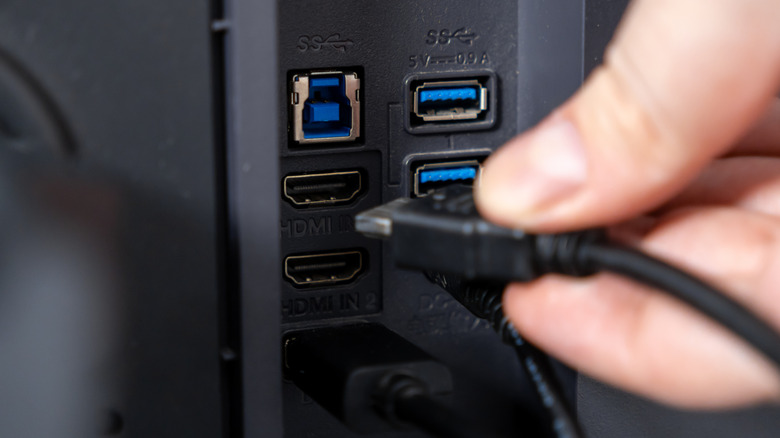
When it comes to both video and audio signals, you'll want to make sure the HDMI splitter, and by proxy the HDMI connections, support the same formats and devices you want to use. For example, if you're using a Dolby Atmos or DTS:X audio stream, you'll need to make sure the splitter supports that particular audio format and sends it appropriately to several connections on the other end — HDMI 2.0 for ARC or HDMI 2.1 for eARC.
HDCP (High-Bandwidth Digital Content Protection) is another standard you'll want to check compatibility for. If the splitter doesn't support it, you won't be able to amplify certain streams coming from apps like Netflix, Disney+ and some Blu-Ray players. Remember, it's a myth that expensive cables are always better. Compatibility is more important, so be on the lookout for things like variable refresh rate support, HDCP, or HDMI 2.1 and above.
Finally, consider the performance of the stream, like whether the splitter supports 4K resolutions at 60Hz or 120Hz or simply basic HD content at 1080p. You may be limited to a lower quality resolution if you use an incompatible splitter. This Amazon Basics 1x2 splitter supports 4K resolutions at 60Hz, while others might support standard HD or lower. The point is pay attention to these formats and compatibilities when you're choosing a splitter and make sure they match the source device you're using, whether that's a media player, Blu-Ray player, game console, or something else.