

4 Clever Uses For Your Amazon Fire TV Stick's Micro-USB Port
We may receive a commission on purchases made from links.
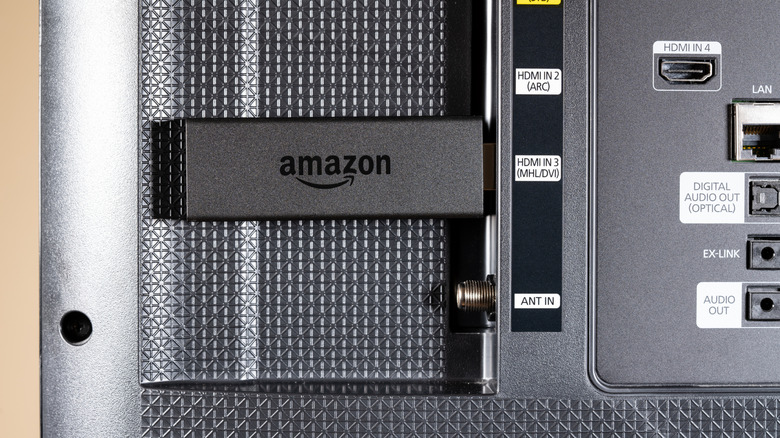
Amazon's Fire TV Stick is a clever accessory to make your basic TV smarter, or discover app and function options that your already smart TV's default OS doesn't include. However, with its additional micro-USB port, which works differently than a more modern USB-C port, you can take advantage of extra features, or even power up your Fire Stick, by adding Ethernet support, expanding its limited storage, and more.
An Amazon Fire TV Stick gives users access to hundreds of apps through the Amazon App Store, lets them talk to Amazon's Alexa personal assistant, and enjoy their favorite streams without spending a lot more money on an Apple TV 4K.
Even though users need to be careful with how Amazon handles their privacy, and also get to know a few other things before buying an Amazon Fire TV Stick, once you get this device, you can supercharge it through its micro-USB port by taking advantage of the following tips and tricks.
Ethernet support
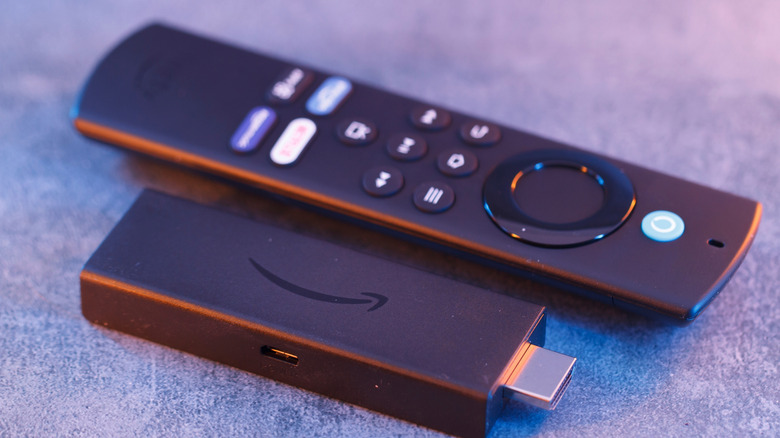
Amazon Fire Stick uses Wi-Fi to connect to the internet so you can stream your favorite apps and more through it on your TV. However, if you have an intermittent connection and the wireless experience isn't reliable, you can use this device's micro-USB port to connect an Ethernet cable. There are micro-USB Ethernet adapters offering a more stable connection, which will at least guarantee the same internet speed without random drops like on Wi-Fi.
This is such a good idea for your Fire Stick that even Amazon offers an official Ethernet adapter. While Amazon's choice is limited to 100 Mbps, Fire Stick uses a USB 2.0 interface, which could theoretically offer you up to 480 Mbps depending on your internet plan. However, even if Amazon's option might feel "limited" compared to what you could be enjoying with other devices, Netflix's official support says you only need a connection of 15 Mbps or more to enjoy 4K streaming.
Since Amazon's official adapter offers six times more than that, it's safe to assume that if your internet plan gets you the necessary speeds, you'll get a stable wired connection for any of your favorite streams, while also improving download speeds.
Expanded storage
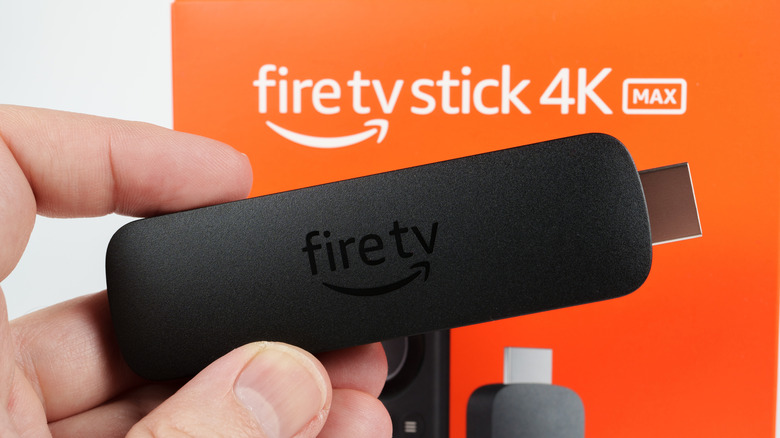
Amazon Fire Stick offers up to 8GB of storage. While this is enough for the operating system and the base apps you might need, if you want to go crazy and start downloading games or other files, you might quickly hit a roadblock. Another issue with such low storage is that you might quickly get poor performance or other issues when trying to update the software because there's no storage available.
In this case, the micro-USB port can serve the great purpose of an external HDD in case you get the right USB On-The-Go (OTG) accessory. While you'll still be limited to USB 2.0 speeds, it's more about being able to store more data then having fast speed access to other documents.
It's also important to note that Amazon recently improved how Fire Sticks deal with third-party hard drives, as some of the latest models, like the Fire TV Stick 4K Max, let you install apps and avoid storage warnings, as the external storage can be used to save some of them on there. Other models, on the other hand, might only work with media, meaning the Fire Stick can read the data but not save data there. It won't be life-changing if you don't have one of the newest models, but at least will serve its purpose.
Connect a wired gaming controller
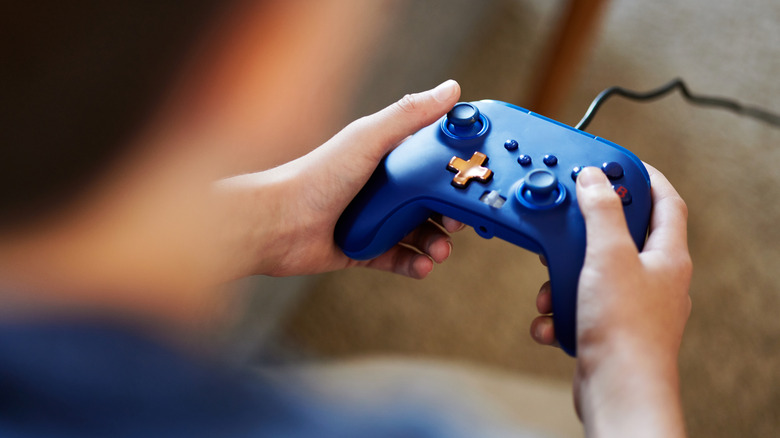
Since Fire TV runs Android underneath Amazon's software, it means users can take advantage of standard USB Human Interface Devices (HID) controllers. By using an OTG Y-cable, Fire TV Stick users can plug in an old USB gamepad, a wired Xbox/PlayStation-style controller, or even arcade sticks. Thus, you can easily turn your Fire Stick into a casual gaming box for emulators and simple games, bringing the nostalgia of the '80s and '90s to your TV.
This is great, because the process of installing is pretty straightforward and the cable connection, like the Ethernet idea, offers a more stable connection than Bluetooth, which is great for retro, kids, and party games.
That said, you can avoid cheap Bluetooth controllers that delay the experience of revisiting your favorite classic games, and even reuse controllers you already own, especially those from Microsoft or Sony if they offer a wired connection, with no hassle.
Sideload apps
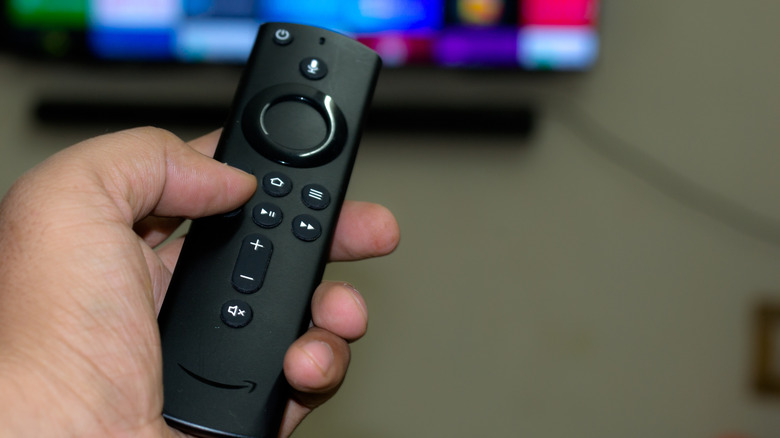
Finally, another clever way to use the micro-USB port of your Fire TV Stick is to take advantage of sideloading. This could be useful when you can't find everything you want from the Amazon App Store. Since the Fire Stick also runs on Android software, you can easily download apps you can't find there on your device.
Even though the most common way of sideloading can be with the Downloader app, you can install multiple apps by using your Android phone and the Fire TV Stick's micro USB port. Before connecting your phone with Amazon's accessory, you need to go to the device's settings, then My Fire TV, About, and then repeatedly press the Select Button on your remote. Once you get the "You are now a developer message," go back to My Fire TV, tap Developer Options, and then Install Unknown Apps.
This will allow you to download APK files on your Android device, and then transfer them to your Fire Stick by using an OTG accessory. An app like X-plore File Manager is necessary to handle those APK files you'll be sending from your Android phone. With all those steps complete, you can sideload lacking apps to your Fire TV Stick or even add a version that's no longer available, but works better with your device.