

5 Features You Didn't Know Your HDMI Port Had
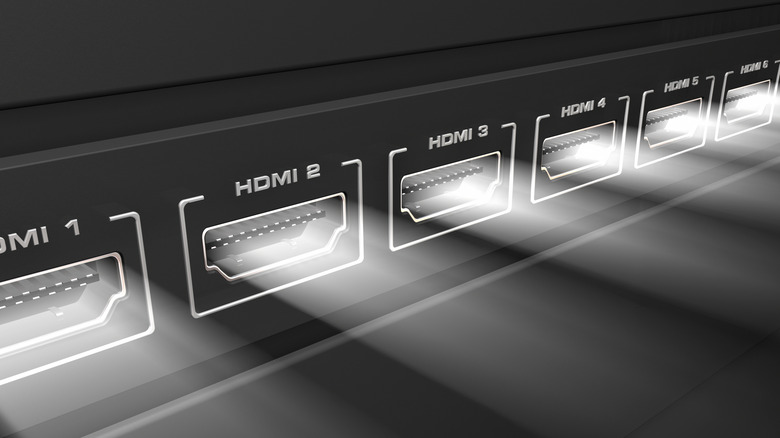
Since HDMI ports and cables were introduced back in 2002, they've gradually become the standard for all-purpose connections. Where before you had to plug things like VCRs and game consoles into TVs with a tangle of RCA and coaxial cables, HDMI ports have largely simplified the connection process on both TVs and PC monitors. While this baseline convenience is great, though, the current HDMI paradigm has other perks going for it, such as dedicated visual-enhancement modes and single-cable solutions for audio as well as video.
If all you want to do is plug a source into your display via an HDMI port, the extra features may seem unnecessary. However, by plugging into the proper ports, as well as toggling a few features on your display, you may find that your viewing experience is even better than it was before, with more vibrant, dynamic colors and convenient, hands-free mode switching.
Specific ports offer higher quality
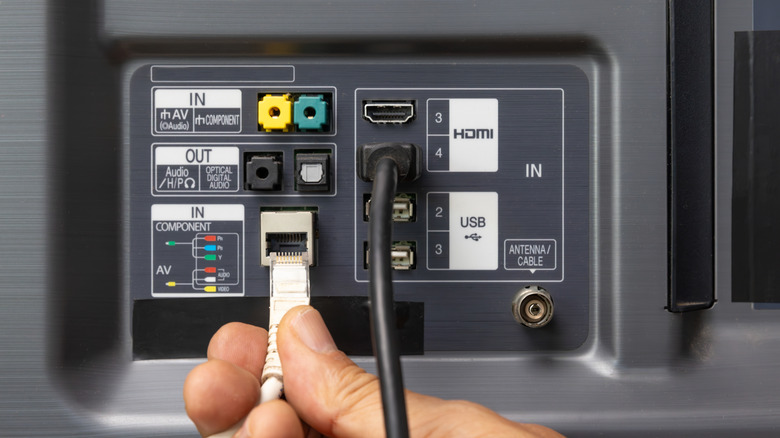
Part of the convenience aspect of the HDMI format is that you can plug an HDMI cable into an HDMI out port on a device like a PC or game console, then plug it into any HDMI in port on your display, and it works right away. This is nice if you're just looking for ways to use your TV's extra HDMI ports. But instead of plugging into whichever HDMI port happens to be open, you might want to take a closer look at the ports themselves, as some may offer better quality than others.
Depending on the precise make and model of your monitor or TV, different ports may be equipped with higher data bandwidths that allow for 4K video quality or greater. Take a look at the ports themselves before you plug something in; there should be a blurb printed right next to them denoting them as HDMI ports, as well as which features they have, such as 4K support, 8K support, or newer HDMI versions like HDMI 2.1. Conversely, some HDMI ports on a display may be older versions, merely there to pad out the display's connection options. You can plug a source into an older-version port and it'll work fine, but you won't get the highest-quality output.
Visual enhancement features
Getting the highest-quality output from your HDMI ports isn't quite as simple as plugging into the right port, important as that is. You also may need to enable a particular HDMI port's various features through your display's controls, usually with a remote control. Doing so is one of the top HDMI tips to improve your TV's image quality, as simple as it may seem.
The process of toggling HDMI features is a little different for every brand of display or TV, but generally speaking, you can find what you're looking for in the advanced, picture, or external input settings. In these settings, you can activate the dedicated enhancement features for your HDMI ports. As for what those features entail, that also depends on the brand of display. LG TVs, for example, offer "Ultra HD Deep Color," while Sony TVs have "Enhanced Format." No matter what it's called, it frequently involves enabling 4K support, but there may be some additional color-balancing or picture-smoothing mixed in.
Dedicated gaming, sports, and cinema modes
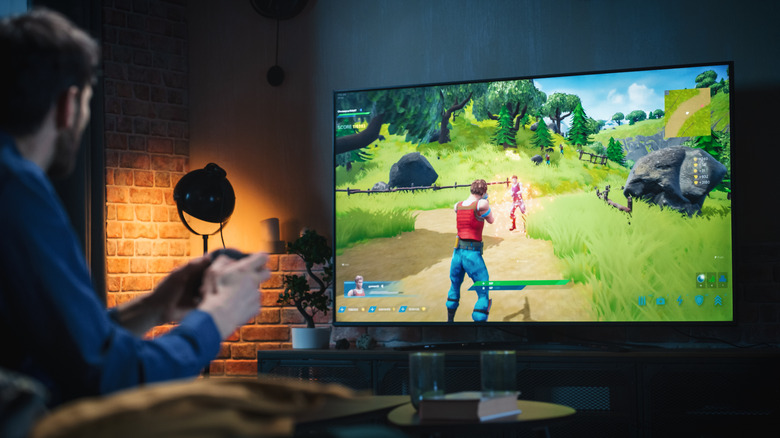
Different people like to use their displays for different entertainment purposes, whether it be playing high-impact games, watching fast-paced sports, or enjoying cinema-quality movies. The tricky thing about setting up a good home theater system is that different kinds of entertainment benefit from different kinds of visual enhancement. Luckily, many modern displays can be configured via their HDMI ports to optimize different kinds of entertainment with dedicated display modes.
One of the most common optimization modes you can find on a current TV is a Game Mode, which tweaks the display for both higher general image quality and, more importantly, lower latency, reducing the presence of distracting smearing and screen tearing when playing video games. Other common features include Cinema Mode, which prioritizes more natural colors for watching live-action film, and Sports Mode, which sharpens the picture and smooths motion so you don't miss any big plays. These modes can usually be found in the same menu in your display's settings as the other visual enhancement features.
Automatic game mode switching
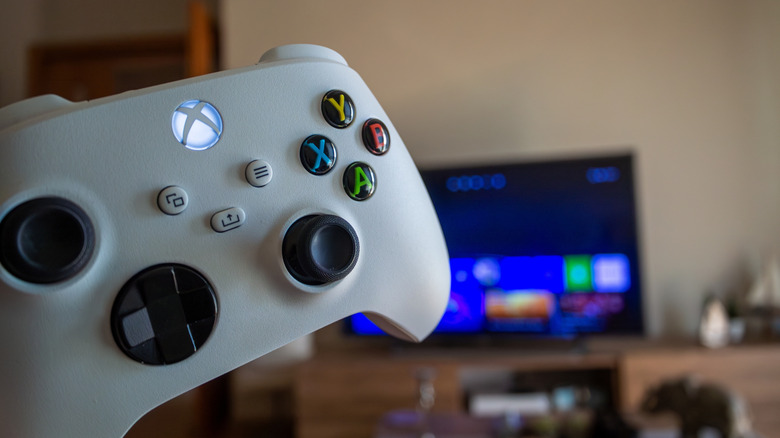
The only real hitch with an HDMI-equipped TV's various enhancement modes is that not everyone can remember or be bothered to enable them every time they switch inputs, especially if they're juggling a handful of different connected devices. Luckily, at least for Game Mode, there's an additional feature that can take some of the guesswork out and save you some remote fiddling: Auto Low Latency Mode, or "ALLM" for short.
If you specifically plug your game console into an HDMI port with ALLM support, your display will be able to automatically detect when it's receiving signals from a game console, enabling Game Mode as soon as you switch inputs. When you switch from that HDMI port to a different port or the display's regular on-board apps, it will automatically switch back to its regular display mode. Just remember, you may need to activate this feature on both ends of the connection, including both the display itself and the game console you've connected to it. You can also disable ALLM if you prefer to switch modes manually or if it isn't detecting properly.
Single-cable video and audio
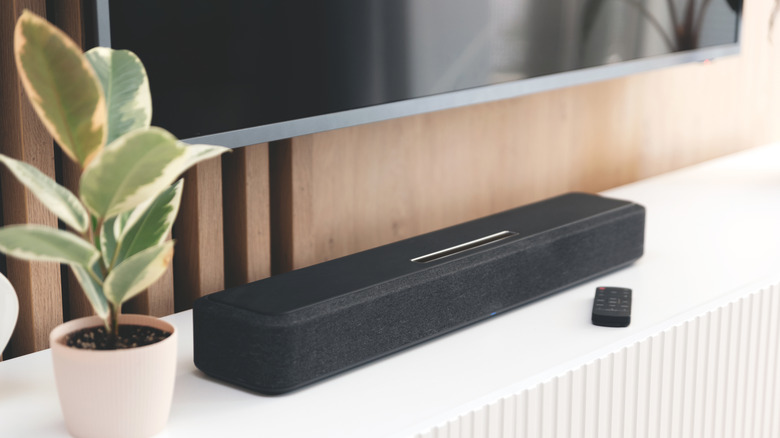
If you didn't know, "HDMI" stands for "high-definition multimedia interface." There's a pretty major implication in that full name that may otherwise go unnoticed: HDMI cords and ports aren't just for connecting video sources. They can also be used to connect audio sources, such as a TV to a surround-sound speaker system. Not only that, if you plug your audio sources into the right HDMI port, you can actually spread the connection out to any other connected device.
That's precisely what the HDMI ARC port on your smart TV is for. Audio Return Channel ports, commonly labeled as "ARC" or "eARC" (the latter being the enhanced, newer version), are present on many modern TVs. If you plug an audio source into an ARC-equipped HDMI port, you can automatically reroute audio from both the display itself and other connected devices like streaming boxes or game consoles through the audio source. eARC in particular is also compatible with audio-enhancement frameworks like Dolby TrueHD, so setting up this connection will ensure that all of your media from any source will sound as good as it possibly can.