

Why Do PS5 Controllers Have A Hole On The Back?
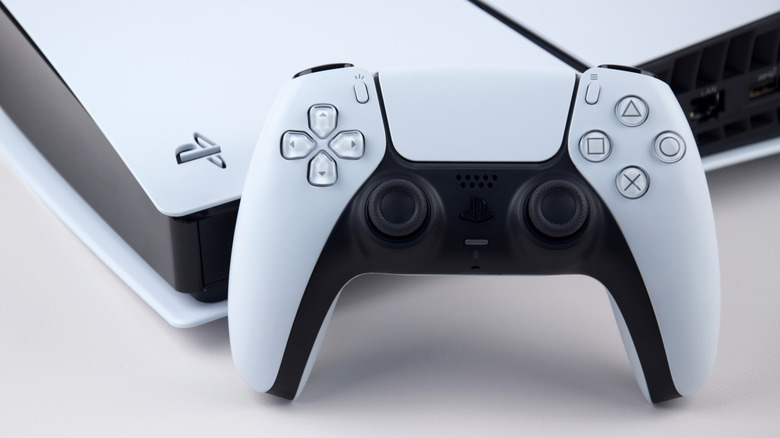
Any console gamer will know the importance of always having a sturdy, reliable controller that works seamlessly right after purchase. Fortunately, the Sony DualSense PlayStation 5 controller serves as a great companion when it's properly configured to your PS5. Beyond an ergonomic design, these PS5 controllers offer immersive adaptive triggers and realistic haptic feedback that elevate your gaming experience, especially if you're a veteran fighting game fan.
If you're lucky enough to upgrade your controller to the DualSense Edge, you have access to premium features like new back paddles, remappable buttons, adjustable trigger stops, and even swappable stick modules. No matter if you use the standard DualSense or the Edge, either option should connect seamlessly with your console.
Outside of stick drift and dirty controller issues, you can sometimes encounter weird errors when paired. One example would be that your controller doesn't always respond to your input commands. Another, would be if your controller stops connecting to your console altogether, after you've updated it. No matter the case, if your DualSense controller isn't working as it should, it can be frustrating. That's why Sony introduced a handy reset feature. It turns out that the small, tiny pinhole on the back of your controller is actually a reset button. Thankfully, you can use the reset button to troubleshoot your PS5 controller's connectivity problems, and luckily, it only takes seconds to do.
Using the PS5 controller's reset button to fix your connectivity issues
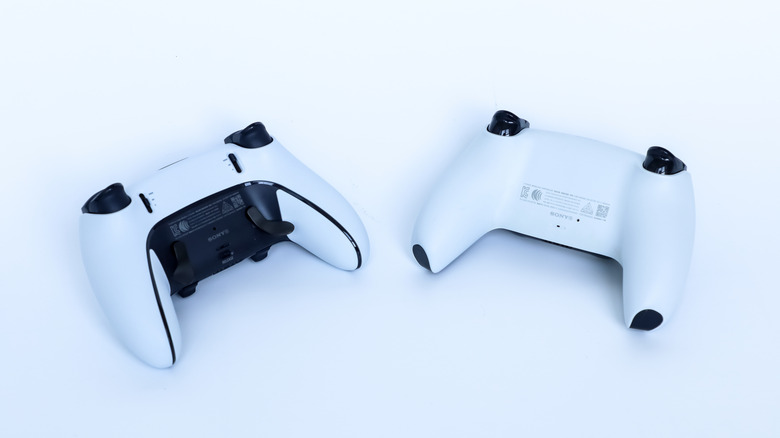
The reset button is located on the back of the controller next to a faded Sony logo (on the right side of it for the DualSense, and above the logo for the Edge). To interact with it, you'll need a paperclip or a similar tool to press against it. What this does is reset your connection, requiring you to re-pair your DualSense controller with your console via a USB cable. To do this correctly, make sure your console is powered off and unplugged from the USB cable. Once you have the controller in your hands or on a surface, use the pin-like tool to press it into the controller for five seconds. Then, reconnect the controller using a USB cable plugged into your PS5 console. Press the PS button to re-initiate the pairing process.
Ideally, this should re-establish the connection between your controller and your console, but it may not always work. If it doesn't, Sony recommends checking that your console's software is up to date, which you can do from the System settings on your home screen. If you can't navigate to your menu at all because your controller's inputs aren't working, you'll need to operate your console in Safe mode, then set up an alternative input method, such as a USB keyboard or enabling PS Remote Play via the dedicated PS Remote Play app from your mobile device.
But usually, at this point, there's something seriously wrong with your controller's hardware if it remains unresponsive while wired. When it comes to hardware problems, your best bet is to either send it back to Sony (new official controllers should come with a 1-year warranty), send it in for repairs to a third-party establishment, or buy a replacement.