

3 Apps You Should Uninstall ASAP On Your New Samsung Galaxy S26 Ultra
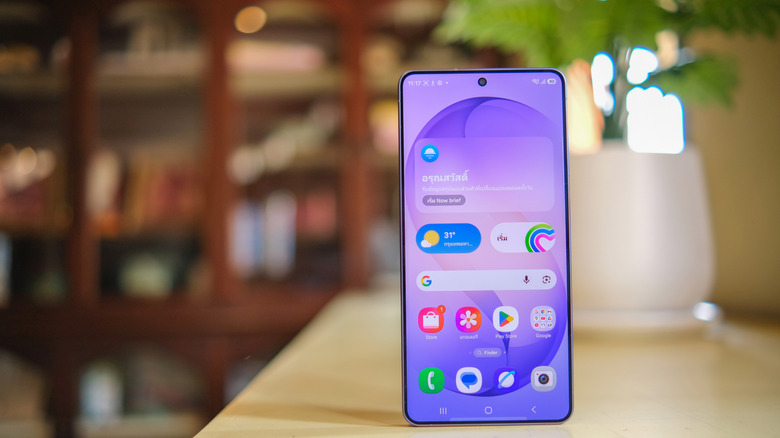
The Samsung Galaxy S26 Ultra is finally here, heralding another year of Samsung's flagship Ultra device. However, if you were expecting to drop over $1,000 for the device and get a bloat-free experience, then you're likely going to be disappointed. Just like last year's S25 Ultra, the S26 Ultra comes with a lot of "bloatware" that users will probably want to remove — up to 40GB of it, to be exact.
Now, bloatware is a term that we've seen thrown around for years. It is often used to refer to applications that come pre-installed on the device, and can include apps from the device manufacturer, as well as third-party apps such as Facebook, Instagram, and even for some people, the various Google apps that come pre-installed on Android phones. Ultimately, what is and isn't bloatware is going to vary from user to user, as we each rely on apps differently. However, debloating your phone can be a handy way to reclaim your storage space, improve your phone's performance, and also save you the headache of giving certain apps access to your device in any way.
If you're planning to pick up the Galaxy S26 Ultra, then there are several pre-installed apps that you might want to look at removing. But how do you know what apps you should and shouldn't remove? Well, that's where things can get tricky, especially for apps that might negatively impact your phone in some way. Luckily, we've put together a list of some apps that are safe to uninstall from your device, as well as highlighted why you might want to remove them.
Samsung Shop
When it comes to bloatware, it's hard not to look at apps like Samsung Shop and immediately see why some people might want to uninstall it. The entire point behind this application is to deliver personalized product recommendations and deals in a bid to get you to purchase more devices from Samsung. It's not bad if you actually want to purchase more Samsung stuff. However, if you've just purchased the newest device, then chances are you aren't going to need to buy anything else again for a bit.
That's why uninstalling Samsung Shop isn't a bad idea. Not only does it restore a little extra space, but it will also help cut back on unwanted notifications. This is especially helpful if you're one of those people who prefer to buy a phone and then hold onto it for years — something far easier to do now that Samsung phones have such long support windows for new updates.
Despite the fact that Facebook seems to have fallen in popularity over the years, Meta's social media app continues to ship on devices right out the factory. Now, there are a number of reasons you might want to remove Facebook from your device. These can range from simply wanting to make it harder to doomscroll social media, or even being concerned about the privacy issues related to the platform. Facebook itself has had an interesting timeline of privacy-related issues over the years, and with the upcoming push to use user posts to train AI, it's not surprising that some users might want to keep Meta's apps off their phones. Facebook further wants you to give AI access to all your phone's photos, making it best to uninstall the app if you value your privacy.
Luckily, despite shipping on the Galaxy S26 Ultra, Facebook (and Instagram, too) don't have to remain on your device. You can easily uninstall them by long-pressing on the app's icon in the app drawer or by heading into your settings to remove it there.
Samsung TV Plus

This next app is another one that some people might have a use for, but many are likely going to find it's not really needed. Samsung TV Plus can offer a good bit — like ad-supported access to TV shows and movies. However, the kicker here is you have to watch the content on your phone which some people might not prefer, and Samsung doesn't produce much original content in the same way that Apple TV, Amazon, Netflix, or HBO do. Instead, you're mostly going to get access to content that you might already be able to get on your subscriptions.
Because of this, the app is likely just taking up space on your device, and considering the starting price for the S26 Ultra is over $1000 for 256GB, you're going to want to eke out as much free storage for other apps and things you might actually use instead. Like the other apps we've already covered, Samsung TV Plus can be uninstalled in a similar fashion.
How to deal with apps you can't uninstall

While there are plenty of other installed apps you can uninstall, these are just a few of the ones that really stand out as being easy to remove and most likely not needed by the majority of people. However, there are also a ton of other pre-installed apps that you can't freely uninstall for some reason — like Microsoft OneDrive. Sure, they might say uninstall on the store page, but all that actually does is uninstall the latest updates, leaving the base app dormant on your phone. If you find you don't want these apps, then you can always go through the extra process of uninstalling them using the Android Debug Bridge (ADB). However, if you aren't technically comfortable doing that, then some of them, including OneDrive, will let you disable them instead.
To check if you can disable an app, navigate to it within your phone's settings. The easiest way to do this is to long-press on the app and then select the circled icon, which opens the app's information page. From here, select the Disable option. This will stop the app from using your phone's data or battery, though it won't free as much storage as a clean uninstall would.