

Don't Let Someone Fix Your Android Phone Without Using This Setting First
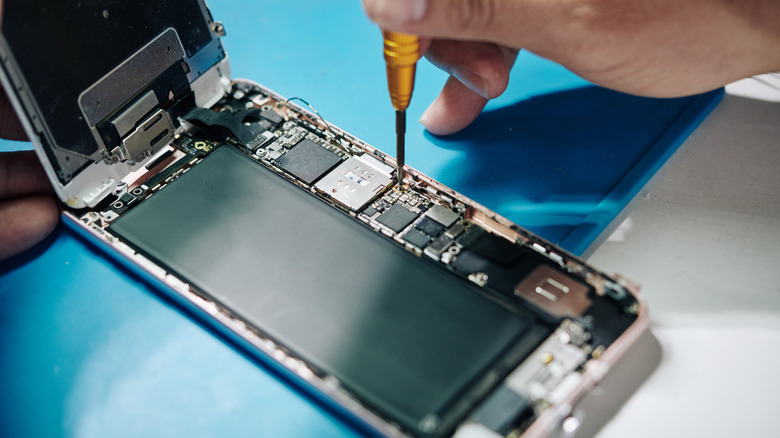
As much as we want them to be, smartphones and mobile devices aren't invincible. Even with tough glass and rugged metal frames, if you drop them just right, you can crack the corner of the screen or worse. Other accidents can take smartphones offline, too, like dropping them in fluids, exposing them to extreme temperatures, and, of course, sometimes random failures happen for internal parts.
While failures and broken screens are clear signs it's time for a new phone, you may not have the budget to upgrade yet. That's when you need to visit a repair center. The scary part about that is, broken or not, you're handing your device and everything on it to a stranger. Your address, your payment details, your banking information, sensitive photos, your messages — it's all there, ripe for the picking.
Android devices have a unique feature to help deal with this called — you guessed it — repair mode. It's a special mode that locks down your phone by setting up a sandboxed, individual fresh profile. That keeps your personal information hidden even if someone tries to go snooping. It also still allows the technicians or repair professionals to use the phone like normal as needed.
You need a device with Android 14 or newer, but getting it set up is easy. Samsung's version of repair mode is called maintenance mode, but it's the same idea. On most Android devices, go to Settings > System > Repair Mode and select "Enter Repair Mode." You'll be asked to enter your security PIN or password. On Samsung devices, go to Settings > Battery and Device Care > Maintenance Mode. If the screen is broken, you can connect an external display and/or mouse via USB-C and follow the same steps.
How to exit repair mode and get back to your data when you're ready
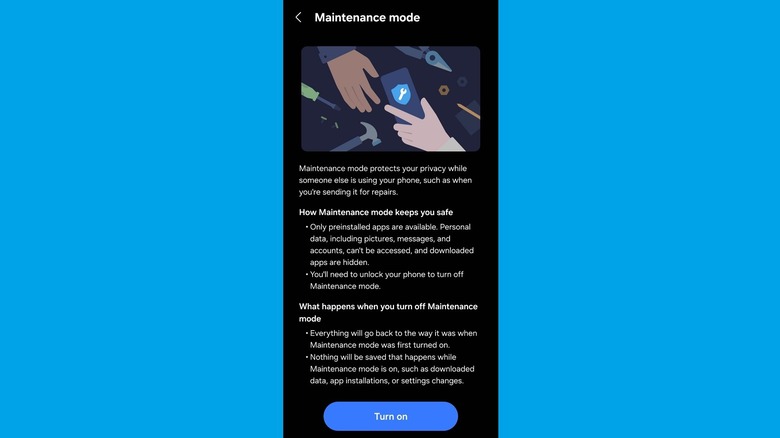
When the device is in repair or maintenance mode, not just anyone can exit or turn it off. You need to have the original user's PIN or password — in other words, the security credentials you use to unlock your phone.
Getting out of repair mode when the work is done and you have your phone back is pretty simple. All you have to do is pull down the notification tray on the device (with it powered on, obviously) and tap "Exit." If you don't see an option to exit repair mode in the notification tray, navigate to Settings > System > Repair Mode or Settings > Battery and Device Care > Maintenance Mode on Samsung devices. You should find an option to exit the mode there. Once that's selected, the phone will ask you to put in your security credentials, and if you enter them correctly, the phone will restart and swap back to normal with your data now accessible.
Repair mode support is one of many new security features Google has added to Android to improve overall device safety and privacy. If you have an Apple device or an iPhone, instead, you can do something similar through the Find My app. Either way, you should never send your phone in for repairs or hand it over to a technician without enabling these locked-down modes.