

4 Things You Never Knew Your PS5 Could Do
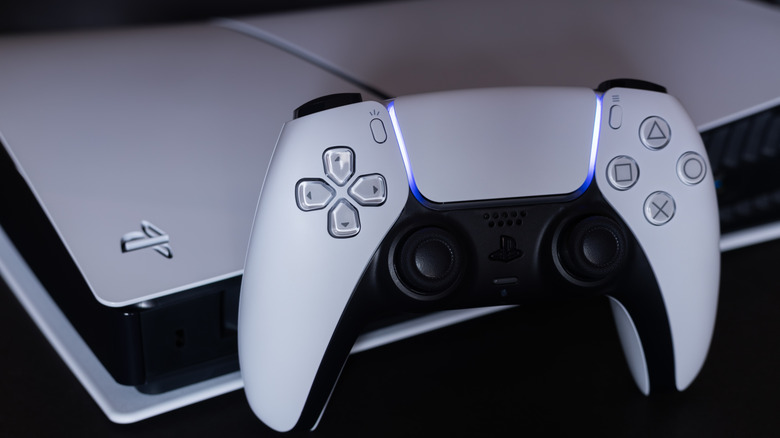
When the PS5 launched in November 2020, it came with impressive features like an ultra-fast SSD for near-instant load times, 4K gaming resolution, support for real-time ray tracing, PS4 backward compatibility, 3D audio, and a bevy of accessibility features. Perhaps most impressive was the DualSense controller, with its haptic feedback, adaptive triggers, and built-in microphone and speaker (no need for headphones to communicate with your online buddies). Everything new it introduced was built upon the foundation laid by the PS4, but it also did plenty to set itself apart as a next-gen console, including revamping the UI, complete with a Control Center.
Over the years, Sony has added other features to the PS5. Notable features include next-gen VR gaming with the PSVR 2, support for M.2 SSD, the ability to create Gamelists, and adding themes that make the UI look like that of a PS1, PS2, PS3, and PS4. There's no doubt Sony will add more features as time goes on or save some for the PS6. And even though we are closing in on the end of the PS5 generation, the console still packs a few surprises for those who want to tap into its potential.
Creating custom button mapping
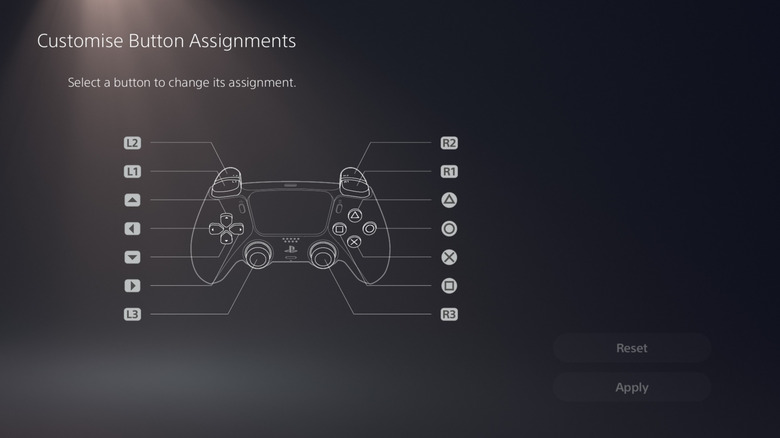
Sometimes, the default control scheme of a game won't do. For instance, some people find it easier if running or jumping is mapped to the right trigger when playing a 3D platformer, rather than a face button like X or square. It becomes more precise and smoother to perform those actions while simultaneously controlling the camera with the right analog stick. A game will either let you customize the controls completely, select an alternative scheme from predefined layouts, or not at all. If it's the third option or the second option still isn't right for you, the PS5 has you covered.
The PS5 allows you to remap your controller's inputs in settings by going to Settings > Accessibility > Controllers > Custom Button Assignments for DualSense Wireless Controller. Afterward, toggle on "Enable Custom Button Assignments" and then select "Customize Button Assignments." From there, you can create custom layouts that match your playstyle or level of comfort.
Keep in mind that since you're remapping the buttons on a system level, it will override the default controller layout of every game. However, the game itself won't know you did this. It will still act like you're using the default controls when displaying button prompts on the screen. So, even if you swapped X and R2, the game will still tell you to "Press X to Jump." It's up to you to translate it to the button you remapped it to.
Play PS5 from a PC and Mac

If you have a PC, Mac, smartphone, or tablet, you can connect it to your PS5 over the internet and play games via a feature called Remote Play. You just need to enable the feature by going to Settings > System > Remote Play > Enable Remote Play and toggling it on for your account. Afterward, connect your computer or mobile device to the console using the PS Remote Play app. Keep in mind that Remote play won't work if you're using your PS5 offline. You also need an internet connection with a minimum speed of 5Mbps.
With that setup, you can access your PS5 from pretty much anywhere. For instance, you can play while you're in another room, on the train to work, during your lunch break at the office, or while chilling at the beach. Just make sure that no matter where you are, there is a stable internet connection; otherwise, you'll experience disconnections and lag.
Speaking of lag, Remote Play isn't ideal for fast-paced or competitive games because of it. So if the game you're playing is slow-paced, like a cozy game like "Stardew Valley" or a turn-based RPG like "Metaphor: ReFantazio," the experience will be smoother. Just don't try to get the highest kills in an online "Call of Duty" match or achieve an SSS-rank score in "Devil May Cry 5."
Use the DualSense's motion control to aim
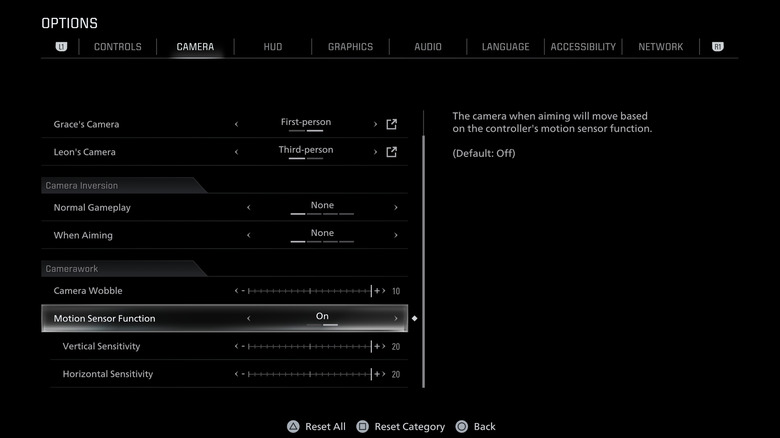
Some people find aiming with thumbsticks in shooter games imprecise and clunky since they have to deal with factors like acceleration and dead zones. A mouse, on the other hand, doesn't bother with any of that and can feel more intuitive because the tracking is 1:1 — the cursor moves with the speed of your hand. This can make certain actions (e.g., headshots at mid or long range) easier, even without aim assist.
Luckily, the DualSense has motion controls, also known as Gyro aiming, allowing you to use its sensors to move the reticle when you move or tilt the controller. It doesn't offer the exact same experience as a mouse, but it can get close. Since there are no system-level settings you can toggle to enable motion controls on the PS5, it's up to the developer to implement them.
Games like "The Last of Us: Part II" and "Resident Evil Requiem" have Gyro aiming, and work only when aiming down sights (holding the L2 button). Even then, it doesn't fully disable the right analog stick. This is a good implementation because you don't want to be swinging the controller around just to turn your character.
Amplify sounds when using headphones
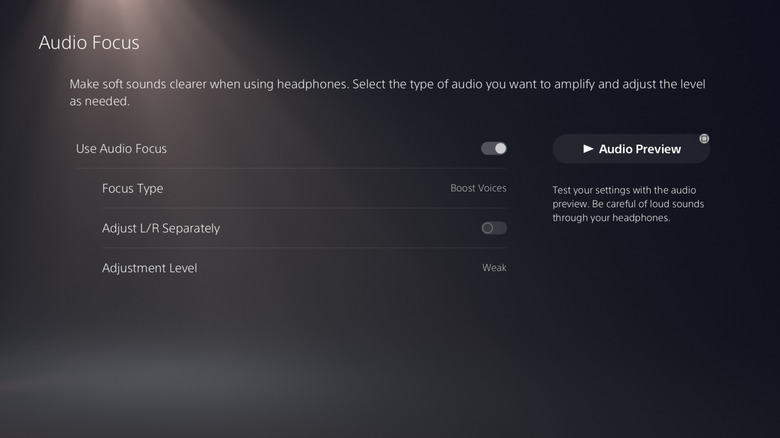
The PS5 also has a feature called Audio Focus that allows you to amplify certain in-game sounds while wearing headphones. For instance, it can give you a competitive edge in an online shooter by allowing you to boost the sound of footsteps so you can better identify when enemies are near or sneaking up on you. If you keep missing important bits of NPC dialog or can't hear your friends properly in a voice chat, you can enhance their voices so you hear them better.
You can find the Audio Focus option by going to Settings > Sound > Volume > Audio Focus. Toggle on "Use Audio Focus" and select a "Focus Mode," where there are four options to choose from. You have "Boost Low Pitch" for low-frequency sounds like car engines and explosions, "Boost Voices" for mid-frequency noises like dialog and chats, "Boost High Pitch" for high-frequency sounds like those footsteps and metallic sounds like clinks and clangs, and "Boost Quiet Sounds" for any low-volume sound, no matter the frequency.