

This Is The Best New Samsung Galaxy S26 Ultra Feature For Recording Videos
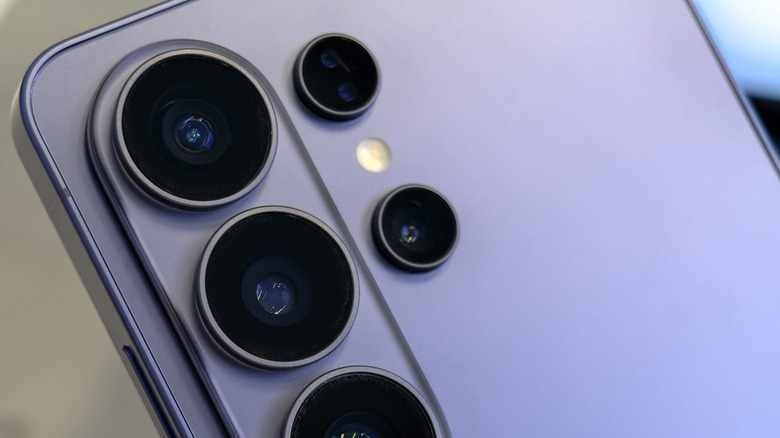
Smartphone cameras have come a long way in recent years, and there are plenty of things Android phone cameras can do that iPhones can't. However, Samsung is trying to push night mode photography and video recording with the Galaxy S26 Ultra. The latest flagship device from the Korean-based company includes a brand new Nightography Video feature, which is essentially Night Mode for Video. It's meant to make recording videos in low-light conditions much easier to do.
This is important because right now Samsung claims that only the S26 Ultra, S26+, and S26 have the new Nightography Video feature. However, most of the previous generations of Galaxy devices, such as the Galaxy S25 Ultra, have had excellent Night Modes for photography. So, what exactly makes the S26 so good at it?
The crux of the change ultimately comes down to the S26 lineup including an automatic night mode instead of requiring you to turn it on manually. This means the device and the AI that the camera utilizes will consider the amount of light coming into the camera lenses, and then adjust as it feels it needs to; it takes the guesswork out of whether or not you need to use night mode. Better yet, it prevails across the S26's video recordings, with the new Nightography mode reportedly performing even better than the S25 Ultra with its Auto Night Mode switching on in low-light conditions.
How to enable manual night mode controls on the S26
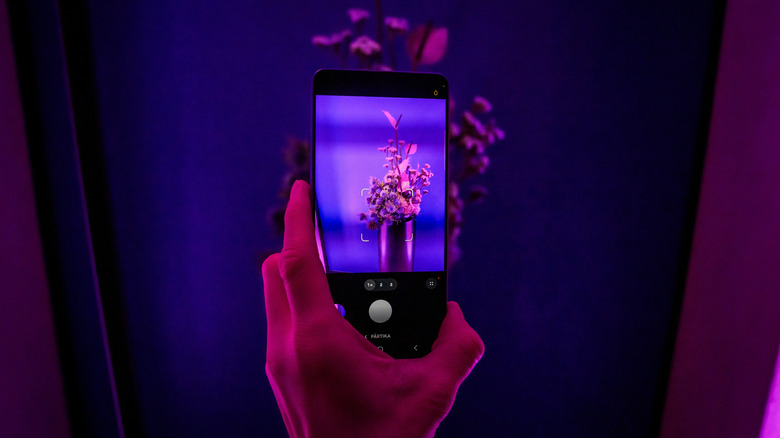
Auto Night Mode is one of the best new features on the S26 Ultra, especially for casual users who aren't well versed in photography modes and how to make the most of them. By allowing the phone to determine when it should lean on night mode features, the device does most of the heavy lifting. But, if you do prefer more control, you can switch manual controls back on.
Now, it's important to note that there's a caveat to the manual night mode controls available on the S26 lineup. Samsung does not actually appear to let you control how night mode works for videos, something it didn't offer on the S25 Ultra, either. The feature is on automatically, and it will adjust the brightness as you film your videos. When using Auto Night Mode for photos, you can tap the moon icon that appears in the bottom-right of the camera viewer to disable the setting. However, this doesn't give you manual controls beyond a few different options, which you can cycle through for how night mode exposure is handled.
To take advantage of manual controls, you must install the Good Lock app onto your Galaxy device. This is available on the Samsung Galaxy Store, and is actually made by Samsung, so it has become a trusted way to tweak your device. After opening Good Lock, find the Camera Assistant feature and tap on it. Now, scroll down until you see Additional modes, and tap the toggle next to Night. This will allow you to tap the mode option at the bottom of the camera viewer and select Night mode for more granular control.