

Apple Says This Popular MacBook Privacy Accessory Might Destroy Your Screen
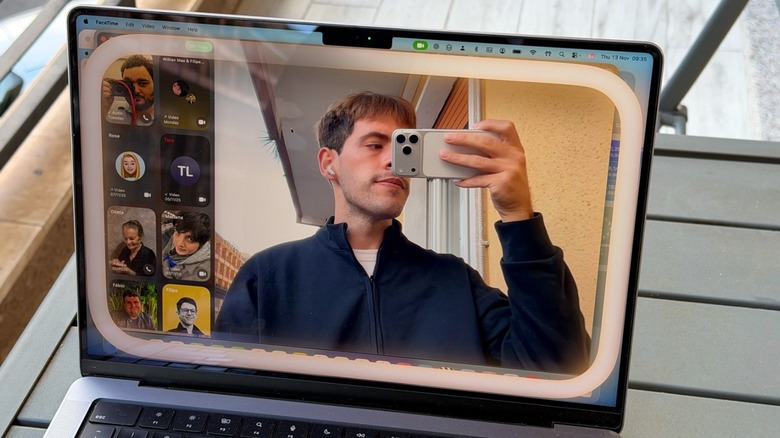
One of the most used third-party MacBook privacy accessories are camera covers. While Apple has high standards on privacy and its own security against hacker attacks, some prefer to physically block their webcams to prevent unauthorized access. That could be because they work in an environment where information can't leak or they want to avoid even the slightest chance of being recorded. However, if you do have a privacy cover on your MacBook's webcam, you should never close the display with it, as you could damage your screen.
In a support document, Apple is clear: "If you close your Mac laptop with a camera cover installed, you might damage your display because the clearance between the display and keyboard is designed to very tight tolerances." Not only that, but if you constantly have a physical accessory blocking your camera, you're also losing important display features, as recent MacBook Pro and MacBook Air models feature ambient light sensors to automatically adjust brightness and even the color of the display with True Tone. While these are not features available for the recent MacBook Neo, you still shouldn't cover your MacBook camera and then close the lid with the accessory there.
Apple products feature a camera and microphone indicators
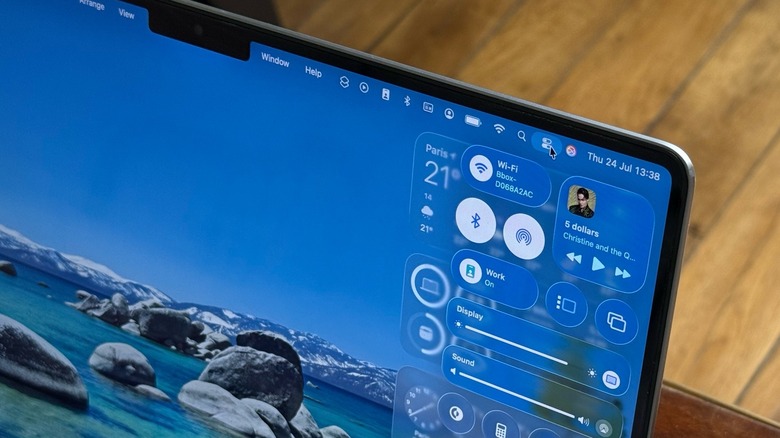
If you have an iPhone, iPad, or a Mac, Apple always tells you when an app is using your camera or microphone. For example, the Mac historically had a physical green light when the camera would be active. However, with macOS Monterey in late 2021, the company switched to a digital version of this light when the camera or microphone is in use. The camera light is still green, while the microphone light is orange. You can access a history of when an app used your camera or microphone in the Control Center on your Mac to see which apps recently accessed them.
The company took a similar approach for the iPhone. In iOS 14, Apple first offered those light indicators, and then with the release of iOS 15 in 2021, the company brought this Control Center history to the iPhone. Apple then started to more heavily market privacy as a core feature of its products, especially due to growing public concern about tracking, apps spying on you, and surveillance. It was also around this period that the company started to make it harder for apps to track users and create online profiles of them, while also giving users more control of what data they'd like to share with third-party apps.
If you truly need a webcam cover, keep this in mind
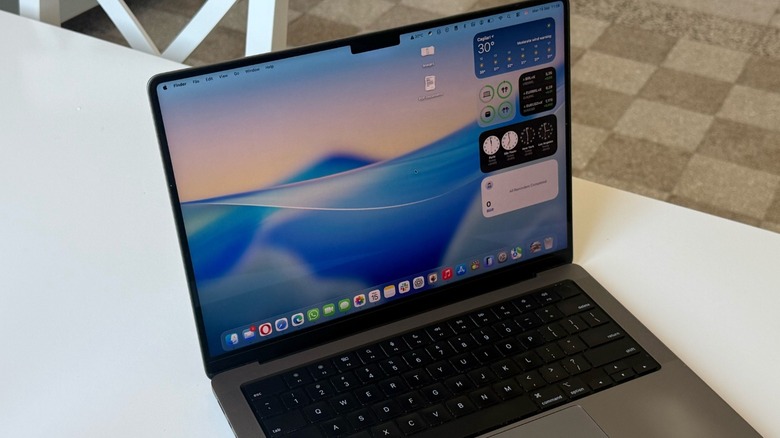
If your work environment genuinely requires you to cover the camera of your MacBook, Apple has a few tips and tricks to prevent such an accessory from destroying your Mac display. According to the company, any camera cover shouldn't be thicker than an average piece of printer paper, which means 0.1 mm. Apple also advises users not to use camera covers that leave adhesive residue. If your camera cover is thicker than a printer paper, Apple's advice is that you should remove it before closing your MacBook Air or MacBook Pro.
Apple reminds Mac users that they have complete control of the apps that can access their camera and microphone, as access is always turned off by default. Starting with macOS Mojave, users first need to give permission to an app before it can access the Mac's camera. By going into System Settings, users just need to head to Privacy & Security in the sidebar and click the Camera toggle. There, users can see the list of apps that asked to use the camera and manage whether they want to keep granting access or not.
In Safari, for example, you can go to the browser's settings, click Websites, and select Camera to see which websites have requested access to that feature, and then continue to grant or revoke camera access. That said, if you don't need this extra layer of security with a camera cover, you always have control over what apps and websites can use your camera and microphone.