

5 Ways To Use Your Camera's USB Port (Other Than Charging)
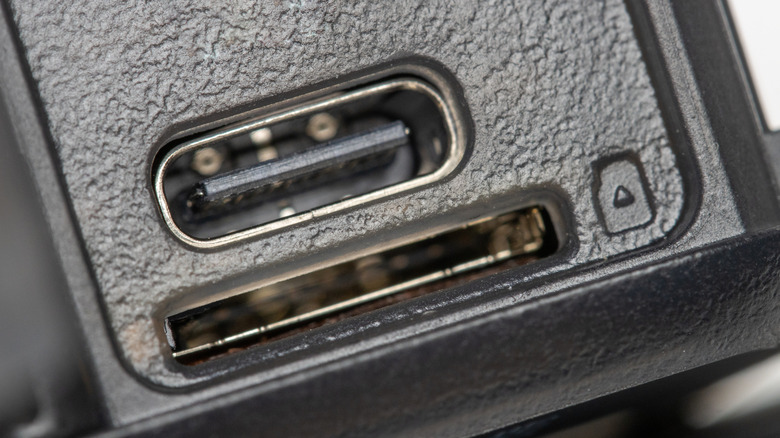
Many camera owners don't often interact with their camera's USB port other than when they're looking to charge it. The port is there when the battery dies, and for the most part, it just remains ignored. This is understandable, as photographers who own a camera for the fun factor are likely more interested in the picture-taking process than the technical workings of the camera. But looking at a camera's USB port as nothing more than a charging connection means leaving a huge amount of functionality on the table, and most of it requires nothing more than a USB cable and a little awareness.
Photographers who use smartphone cameras are likely familiar with their phone's USB-C port and all of the things it can do. Most modern digital cameras include a USB-C port as well, which provides the capacity for data transmission in addition to charging. The USB port can connect the camera to a computer, and a number of other devices as well. For photographers and videographers looking to explore new creative avenues or to simply get more out of their photography hardware, a camera's USB port can be extremely useful.
Transfer media directly
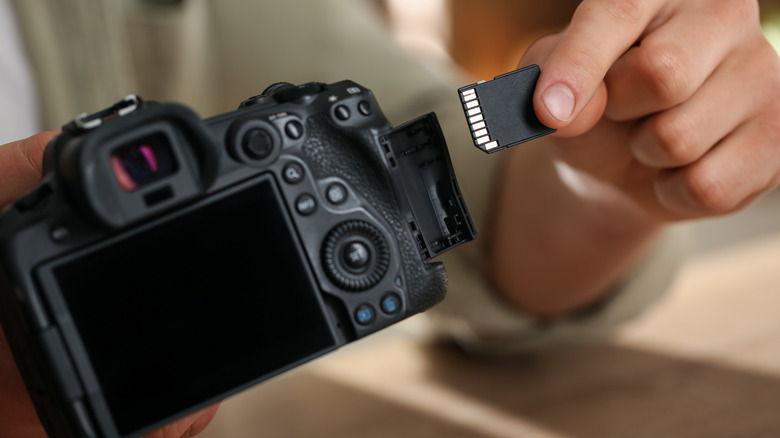
When it comes to getting photos and video clips off a camera and onto a computer, the default workflow is to remove the memory card from the camera and slot it into a card reader. For photographers who shoot frequently or who need to back up footage before a shoot finishes, a dedicated card reader connected directly to a computer offers fast transfer speeds and keeps the camera free to use while the transfer process takes place. Some laptops and desktop computers even have SD card slots built in, making this the go-to method for most people.
But for photographers who don't have a card reader on hand, or who simply want a more streamlined setup, connecting the camera directly to a computer via USB is a capable alternative. Most computers will recognize a connected camera immediately, making the memory card's contents accessible on your desktop. From here you can transfer files to local folders or to external hard drives and SSDs. Software like Adobe Lightroom and Apple Photos can even detect the connection and import photos right into the software without any additional steps. This workflow might also allow you to charge the camera while you wait for files to transfer, depending on the model.
Capture media to an external SSD
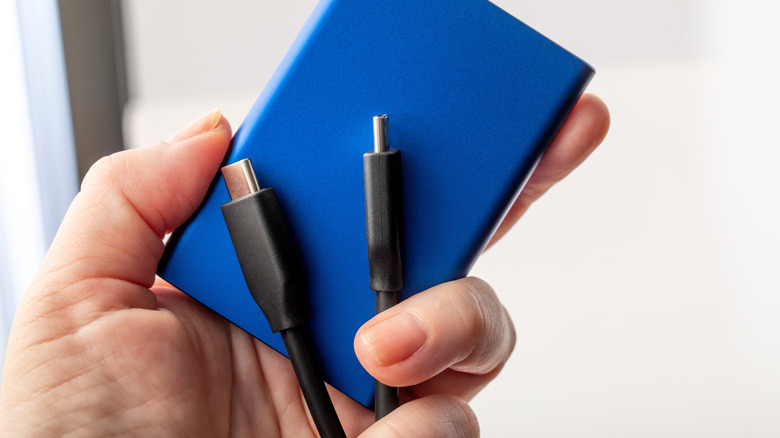
Memory cards have long been the standard storage medium for cameras, but because video quality has gotten so good over the years, it can present challenges to those who rely on memory cards when capturing media. High-resolution video formats generate massive file sizes that can fill a card quickly, and the kind of cards that can handle high-bitrate footage can be incredibly expensive. There are cameras on the market, however, that support connecting an external SSD over a USB-C connection. This allows you to bypass internal storage options and record media directly to a portable SSD. This would also eliminate the file transfer process, as you can record straight to the drive you want.
This isn't something all consumer cameras will support right now, as it's a feature that's mostly reserved for video specialists and the cameras catering to them. Panasonic has made several of its cameras capable of recording straight to an external device through a USB-C connection, most notably the Lumix GH6, Lumix GH7, and Lumix S5IIX. Blackmagic Design has included the feature in its Pocket Cinema Camera lineup as well. Some of these cameras are relatively affordable, but with phones also capable of recording to external devices over USB-C, it's likely just a matter of time before the feature trickles down to more affordable, consumer-grade cameras.
Connect to a gimbal
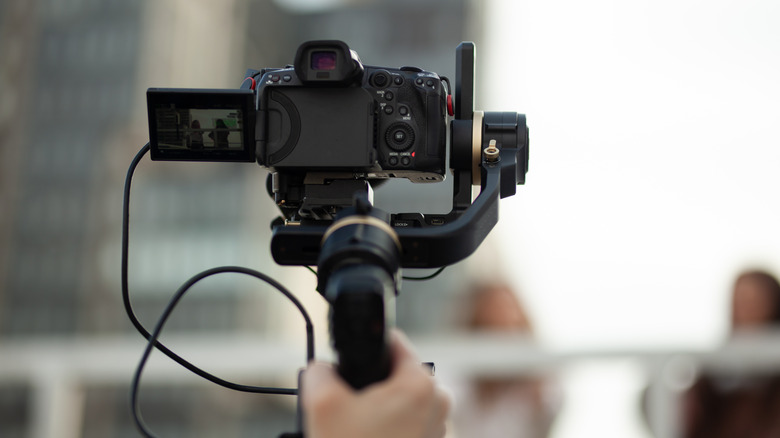
Gimbals are among the most sought-after accessories for videographers and independent filmmakers looking to capture smooth, stable footage without the shake that comes with handheld shooting. The relationship between a camera and its steadicam rig can be pretty mechanical, with the camera simply sitting on top and the gimbal keeping things stable independently. But modern gimbals are capable of doing more than stabilizing a shot when connected to a compatible camera via USB-C. That connection lets the two devices communicate and gives the gimbal — and thus, the camera operator — direct control over certain camera functions on select cameras.
This makes achieving certain shots much more convenient than trying to control the camera while it's mounted to a gimbal. Depending on the gimbal and camera combination, a USB-C connection can allow the gimbal's controls to start and stop recording, adjust zoom, and even control focus and aperture on the camera's attached lens. This kind of functionality is particularly useful when attempting shots that put the camera in awkward positions, but it also gives videographers better ergonomics to work with. While cameras sometimes have controls within oddly placed dials or even bury them in touchscreen menus, gimbals place joysticks and buttons in easily accessible layouts.
Create a webcam setup

One clever use of an old camera is to turn it into a webcam, but you can do the same thing with the USB port on a newer camera as well. Many popular mirrorless and DSLR cameras come with webcam support. This allows remote workers, streamers, and those who regularly connect with friends and family over video chat to leverage a camera that has specs far superior to those of a webcam. If your camera doesn't natively come with webcam support, using a capture card that plugs into the camera's HDMI port might come in handy.
Built-in webcams in laptops and monitors are limited by their size, and even external webcams have their limitations, particularly for those on a tight budget. The advantage a dedicated camera has over a standard webcam comes down to the quality of the hardware, both in the camera itself and the attached lens.
The large sensor, combined with the ability to swap lenses and adjust depth of field, produces video quality that webcams simply aren't meant to achieve. It may seem like overkill to utilize your digital camera for brief meetings or quick interactions with family. But for those who value video quality, it doesn't take much more than a tripod and a proper USB-C cable to get set up.
Capture media with a computer
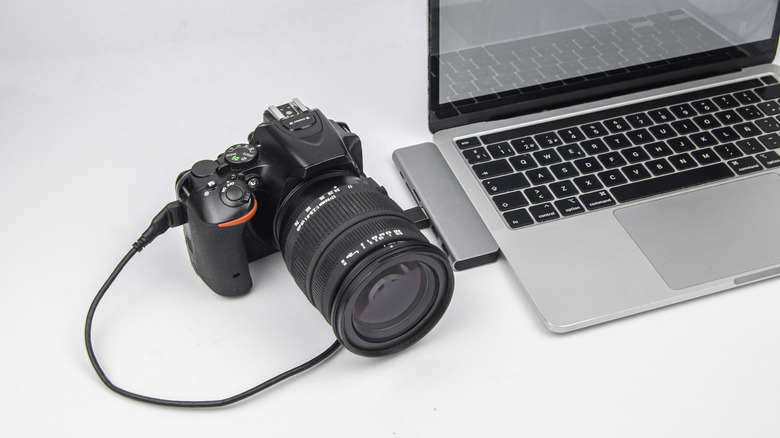
Most cameras are designed to save photos and record video footage to a memory card, but a camera's USB port opens up another option entirely. Tethered capturing enables a camera to send its output directly to a computer over USB, where software can capture images and record footage. This setup can record directly to the computer's hard drive, an external hard drive, or an external SSD, and might even eliminate the capacity limitations of a memory card. An added benefit of this setup is that you can view what your camera sees on a much larger screen, such as that of your laptop or an even larger desktop monitor.
A common application of this setup is for live streaming, but photographers can tether their camera to a laptop in order to review images on a larger screen within moments of firing the shutter button. Many computers will also recognize the camera as a video input source, allowing you to capture what the camera sees with the computer itself. This opens up a lot of possibilities for anyone who records themselves or interview subjects for social media and other outlets.