

5 Things You Didn't Know Your Apple Watch's Digital Crown Can Do
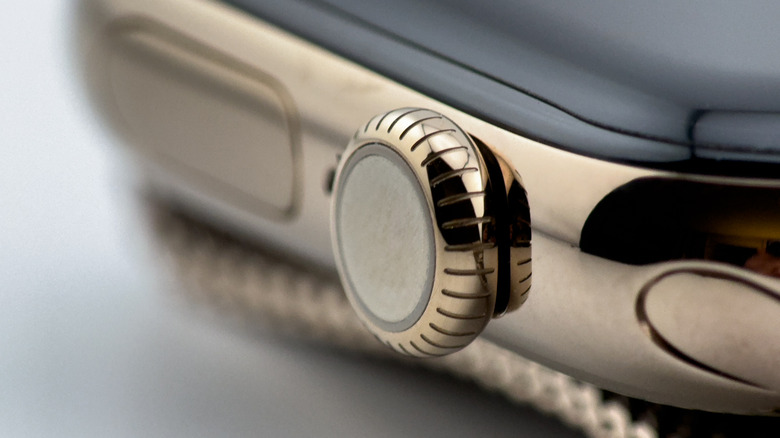
The Digital Crown, sitting on the side of the Apple Watch next to the Side button, has been a distinctive design element of Apple's wearable device since the first-generation model. Meant to mimic the dial seen on traditional wristwatches, the Digital Crown isn't just an ornament on the Apple Watch. It's also a functional button that can perform a variety of tasks depending on how you press it or rotate it. The ability to scroll items by rotating the dial in either direction allows the user to quickly navigate to specific items or sections on the Apple Watch, complementing the limited touchscreen display area. While users can perform the same tasks by using touch input, the Digital Crown lets them get there faster. That's assuming users are aware of all the things the Digital Crown can do, as some features may be less obvious or hidden.
Some of the Digital Crown features can be discovered quickly. Press and hold the button, and the Crown launches Siri, assuming the voice assistant is configured on the iPhone paired with the Apple Watch. Rotating the dial in the App View lets users scroll through the apps installed on the watch. The same gesture lets them zoom in and out in the Photos app. The Digital Crown is also the button you press and hold when disabling the Apple Watch Water Lock setting after swimming sessions. Taking a screenshot on the watch by simultaneously pressing the Digital Crown and Side buttons may also be a known action among users.
But the following Digital Crown actions can give you even faster access and better control over the wearable, helping you manage various key aspects of the Apple Watch, watch faces, and apps.
Wake the Apple Watch with the Digital Crown
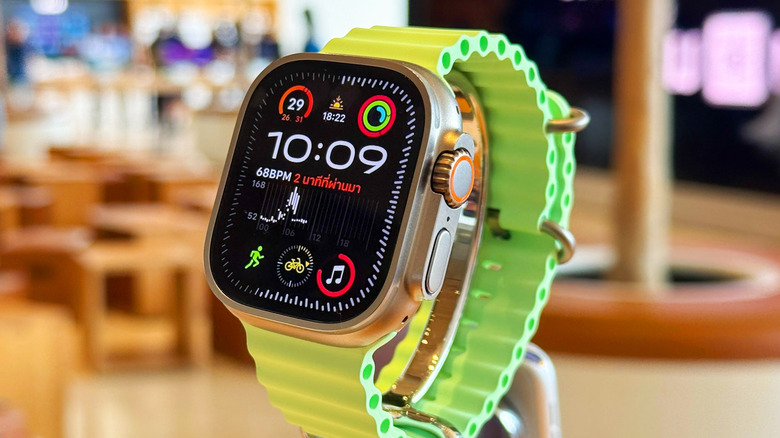
The Apple Watch screen is either turned off or dimmed (when the Always On display is enabled) when you're not using the display. You can wake the wearable by tapping on the screen or raising your wrist. But the Digital Crown can also be used to wake the Apple Watch, and it may be even more convenient using the dial instead of touching the screen.
A single click on the Crown will turn on the display and show you the current watch face. But there's an even better way to use the Digital Crown to get where you need to be. Say a notification comes in, or you want to use a specific app on the Apple Watch. You can start rotating the dial immediately, regardless of whether the screen is on. Keep rotating upward to access the Smart Stack at the bottom of the screen. Rotate downward to see all the notifications that appeared since your last interaction with the wearable or the iPhone.
Navigate apps and widgets quicker
The Digital Crown is also a powerful tool for quickly navigating apps on the Apple Watch. Scrolling up on the watch face opens the Smart Stack, which contains pinned widgets and ones that may be relevant to your current context. It may also show Live Activities from specific apps. A music player will appear first if you're playing music on the iPhone. A navigation app will be in the foreground if you're using one on the handset. The Digital Crown lets you scroll between them and find the one you need.
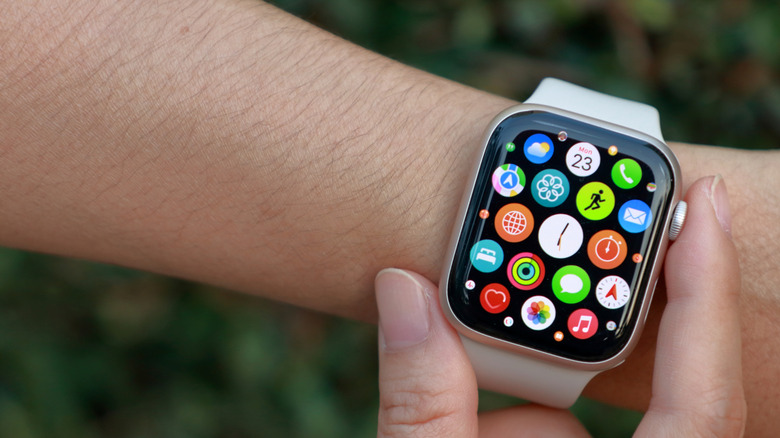
Clicking the button once returns you to the watch face (home screen). Pressing it a second time will open up the App View, which gives you access to all the apps installed on the Apple Watch. You can use the Digital Crown to scroll through the list to find the app you need. Double-clicking on the Digital Crown will show a list of open apps on the Apple Watch, allowing you to quickly jump to a specific app you may have used recently. Once the list appears on the screen, you can use the Digital Crown to scroll through it.
Quickly adjust the music volume
Turning the Digital Crown up or down can help you change the volume when playing music via the Apple Music app. It may be faster than reaching for your handset, which may not be close by, or using volume controls on earphones or speakers. This is a hidden feature on the Apple Watch that's not immediately clear from the Music widget interface.
To control music volume, you need to open the Music widget from the Smart Stack. The widget will display the current song, the name of the artist, and the album artwork. It will also offer buttons for stopping playback, jumping to the next or previous track, and managing content in the app, like finding a different playlist. But if you rotate the Digital Crown up or down, a volume indicator will appear on the screen, blurring the background and suggesting that you can change the volume. Rotate up to increase the volume or down to decrease it. The volume UI will disappear from view if you don't use it.
Unlock the triple-click gesture
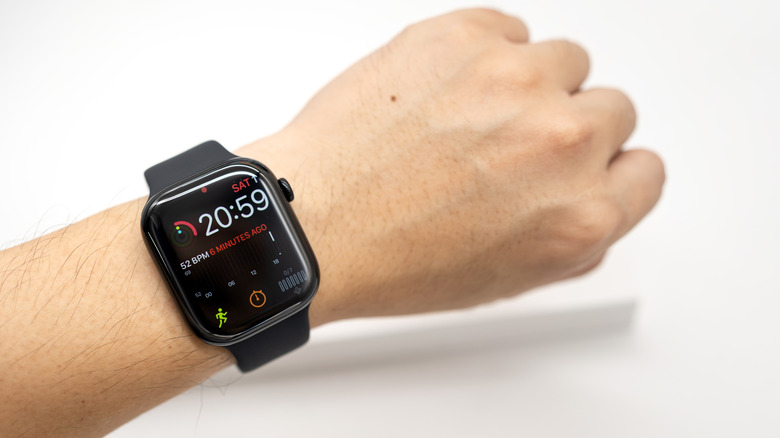
In addition to single and double clicks, the dial supports a triple-click action that can be paired with an Accessibility gesture. This feature can come in handy to enable particular settings on the wearable or use Accessibility features that some people may need.
You can pair the triple-click action with the following actions: AssistiveTouch, Control Nearby Devices, Left or Right Balance, Reduce Motion, Reduce Transparency, Touch Accommodations, VoiceOver, Zoom, and Live Speech. AssistiveTouch can be useful to users who have difficulty touching the display or using the buttons. The VoiceOver feature will read content on the screen, while Zoom lets users zoom in and out on the Watch. Users who want to temporarily limit motion or transparency effects can use the triple-click Digital Crown gesture for those actions. The gesture can also be used to control nearby iPhones or iPads, or to adjust the audio balance.
To set up the triple-click gesture, go to the Settings app on the Apple Watch, tap the Accessibility menu, and select the shortcut you want to be associated with the Digital Crown gesture from the Accessibility Shortcuts menu. You can change and disable shortcuts anytime, and you can select more than one action.
Use the Digital Crown to interact with watch faces
The Digital Crown can also be used in some watch faces to control what happens on the screen by turning the dial. For example, the Astronomy, Lunar, and Solar Graph phases let you move forward and backward in time to see the changes in celestial movements. The Kaleidoscope and Playtime faces let you turn the Crown to change elements of the watch face, like the pattern or background. The Metropolitan face lets you tap the screen and then rotate the Digital Crown to change the typography.
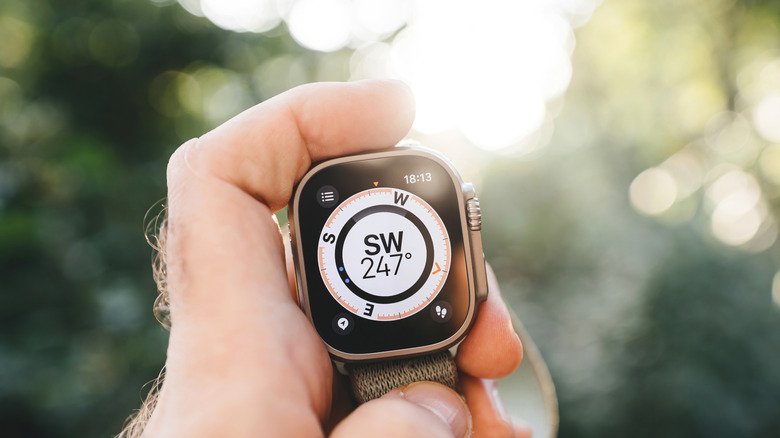
There are other places where you can use the Digital Crown in a similar way to watch faces. Load the Compass app on the Apple Watch to navigate your surroundings, and a compass will take over your screen. The Compass app is useful in outdoor settings, like hiking, but it can also come in handy for navigating a chaotic new city. You can use the Digital Crown to move through compass views to see your heading and the waypoints on your map. Apple Watch owners using the World Clock complication can use the dial to see a different city's local time by turning it up and down.